

Appearance
Single Sign-On (SSO)
EEforce supports sign-in through an OpenID Connect (OIDC) identity provider, so people can use their company account — with whatever multi-factor authentication your company already enforces — instead of an EEforce password. It works for the desktop app and the EEforce 365 web portal.
Anything that speaks OIDC works: Entra ID (Azure AD), Keycloak, Okta, Auth0 and others.
Licensed feature
SSO is a licensed feature. If your licence doesn't include it, the settings page shows a licence notice — contact your reseller to add it.
How it works
- You register EEforce as an application at your identity provider and give its details to EEforce: the provider's Authority / Issuer URL, a Client ID and a Client Secret.
- From the issuer URL EEforce discovers the rest by itself — where to send users to sign in, and where to fetch the provider's signing keys (the provider's OIDC discovery document). The Authorization URL and Token URL fields are filled in from that discovery; you only override them if a provider misbehaves.
- When someone clicks Sign in with SSO, EEforce opens the provider's sign-in page and uses the Authorization Code flow with PKCE. The token that comes back is validated against the provider's published keys before the user is let in.
- The first time a user signs in this way, EEforce creates their account from the name and e-mail claims in the token. No password is stored.
Before you start
You will need:
- An OIDC identity provider, reachable from both the EEforce server and your users' machines.
- An application registered in it, with:
- a Client ID and Client Secret;
- both redirect URIs (exact strings, no wildcards):
- the desktop app's redirect,
http://localhost:8001— the value shown in EEforce's Redirect URL field, keep the two in sync; - the web portal's callback,
https://<SERVER-ADDRESS>/365/sso/callback;
- the desktop app's redirect,
- the Authorization Code grant enabled;
- the scopes
openid,profileandemail.
Configuring SSO
SSO is configured in the web admin (your server address followed by /admin). Go to Settings → SSO Settings:
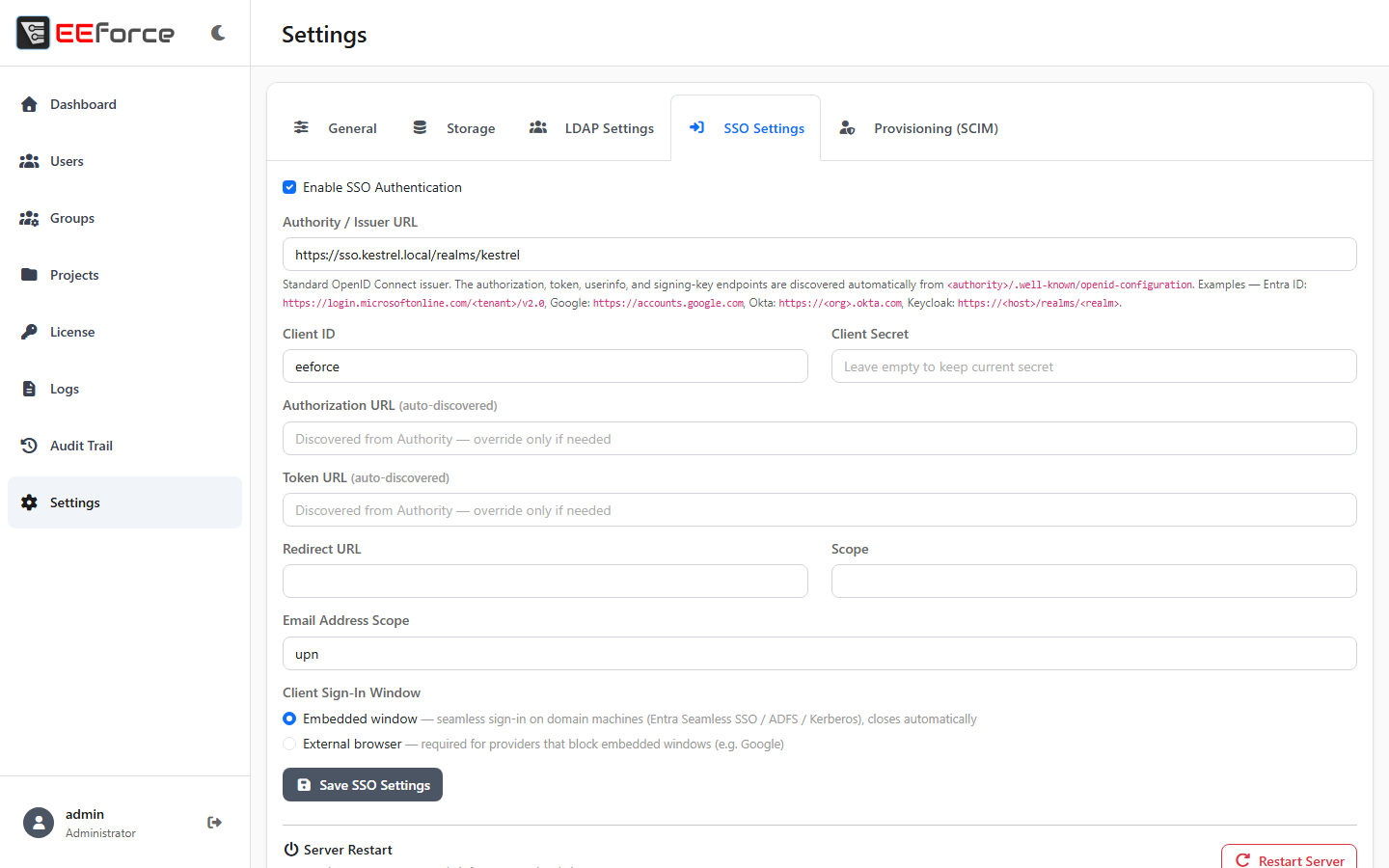
| Setting | Description | Example |
|---|---|---|
| Enable SSO Authentication | Master switch | On/Off |
| Authority / Issuer URL | The provider's issuer URL — this is what everything is discovered from | https://sso.kestrel.local/realms/kestrel |
| Client ID | The application's client ID at the provider | eeforce |
| Client Secret | Its client secret | |
| Authorization URL / Token URL | Filled in automatically from discovery — override only if needed | |
| Redirect URL | The desktop app's redirect URI; must match the provider exactly | http://localhost:8001 |
| Scope | The scopes to request | openid profile email |
| Email Address Scope | The token claim EEforce uses as the user's e-mail/identifier | upn (the default), email, preferred_username |
| Client Sign-In Window | Where the provider's page opens: Embedded window (inside EEforce) or External browser | Embedded window |
Click Save SSO Settings, then test with a real sign-in.
Registering EEforce at your identity provider
Keycloak
- In the Keycloak admin console, select your realm and create a client.
- Client ID
eeforce, protocolopenid-connect, access typeconfidential. - Valid redirect URIs:
http://localhost:8001/*andhttps://<SERVER-ADDRESS>/365/sso/callback. - Copy the client secret from the Credentials tab. The issuer URL is
https://<keycloak-host>/realms/<realm>.
Entra ID (Azure AD)
- Register an application named EEforce.
- Add both redirect URIs (platform type Mobile and desktop applications for the localhost one, Web for the portal callback).
- Create a client secret under Certificates & secrets and note the application (client) ID.
- Use
https://login.microsoftonline.com/<tenant-id>/v2.0as the issuer.
Okta
- Create an OIDC application (Web and/or Native), grant type Authorization Code.
- Set both sign-in redirect URIs.
- Copy the client ID and secret; the issuer is
https://<company>.okta.com.
What your users see
- On the desktop app's sign-in screen, a Sign in with SSO button appears once SSO is enabled. Ticking Remember my user name during an SSO sign-in turns on automatic sign-in at the next start — undo it with Remove Automatic Login. Full details: Signing In.
- EEforce 365 shows the same button on its sign-in page.
- SSO users cannot change an EEforce password (there isn't one) and cannot be given one; their group memberships and project roles work exactly like everyone else's.
- Want accounts to exist before the first sign-in? Use SCIM provisioning and your provider will keep them up to date.
Troubleshooting
| Issue | Possible cause | Resolution |
|---|---|---|
| No SSO button on the sign-in screen | SSO not enabled, or not saved | Check Enable SSO Authentication and save |
| "invalid_client" from the provider | Wrong client ID or secret | Copy both again from the provider's application page |
| Redirect error or "invalid redirect URI" | The redirect URI doesn't match the provider exactly | Register both URIs; check for a missing trailing slash or a http/https difference |
| Discovery fails or times out | Wrong Authority / Issuer URL, or the server can't reach the provider | Use the issuer URL itself (not the authorize endpoint) and verify the server's network access to it |
| User's e-mail or ID looks wrong | Wrong claim mapped | Adjust Email Address Scope (upn, email, preferred_username) |
| Sign-in works but no account is created | The token has no usable subject/name claims | Check the provider returns the standard OIDC claims for this client |