

Appearance
Working with Projects
A project holds related work — usually one product, customer or team. It contains one or more designs and decides who can see and change them. Projects are the starting point for everything you do in EEforce.
Finding a project
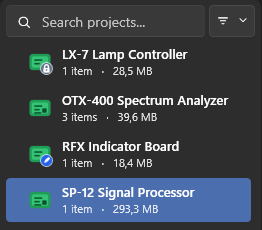
The Projects list on the left shows every project you have access to, with the number of items and the total size of each. To narrow a long list:
- Type in the Search projects box to filter by name.
- Use the filter button beside it:
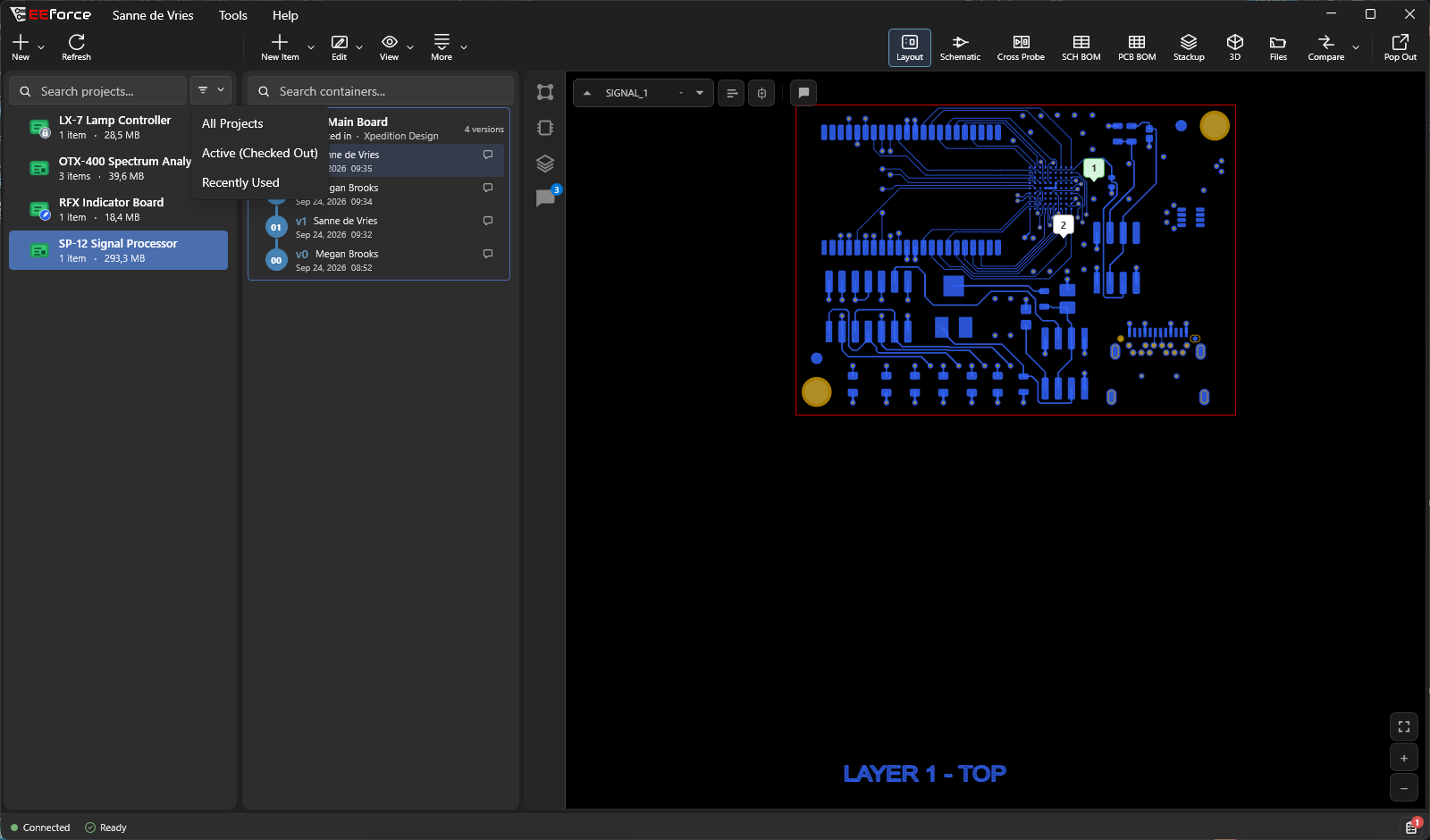
| Filter | Shows |
|---|---|
| All Projects | Every project you can access. |
| Active (Checked Out) | Projects where a design is checked out at the moment. |
| Recently Used | Projects you already have in the working folder on this PC. |
Your choice is remembered between sessions.
What the icons mean
The icon in front of each project tells you its state at a glance:
| Icon | Meaning |
|---|---|
| Plain | Available. You can open its designs and, if your role allows, check them out. |
| Pencil | You have a design checked out in this project. |
| Person | Someone else has a design checked out here. |
| Lock | Read-only for you: you can look, download and comment, but not change anything. |
| Folder | A folder inside a project (see below). |
Creating a project
You need to be a member of the Project Creators or Project Administrators group.
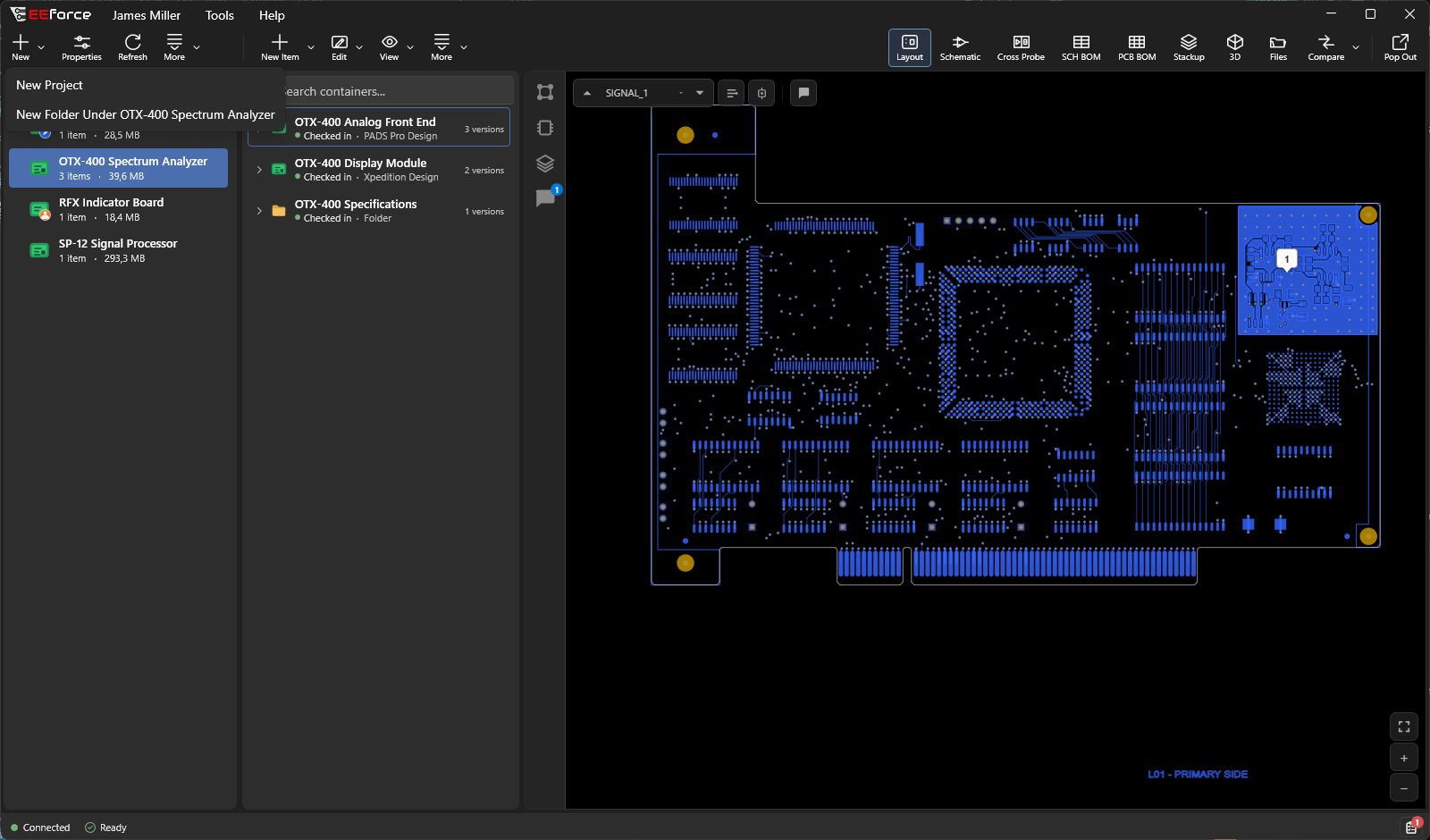
Click the Create project or folder button above the project list and choose New Project.
Give the project a name.
Click Add Users or Add Groups to give people access, and pick a role for each one (see Access & Roles).
Save.
The new project appears in your list.
Naming
Project names follow the Windows folder rules: they can't contain \ / : * ? " < > | and can't end with a space or a dot.
Organising a project with folders
A project can have folders, so a project with many designs stays tidy. Folders appear under their project in the project list; select one to see the designs inside it.
You need the Manager role on the project.
- Create a folder: right-click the project (or a folder) and choose Create Folder, or use Create project or folder → New Folder Under project. The new folder appears in the list with its name ready to type: type the name and press Enter. Esc or the ✕ beside the name cancels.
- Rename or delete a folder: right-click it and choose Rename Folder or Delete Folder.
- Move a design into a folder: drag it from the design list onto the folder, or right-click the design and choose Move to Folder.
- Move a folder: drag it onto another folder, or onto the project itself to move it back to the top.
Folders only organise the list. A design keeps its history and its access rules wherever you put it, and it can't be dragged into a different project (use Copy / Move… for that, see Copying or moving a design).
The project menu
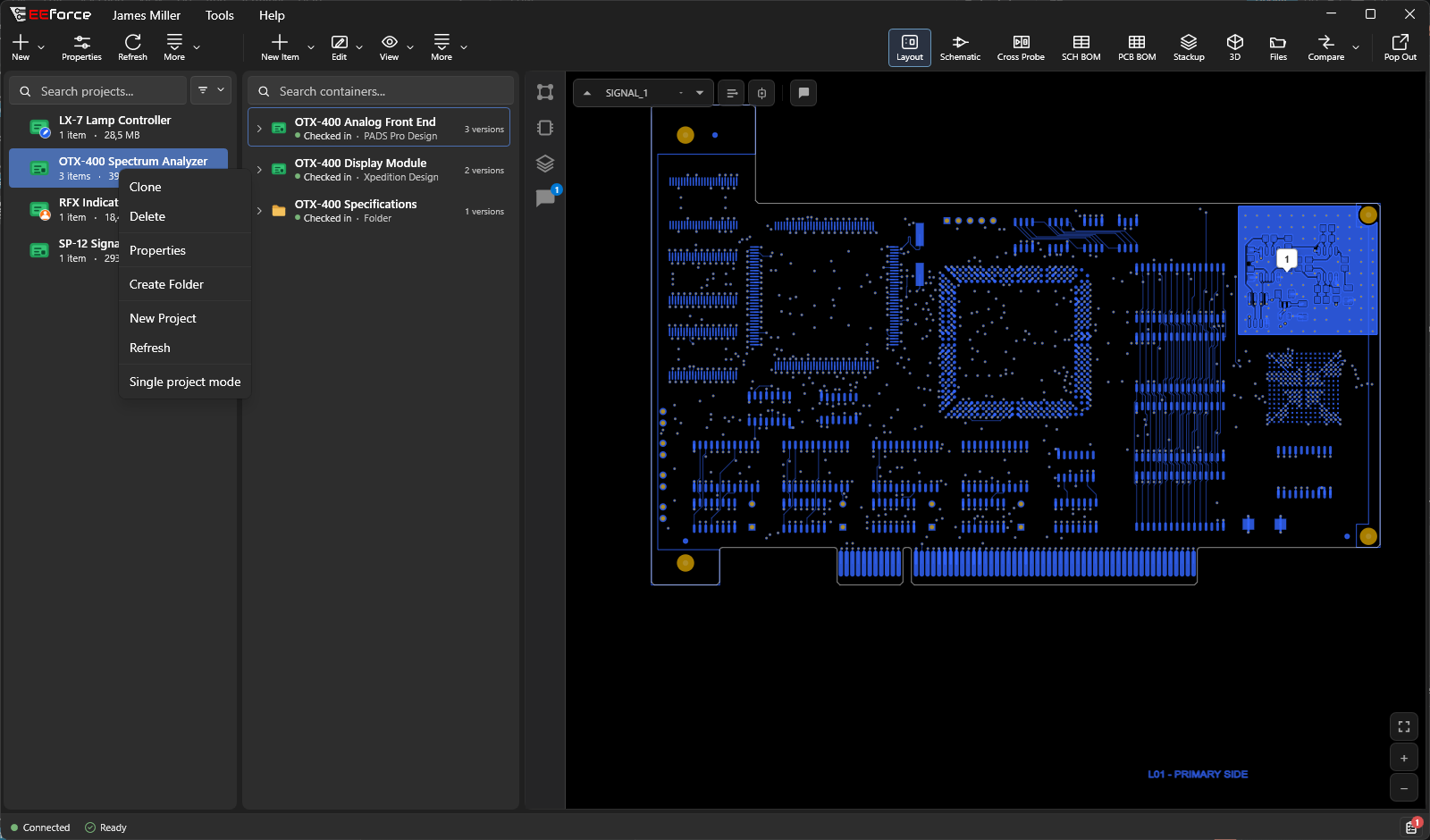
Right-click a project to see what you can do with it:
| Item | What it does |
|---|---|
| Clone | Copies the whole project under a new name (see below). |
| Delete | Deletes the project (see below). |
| Properties | Renames the project or changes who has access. |
| Create Folder | Adds a folder to the project. |
| New Project | Creates a new project. |
| Refresh | Reloads the project from the server. |
| Single project mode | Folds the project list away so you can focus on this project. See A Tour of the Window. |
The same actions are on the toolbar above the list: Properties, refresh, and More.
Renaming a project or changing who has access
You need the Manager role on the project.
- Select the project and click Properties (or right-click it → Properties).
- Change the name, or add and remove people and groups and set their roles.
- Save.
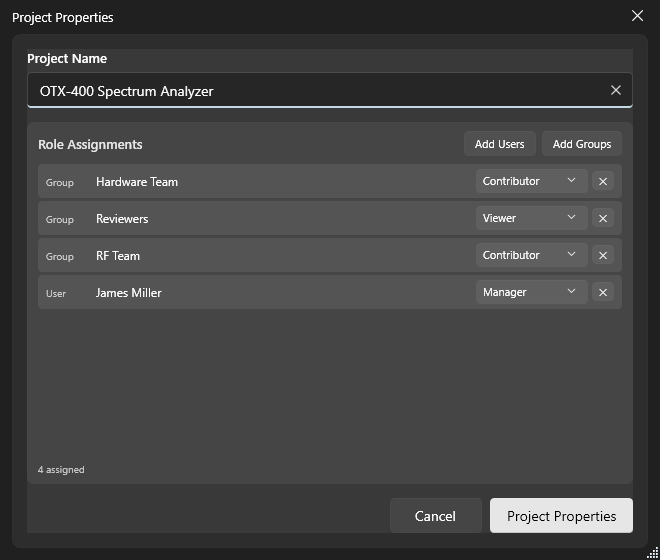
Roles can be changed at any time — see Access & Roles for how they work.
Copying a project
You need the Manager role on the project, or membership of Project Creators. No design can be checked out.
Right-click the project and choose Clone, then enter a name for the copy. The copy contains every design with its full version history, and the same people and groups have access to it. You become a Manager of the copy.
Deleting a project
You need the Manager role, and no design can be checked out.
WARNING
Deleting a project removes all of its designs and their history. The data goes to the server's trash, so an administrator can still restore it — see Storage Assistant — but do this with care.
Right-click the project → Delete, then confirm.
What's next
- Designs & Versions — the boards inside a project
- Previewing Designs — look inside without a design tool