Appearance
Previewing Designs
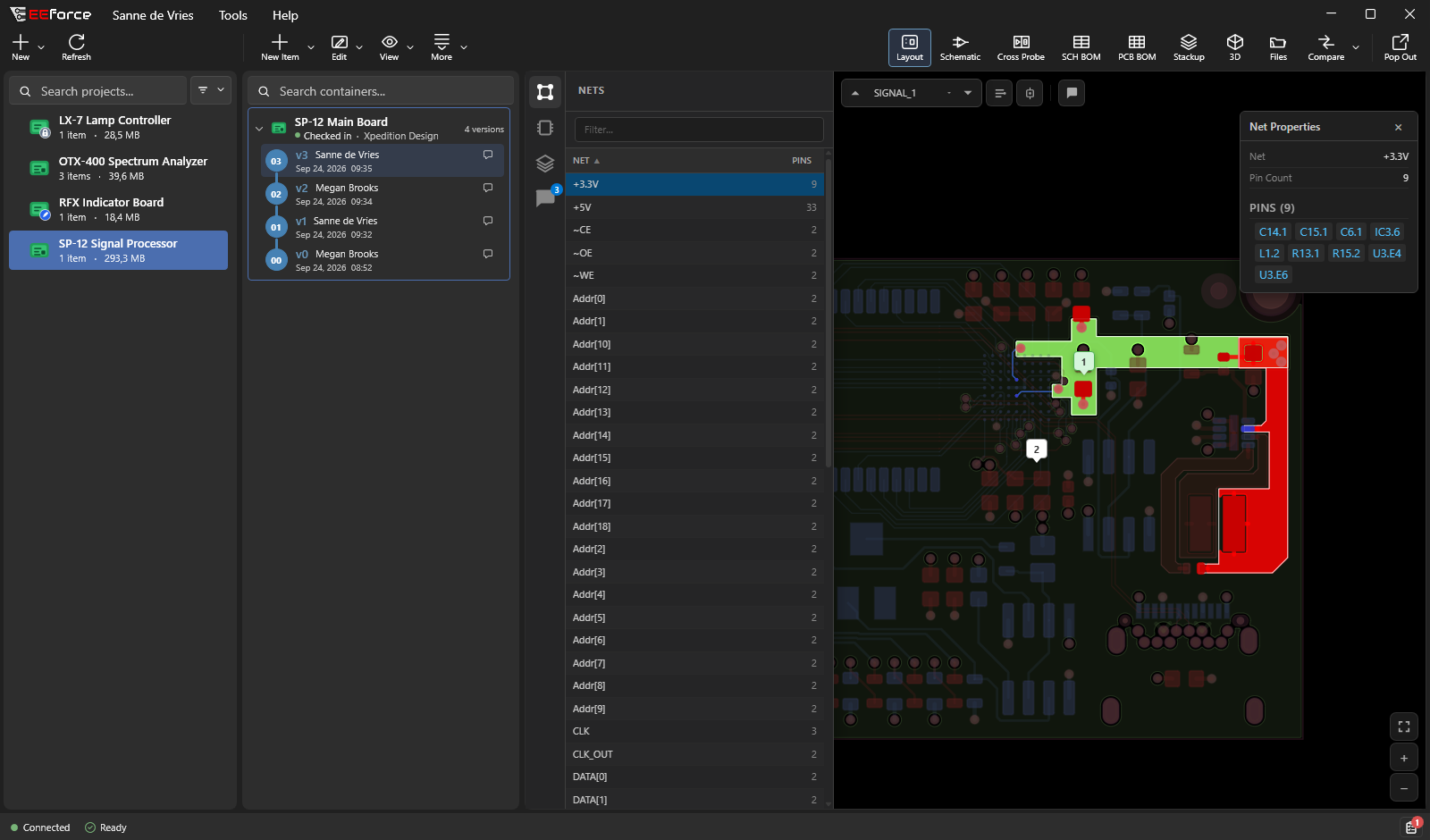
Inspect a board with high-fidelity vector previews of its layout and schematic, without opening Xpedition or PADS Professional. Select a design and a saved version, then choose a view: layout, schematic, cross-probe, 3D, parts list, or the board's specification.
Nothing is checked out and nothing is changed. Previewing is completely safe, and anyone with access to a project can do it.
In a browser?
You can also review and compare designs with EEforce 365 — the same viewer, no installation, no licence seat. See Reviewing in the Browser.
How to preview a design
- Choose a project on the left.
- Choose a design in the middle. (You can also click it again to open its history and choose a specific version — you'll preview exactly that version.)
- Click one of the preview buttons in the top-right corner.
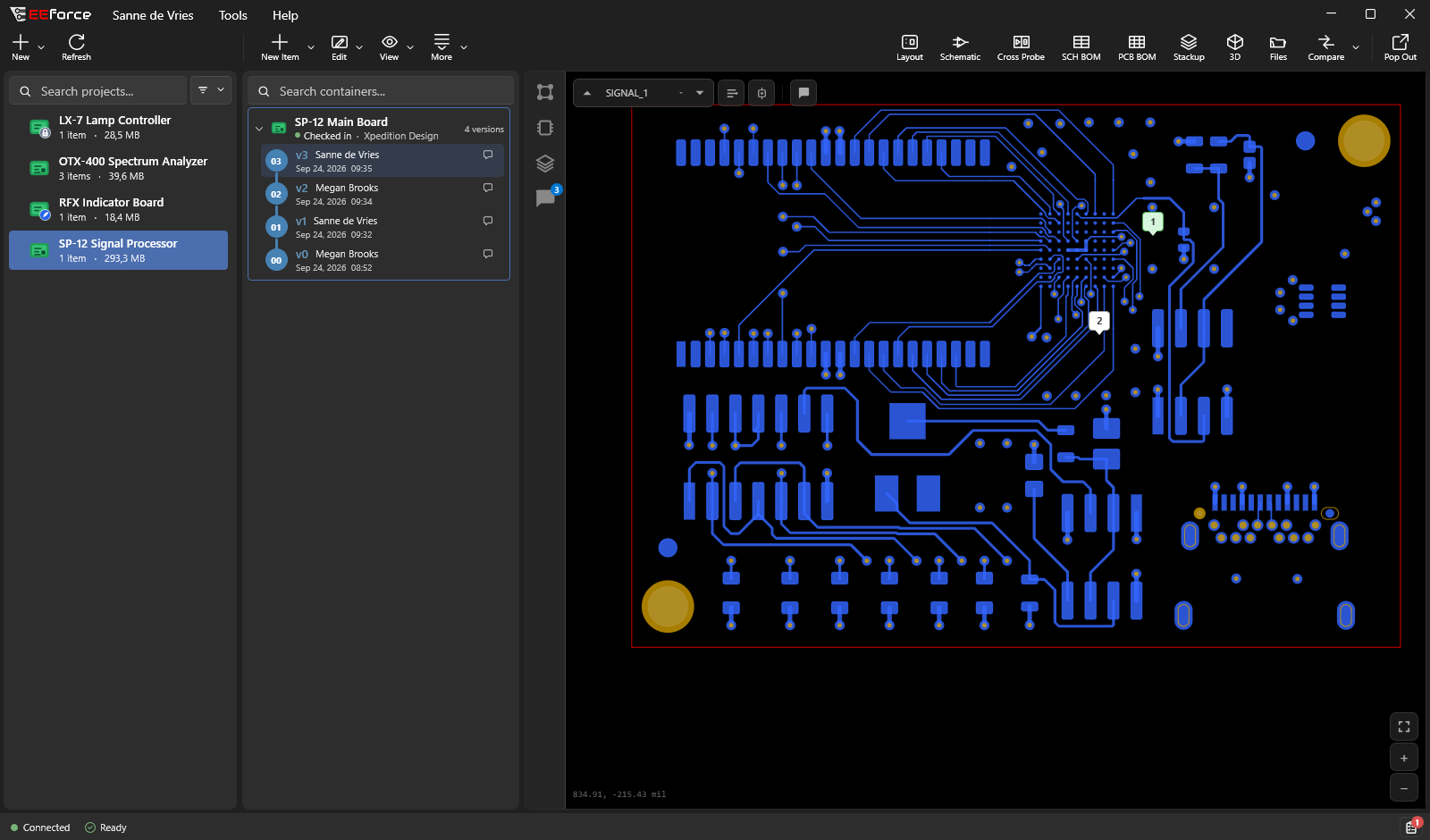
The preview buttons light up only when that information is available for the design you picked. If a button is greyed out, that view simply wasn't included when the design was checked in.
The views
Layout
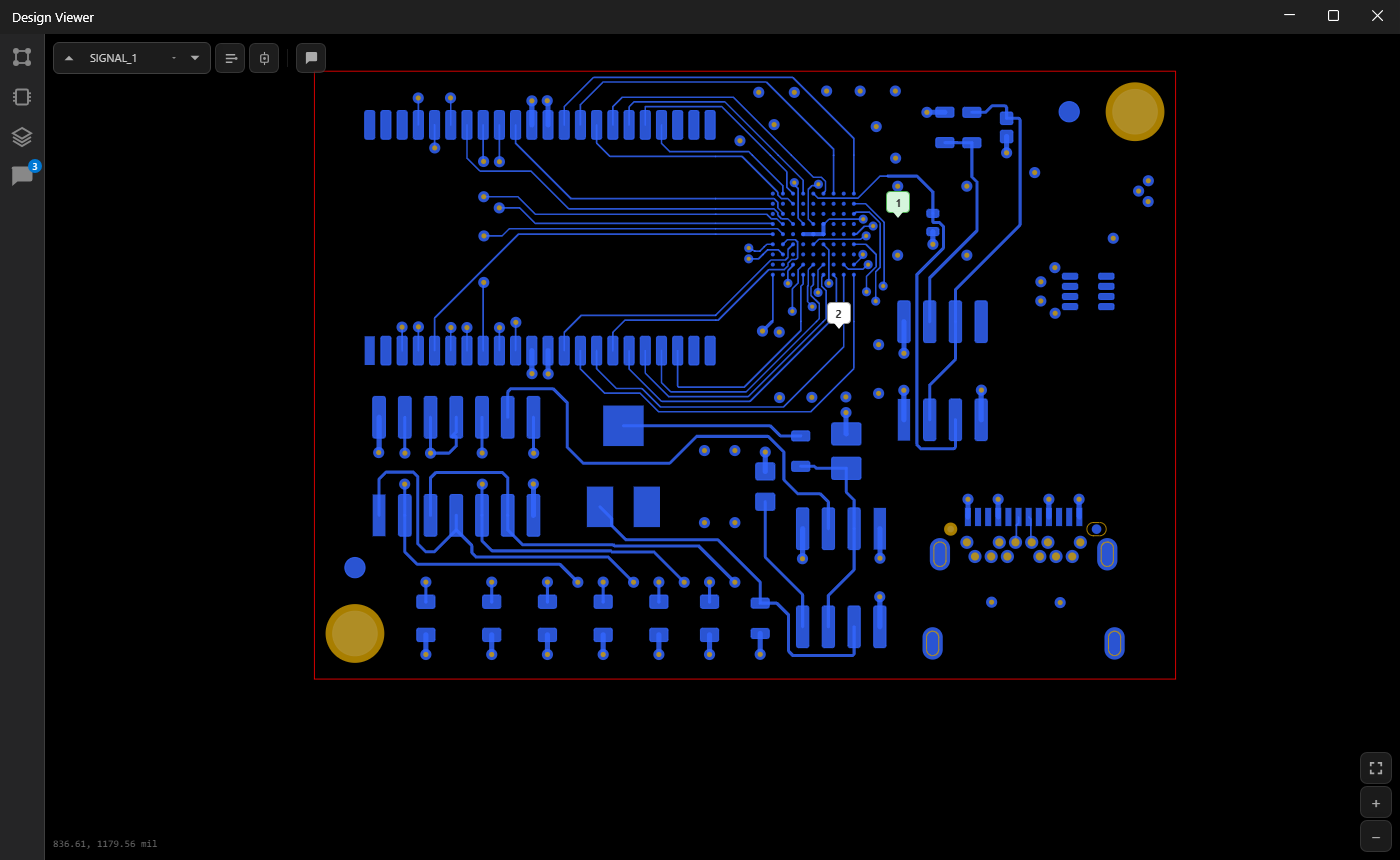
A vector view of the physical board: copper, components, pads, and the board outline. Zoom in to inspect fine details while keeping lines and shapes crisp. Use the layer selector at the top to switch between copper layers (the ↑ and ↓ keys do the same), and the buttons on the bottom-right to fit the board to the window (Fit All) and zoom. Scroll to zoom; drag with any mouse button to move the board around. The coordinates under the pointer show in the bottom-left corner.
Schematic
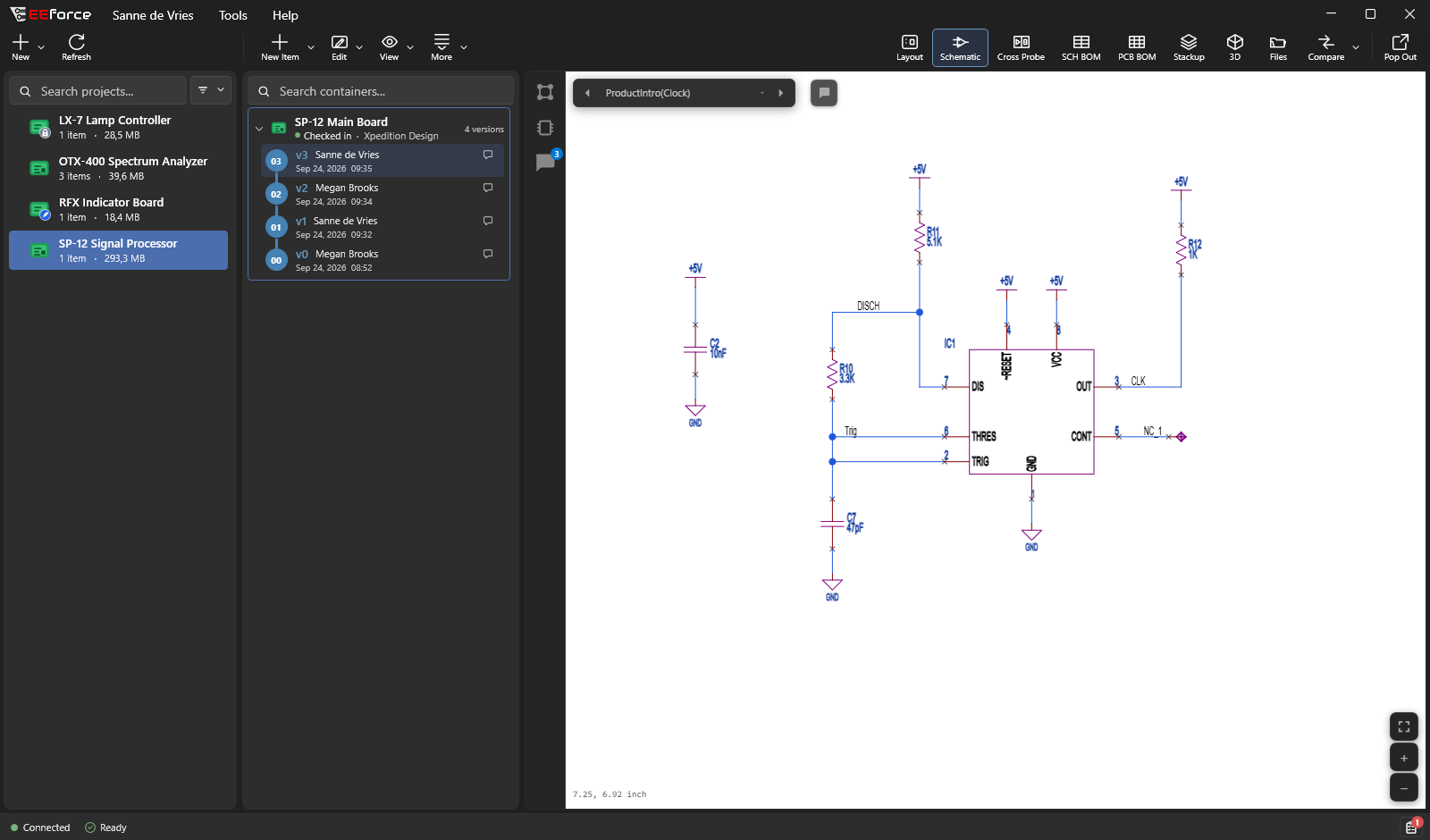
The circuit diagram, each page on its sheet. If the design has more than one page, use the selector at the top to move between them.
Cross Probe
Schematic and layout together, one above the other — handy for finding where a part on the schematic sits on the board. Whatever you select in one view is selected in the other.
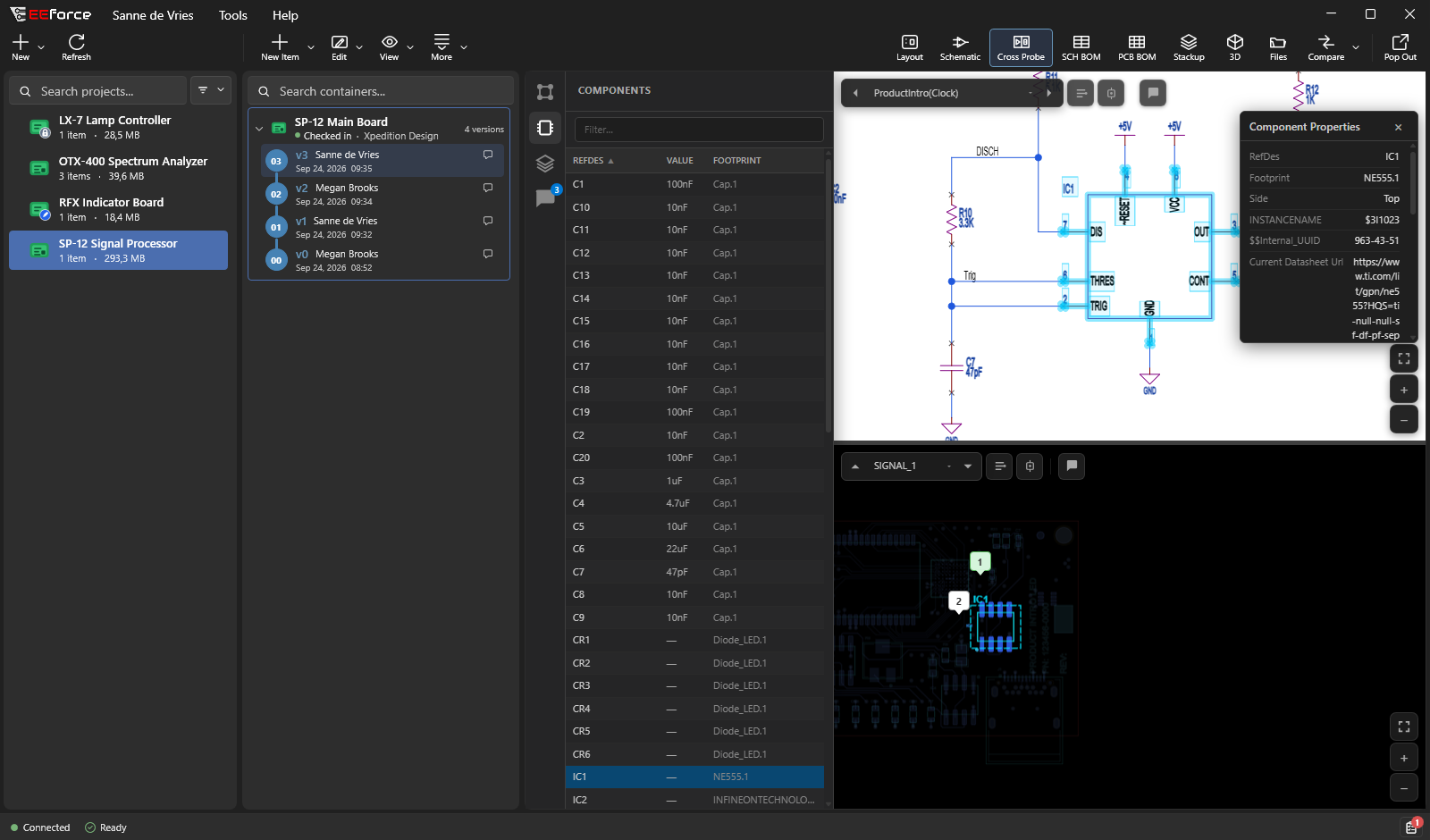
To give either view a screen of its own, click Open in a new window in that view's toolbar. The window stays cross-probed with the main window: a selection in one shows in the other. Its Back to the cross-probe page button closes it and puts the view back. EEforce remembers where you put each window, and closes them when you close the preview.
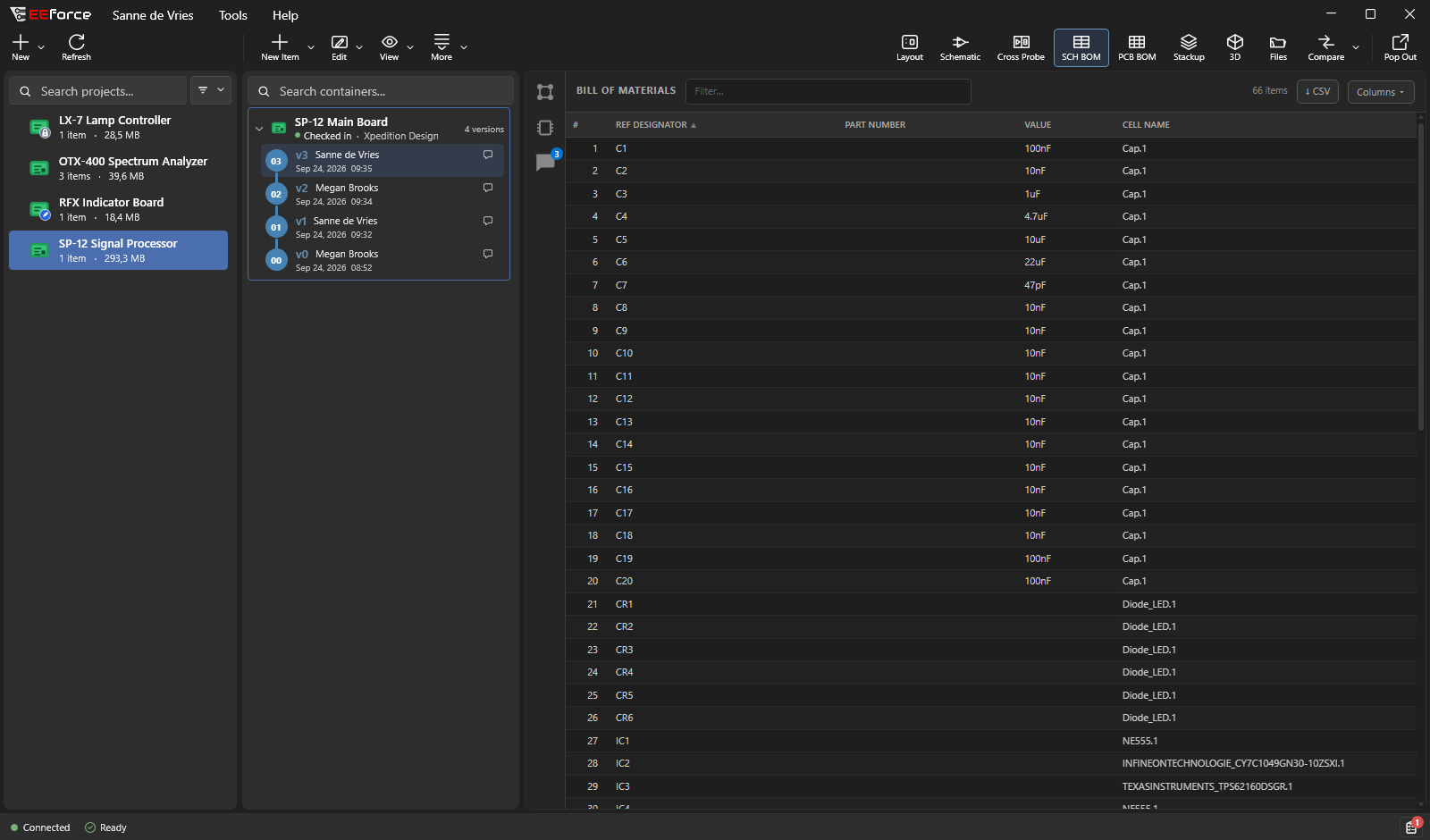
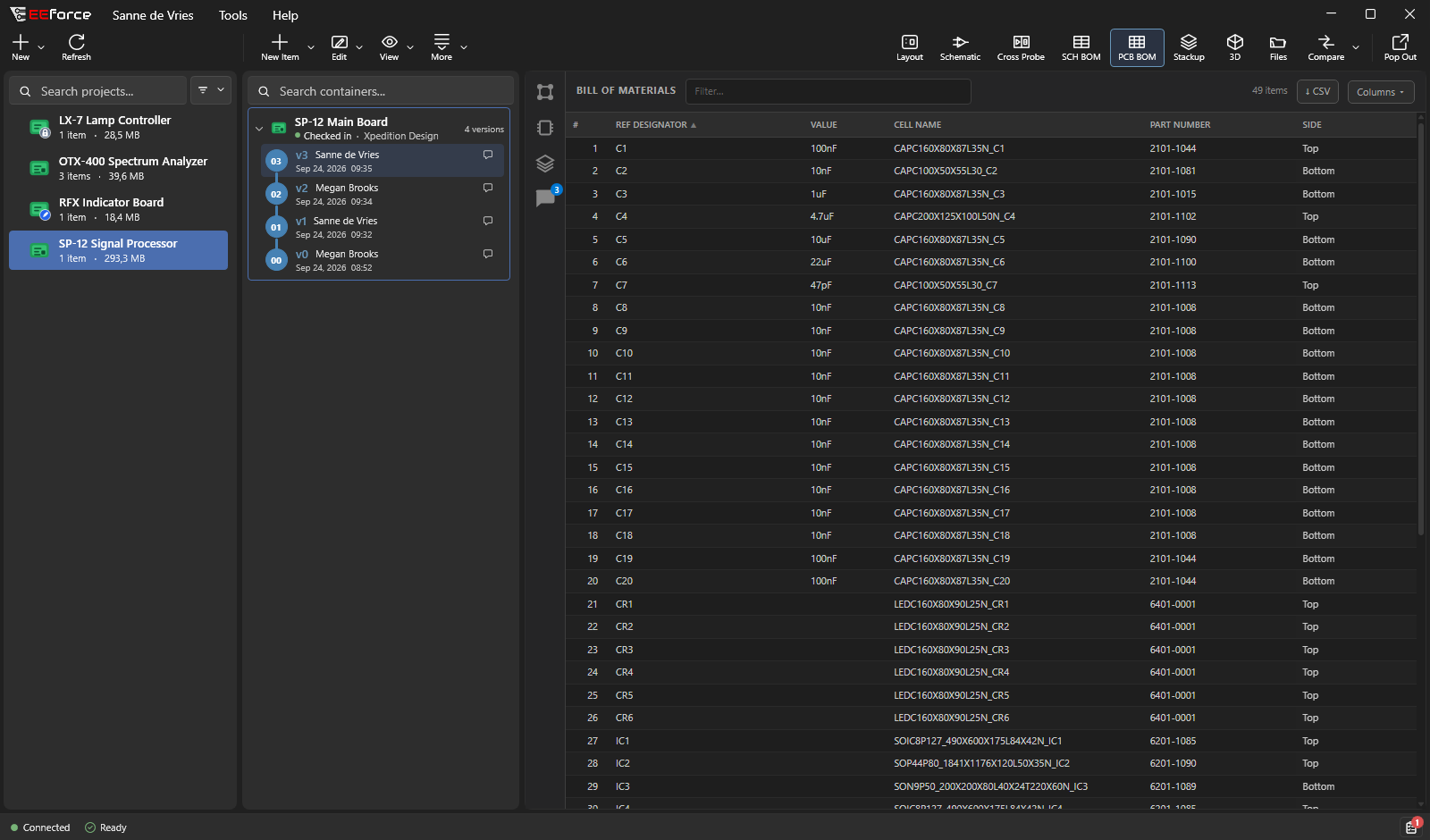
Bill of Materials
Two parts lists are available: SCH BOM (from the schematic) and PCB BOM (from the board). Each is a sortable, searchable table:
- Filter… finds a part.
- Group by makes one line per value of a column — for example one line per part number — with its parts listed and counted in Qty.
- The Columns menu chooses what's shown.
- CSV exports the list to a spreadsheet.
Parts nobody buys or places — parts the design excludes from the BOM, test points, fiducials, mounting holes, buried and mechanical parts and the like — are set apart at the bottom in a folded Not on the BOM section, and left out of the CSV.
PCB Spec
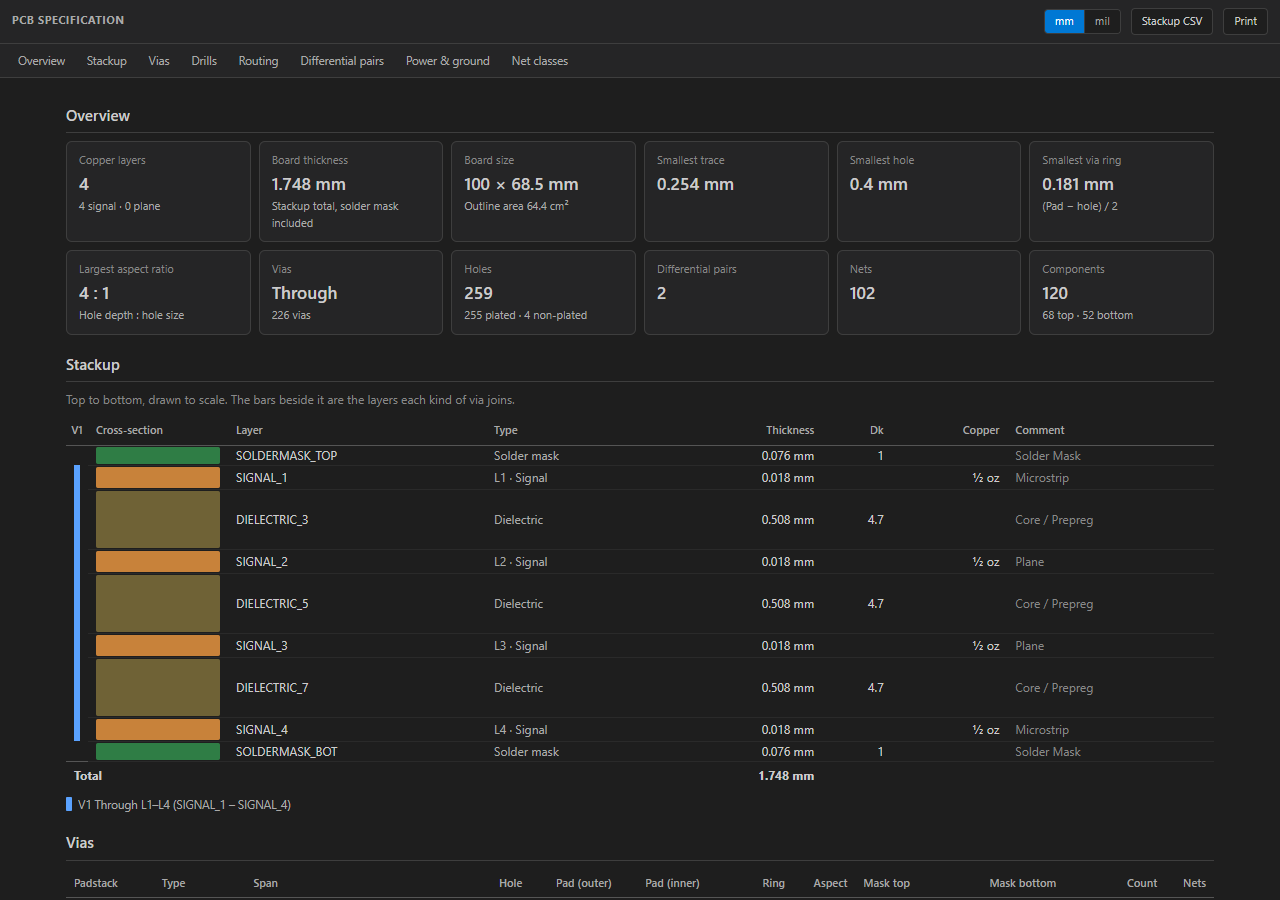
The board's specification on one page, ready to hand to a fabricator or a reviewer:
| Section | What it shows |
|---|---|
| Overview | The board facts at a glance. |
| Stackup | Every copper, core and prepreg layer, top to bottom and drawn to scale, with the layers each kind of via joins beside it. |
| Vias | The via types — through, blind, buried and microvia — with their holes, pads, rings and aspect ratios. |
| Drills | The drill table, plated and non-plated holes. |
| Routing | Single-ended signal traces, per layer. |
| Differential pairs | Each pair's width, gap and how much of its length the two traces run together. |
| Power & ground | Power and ground nets, and nets that fill copper areas. |
| Net classes | The design's net classes. |
Impedances are estimated from the stackup; use your fabricator's stackup calculation for the real values. Switch between mm and mil at the top (your choice is remembered), download the stackup with Stackup CSV, or click Print to print the specification or save it as a PDF.
3D
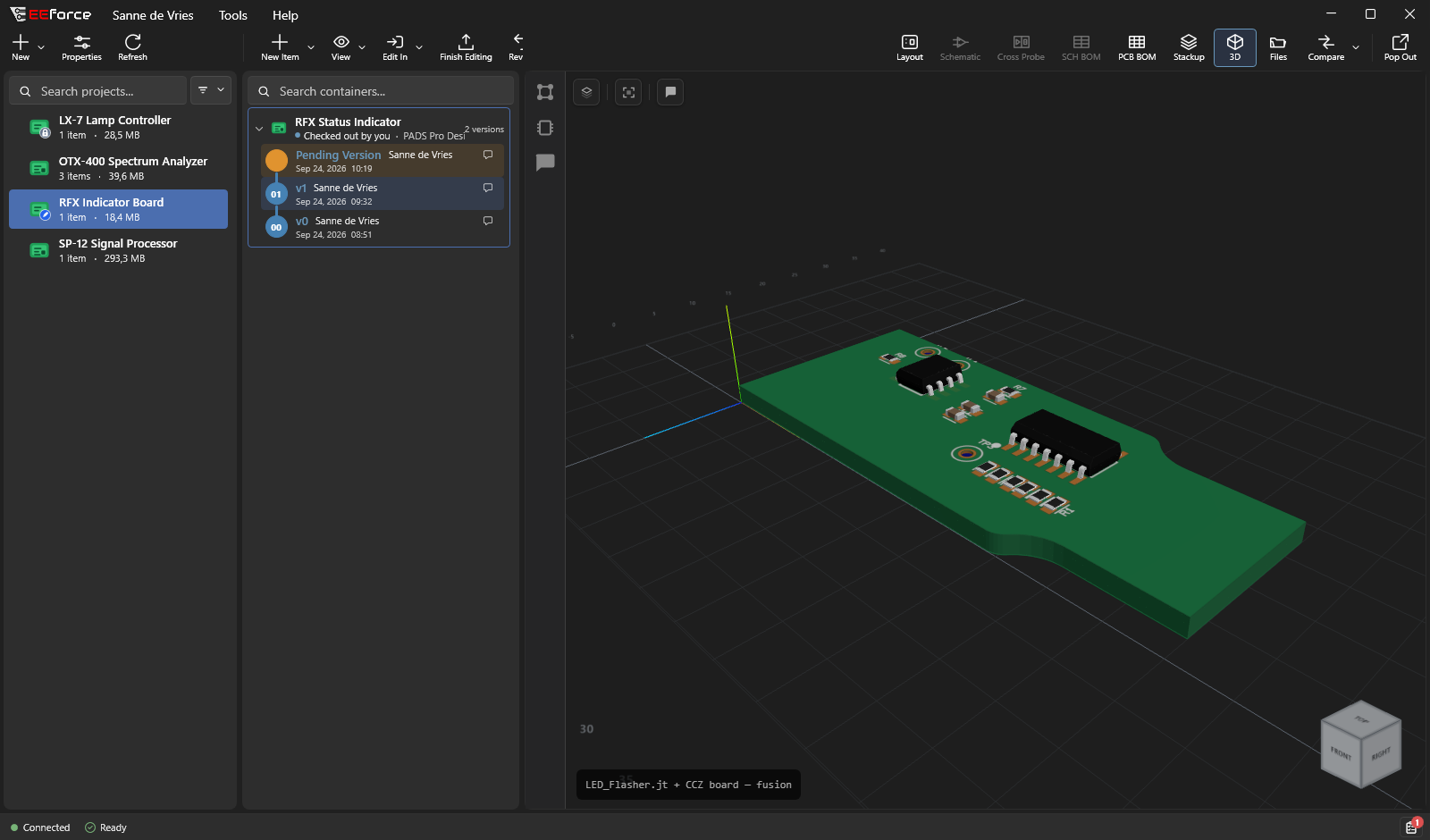
A rotatable, full-colour 3D model of the assembled board. Drag to spin it, scroll to zoom, and use the cube in the corner to snap to a standard view (top, front, right). The buttons at the top:
- 3D, 2.5D and Off show the components as their 3D models, as their placement outlines raised to their height, or not at all — the bare board. C switches the components off and back. 3D needs the version to carry the parts' 3D models.
- Reset to Top View and Fit to Screen bring the board back into view.
- The arrows turn the board a quarter turn either way, or turn it over (F).
Selecting and inspecting
Click anything on the layout or schematic to select it; there are no modes to switch:
- a trace, wire or via selects its net
- a pin, a pad, a component's lines or label — or anywhere inside its outline or symbol — selects the component
- a copper pour selects its net, unless a part sits on top of it
Click the same spot again to take the next thing there: a pad first gives its part, then its net. While you hover, EEforce outlines what a click would pick and, when the pointer rests, names it and what a further click would take.
What you select is highlighted across all visible layers and, on the cross-probe page, in the other view too. Selecting one net of a differential pair highlights both. Double-click zooms to the selection; Esc clears it.
The properties panel in the top-right corner shows what the design knows about the selection — a component's value, part, footprint, location, side, rotation, pins and parameters; a net's class, pins, connections and the traces, vias and copper areas it is made of, each with Zoom to it. Its arrows step back and forward through what you selected before. Minimize the panel to keep only its header out of the way; it stays minimized until you restore it.
Measuring
On a board, click Measure (or press M), then click two points. The distance reads in mm above the line and in mil below it. A click snaps to the centre of a pad or via or the end of a track; hold Ctrl to place a point freely. The next click starts a new measurement, and Esc clears the line — pressed again, it turns the tool off.
Assembly variants
If the design has assembly variants, a variant picker appears at the top of the views. All components is the design as drawn. Choose a variant to see what it fits: the schematic crosses out what the variant leaves off, the board greys it out, the 3D board hides it, and the BOMs list it apart under Not fitted. Your choice applies to every view and is remembered for the project.
The side panels
The icons along the left edge of the viewer open the panels that go with the current view:
| Panel | What it's for |
|---|---|
| Layers | Show, hide and solo individual layers. |
| Components | The parts placed on the board — click one to highlight it. |
| Nets | Every net in the design — click one to highlight its routing and pins and see its properties. |
| Comments | The discussion on the design. See Reviewing Designs Together. |
| Assembly Assistant | In the 3D view: the BOM beside the board, for building it part by part (see below). |
| Differences | Shown while comparing — what changed on each side. |
| Compare Assistant | Shown while comparing layouts — lining the two up. See Comparing Designs. |
The Assembly Assistant
The Assembly Assistant puts the board's BOM beside the 3D board, to guide hand assembly or a first-article inspection. Open the 3D view and click Assembly Assistant on the left edge.
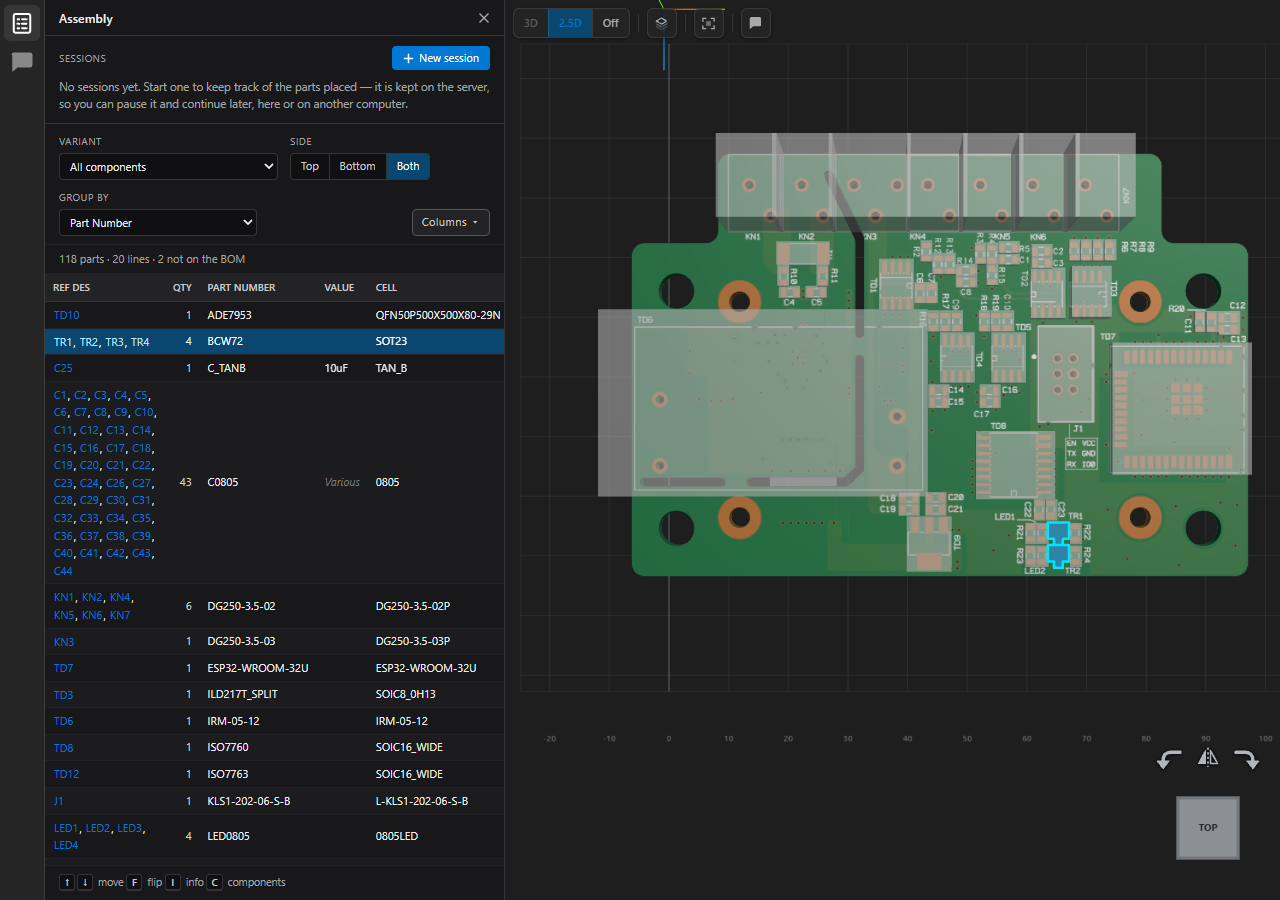
- Choose the Variant to build, the Side (Top, Bottom or Both), and optionally Group by a column to get one line per part number. The Columns menu chooses what else is shown; Ref Des always comes first.
- Click a line — or one reference in it — to see it on the board: the board turns to that side and zooms in, its parts light up and are outlined, the other parts turn grey and see-through, and parts the variant doesn't fit almost vanish.
- ↑ and ↓ step through the lines, F turns the board over, I shows the part's properties, and C switches the components off and back.
The panel remembers its columns, grouping, side and width.
Assembly sessions
To keep track of what has been placed, start a session: click New session, give it a name (for example Lot 42 — board 3) and a variant, and click Start. The session adds a Status column. Press Space to mark the current part done or Esc to skip it — each moves on to the next part still to do — or click a status icon to change it.
Sessions are kept on the server, so a board can be built over several days and from any computer, and the whole team sees the progress. Pause stops marking until someone clicks Continue; Complete finishes the session, and Reopen takes it up again. The list shows every session of the version with how far it has got and who worked on it last. Anyone who can view the project can start a session; whoever started it, or a project Contributor or Manager, can rename or delete it.
Files, and designs without a picture
The Files button shows the files inside the selected version, so you can open or download a single file without checking anything out. Some designs have no picture to show, for example a Generic Container of documents or a board checked in without a preview. For those, EEforce opens the file list straight away. See Browsing & Downloading Files.
Discussing what you see
In the Layout, Schematic, Cross Probe and 3D views you can pin comments directly onto the design, mark an area and sketch on top of it, and in the BOM views you can comment on a part. It's a running, visual conversation instead of a screenshot in an email. See Reviewing Designs Together.
When the design changes while you look
While you have a design open, EEforce keeps it up to date. If a teammate checks in a new version, the design list refreshes on its own, so you don't need to reload anything. The connection indicator at the bottom-left shows you're connected and receiving those updates. See Staying Connected.
The viewer also tells you when what you're looking at may no longer be the whole story:
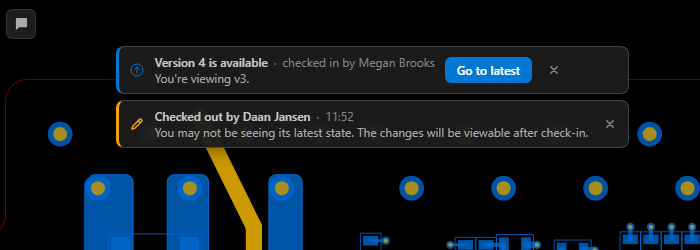
- Version 4 is available — someone checked in a newer version while you had this one open. Click Go to latest to switch to it.
- Checked out by a colleague — someone is editing the design right now. You may not be seeing its latest state; their changes become visible once they check in. When it's you, the notice reads You have this design checked out.
Click ✕ on a notice to dismiss it. It comes back when something new happens, such as another check-in.
Comparing designs
Compare shows two versions of a design — or two different boards — on top of each other, with the differences marked. See Comparing Designs.
Popping out
Pop Out opens the current preview in its own window — handy for putting a board on a second monitor while you keep working in the main window. On the cross-probe page you can also give each view a window of its own; see Cross Probe.