

Appearance
Licensing
Every EEforce server runs on a licence file — a small XML file that says which EEforce products your company can use, which optional features are enabled and how many people can use each product at the same time.
How seats work
- Each product in the licence file has a number of seats.
- When someone opens the desktop app, they pick a licence; that session holds one seat (see Choosing a licence). Closing the app frees the seat for the next person.
- EEforce 365 in the browser needs no seat at all — see below.
- The number of free seats is shown on each licence card at sign-in, and administrators can see every seat that is in use on the web admin's License page or from the client's Tools → License Activity.
The licence file
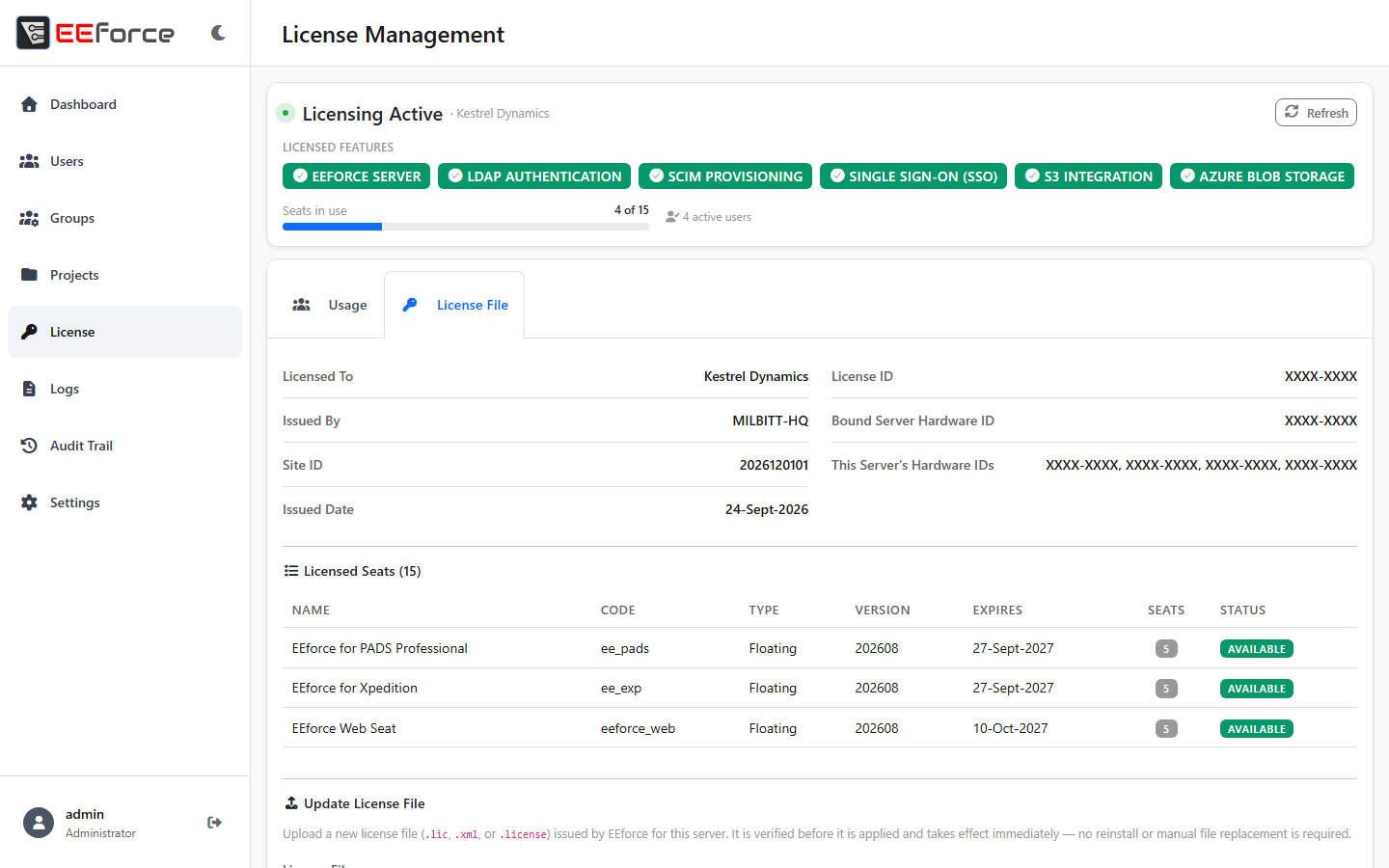
The licence file contains the licensee, the site ID, the licence ID and issue date, the licensed seats (product, type, version, expiry, seat count) and the features your company has bought — for example LDAP, SSO, SCIM or cloud storage. It is bound to the server machine's hardware, and the server keeps it with its own data (in its licensing folder).
| Where you meet it | When |
|---|---|
| Server installer | You point the installer at the licence file on its System Folders page — see Setting Up the Server |
| Web admin → License → License File | View what's licensed, and upload a replacement |
Renewing or replacing a licence
- Get the new XML file from your reseller (for example when renewing, or when moving to a new server).
- Open the web admin → License → License File.
- Click Update License File, choose the file and upload it with Upload & Activate.
The new licence takes effect immediately — no restart, and no need to interrupt users. If the old licence had expired and the server was in read-only mode, everything starts working again straight away.
TIP
If the server hardware changes (a new machine, a rebuilt VM), the existing licence will no longer match it. Ask your reseller for a licence issued for the new hardware.
Licence types
Duration
| Type | Meaning |
|---|---|
| Perpetual | Use the software indefinitely; includes one year of upgrades and support |
| Term (subscription) | Use it for a fixed period — typically a year, including upgrades and support |
Binding
| Type | Meaning |
|---|---|
| Floating | Any machine can use a seat, up to the seat count; seats are shared between users |
| Node-locked | Tied to one specific machine |
Product
There is one licence (and one card at sign-in) per product, for example EEforce for PADS Professional and EEforce for Xpedition. Which product a person picks depends on the design tool they work with — see Signing In.
EEforce 365 needs no licence seat
Reviewing designs in the browser with EEforce 365 uses no seat and needs no client licence: it only checks the user's account and their role on the project. Someone can keep the portal open while also signed in to the desktop app on the same account.
Your licence file may contain a web seat row for EEforce 365. Nothing consumes those seats, so you can leave them as they are.
When a licence expires
A product's seats expire
The licence card for that product shows the expired date and offers no free seats; other products are unaffected. The seats come back as soon as a renewed licence is uploaded.
The server licence expires — read-only mode
When the licence that covers the server itself runs out, EEforce does not lock you out of your data. It switches to read-only mode:
- Everyone can still sign in, browse projects and preview designs in the desktop app or EEforce 365. Files can still be downloaded from the desktop app.
- Nothing can be changed: check-outs, check-ins, uploads and edits are refused with an explanation.
- Administration keeps working, so you can upload a renewed licence straight away.
- No seats are handed out while it lasts.
In the desktop app the sign-in screen skips the licence step and shows a Read-Only Mode — License Expired bar across the top of the window. Uploading a renewed licence lifts read-only mode immediately.
INFO
Expired product seats alone don't trigger read-only mode — only the server licence does.
Managing seats day to day
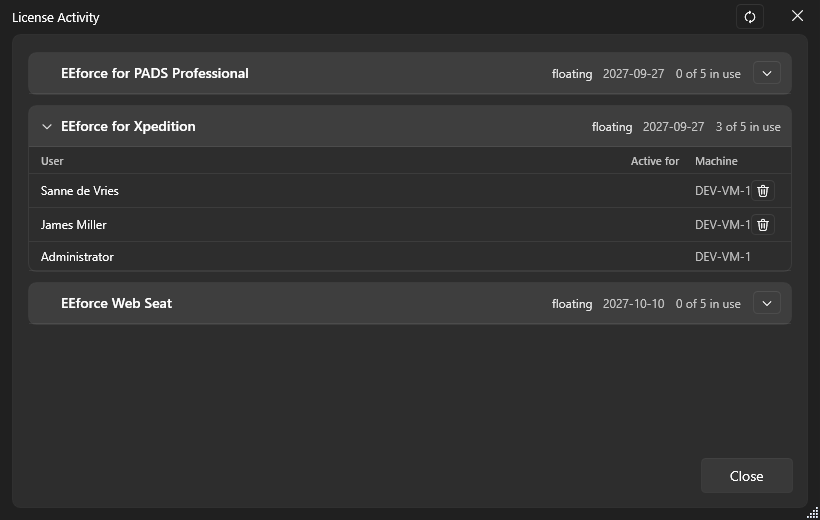
Admins can free a seat that is held by a session that is no longer really there — a crash, a machine that was re-imaged, a laptop that went home:
- In the desktop app: Tools → License Activity, then use the delete button on the session's row. Admins only.
- In the web admin: License → Usage, then Drop.
Dropping a seat does not sign that user out, and if their app is still active it will take a seat again by itself. A seat whose machine stopped reporting a heartbeat a few minutes ago is shown as stale.
Troubleshooting
| Symptom | What to do |
|---|---|
| "None available" on a licence card | All seats are in use. Check the web admin's Usage tab or License Activity for stale sessions and drop those; otherwise wait, or ask about more seats. Remember that EEforce 365 needs none. |
| A feature tab is locked (S3, Azure, LDAP, SSO, SCIM) | The licence file doesn't include that feature — ask your reseller. |
| "This license is expired" / read-only mode | Upload the renewed licence file — see above. It takes effect immediately. |
| The server says the licence is invalid or for another machine | The file must be issued for this server's hardware (and be signed correctly). Contact your reseller with the server's hardware IDs from the License File tab. |
| Wrong products or seat counts | The licence file itself decides these — compare it on the License File tab. |
What's next
- Signing In — choosing a licence as a user
- Web Admin Interface — the License pages in detail
- Setting Up the Server — choosing the licence file during installation