

Appearance
Designs & Versions
A design is one item inside a project — a PCB design, a multi-board panel, or a generic container of other files. EEforce treats each design as one complete object and keeps its history, so every version that was checked in is one click away.
Some of the app's buttons and dialogs call a design a container, for example New Container and Search containers…. It's the same thing.
Kinds of design
| Kind | What it is |
|---|---|
| Board | An Xpedition or PADS Professional design. Gets full previews, bills of materials and one-click editing. |
| Multi-board panel | An Xpedition panel made up of several boards. |
| Generic Container | Any collection of files, such as datasheets, specifications or a draft BOM. Versioned like everything else, and shown in the file browser instead of a picture preview. |
Generic Containers were called Folders
Earlier versions called this kind of design a Folder. It's the same thing under a clearer name — not to be confused with the folders that organise a project's design list.
The middle pane lists the designs in the selected project or folder. Each row shows the design's state, its design tool and how many versions it has. Use the search box above the list to filter a long list.
| State | Means |
|---|---|
| Checked in | Nobody is editing it. |
| Checked out by you | You are editing it on this computer. |
| Checked out by you on another computer | You checked it out on another computer; the working copy is there. See Checked out on another computer. |
| Checked out by a colleague | Someone else is editing it. You can still view it. |
| Checked out remotely by you or a colleague | It was exported to work on away from the server. See Working Remotely. |
| Downloading… | A check-out is in progress. |
Version history
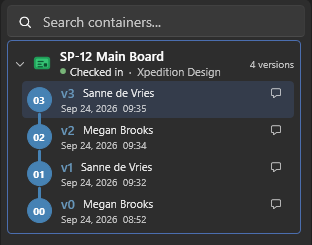
Click a design to select it; the preview shows its latest version. Click it again to open its history, and once more to close it. Only the selected design shows its history: selecting another design closes the one before.
Each version shows:
- Its label: v0 is the first version, then v1, v2 and so on.
- Who checked it in, and when.
- A comment icon if it has a check-in comment. Hover over it to read the start of the comment, or click it to read the whole comment with its author and date.
- A lock or tag badge if the version is locked or tagged — see Managing Versions.
The newest version is at the top. The lines on the left show which version each one was based on. Usually that is a straight line; when someone checks out an older version, the new work shows as a branch.
While a design is checked out, a pending version appears at the top in amber. It becomes a real version when it is checked in.
Select any version to preview exactly that version or to download files from it.
Adding a design to a project
Use New Item ▾ above the design list and choose New Container or Import.
You need the Contributor or Manager role on the project to import a design or to start a blank generic container. Starting a design from a template adds a copy of that template to the project, which needs the Manager role.
Importing an existing design
- Select the project.
- Choose Import.
- Under Source Folder, click Browse and pick the folder that holds your design (the folder with the project file in it). EEforce detects the Type and the design tool (ECAD) for you.
- Check the Container Name and click Import.
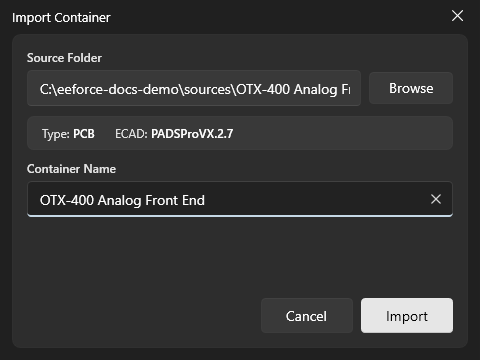
EEforce packages the design and uploads it as v0. You can watch the progress at the bottom of the window.
Starting a new design
Choose New Container.
Pick the Container Type: PCB, Multi-Board Panel or Generic Container. Multi-Board Panel is offered for the Xpedition flow on computers with Fablink installed.
For a PCB or a panel, pick the ECAD Flow (Xpedition or PADS Pro — only the design tools installed on your computer can be chosen) and a Template.
For a generic container, the template list starts with Blank container, an empty container you fill on your first check-out. Any generic-container templates your company has set up follow it.
Give the design a Name and click Create.
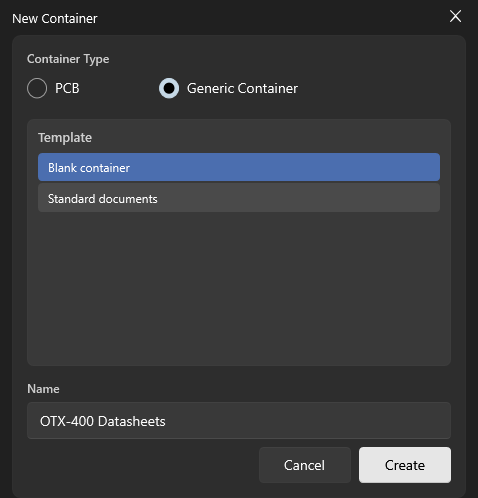
The new design is created in the project or folder you have selected. Its v0 is a copy of the template.
Where templates come from
Templates are the designs in the server's _sys.Templates project. If the list says No templates found for this type, ask your administrator to import one there.
The design menu
Right-click a design to see what you can do with it. The same actions, plus those for the selected version, are under More on the toolbar.
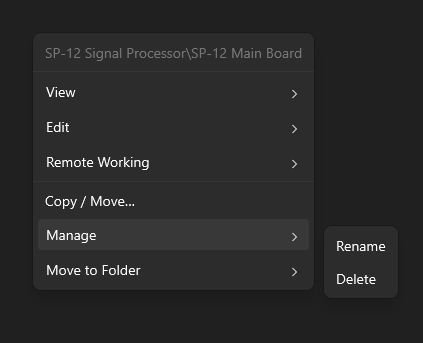
| Item | What it does |
|---|---|
| View | Opens a read-only copy in the Folder Browser or your design tool. See Checking Out & Checking In. |
| Edit | Checks the design out so you can change it. See Checking Out & Checking In. |
| Remote Working | Takes the design with you to work away from the server. See Working Remotely. |
| Copy / Move… | Copies the design — into this project or another one — or moves it to another project or folder (see below). |
| Manage → Rename | Changes the design's name. |
| Manage → Delete | Deletes the design (see below). |
| Move to Folder | Puts the design in one of the project's folders. See Working with Projects. |
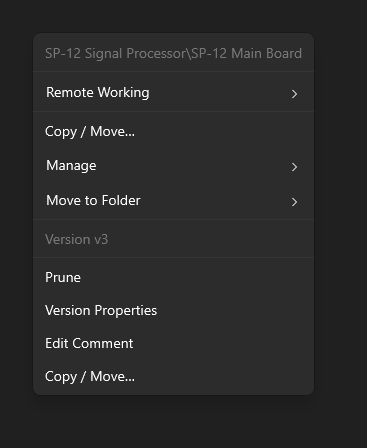
The Manage items and Move to Folder need the Manager role, and the design must be checked in. Copy / Move… is open to everyone with access to the project; the dialog tells you what your role allows.
Copying or moving a design
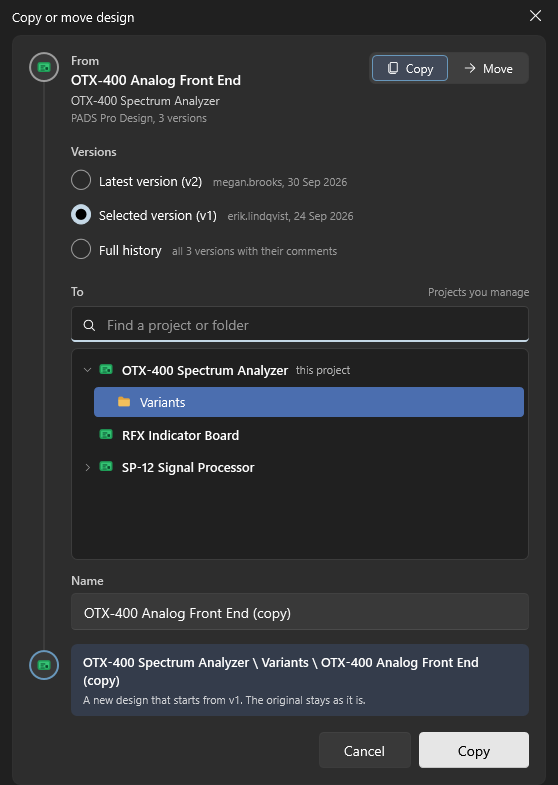
Copy / Move… does everything that takes a design somewhere else: a copy in the same project, a copy in another project, or a move to another project or folder.
Right-click the design → Copy / Move…. (To copy a particular version, right-click that version instead.)
Choose Copy or Move.
For a copy, choose which Versions to take:
- Latest version — a new design that starts from the latest version.
- Selected version — a new design that starts from the version you had selected. Offered when that isn't the latest.
- Full history — a new design with every version and its check-in comment.
A move always takes the full history.
Under To, pick the project or folder. The list shows the projects you manage, with their folders; type in the search box to find one. The design's current place is marked where it is now.
Check the Name. When the name is already taken in the destination, EEforce suggests one such as name (copy).
Check the result at the bottom of the dialog — where the design will end up, and what it takes — then click Copy or Move.
| To… | You need |
|---|---|
| Copy a design | Any role on the project it's in — a Viewer can copy a design into a project of their own — and the Manager role on the destination project. |
| Move a design | The Manager role on both projects, and the design must be checked in. |
When something stands in the way, the dialog says so: Move is greyed out with the reason, and a name that is taken or not allowed is pointed out before you confirm. If you don't manage any project, the dialog explains that there's nowhere to put the design yet.
What comes along:
- A copy is a new design. With the full history it keeps every version's check-in comment and tag, and versions that were pruned stay pruned; locks stay with the original. A copy from one version starts at v0 with that version's content and comment. The original isn't changed.
- A move takes the design exactly as it is: every version with its comments, tags and locks. Within the same project, a move simply changes its folder (and its name, if you changed it).
Moving keeps a safety copy
When a design moves to another project, a copy of its files is kept in the server's trash, where an administrator can restore it. See Storage Assistant.
Managing versions
Locking, tagging, pruning and copying versions each have their own steps — see Managing Versions.
Deleting a design
You need the Manager role, and the design must be checked in.
WARNING
Deleting removes the design and its entire history from the project. The data goes to the server's trash, where an administrator can still restore it — see Storage Assistant.
Right-click the design → Manage → Delete, then confirm.
Multi-board panels
A multi-board panel is a design that carries several boards. Create it like any other design — the Multi-Board Panel type appears for the Xpedition flow on machines with Fablink installed. Once it exists, right-click it and open the Multi Board Panel submenu: Update Links re-links the panel to the newest version of each related board, Link Editor changes which designs the panel uses, and ReDownload fetches the linked boards again while the panel is checked out to you.
Editing a design
Changing a design is its own short workflow — check out, edit, check in. It has a page of its own: Checking Out & Checking In.