

Appearance
Browsing & Downloading Files
Your designs are always yours to retrieve. Every file inside every version can be opened or saved to your PC at any time — you never need to check a design out just to grab one file, and you never need direct access to the server.
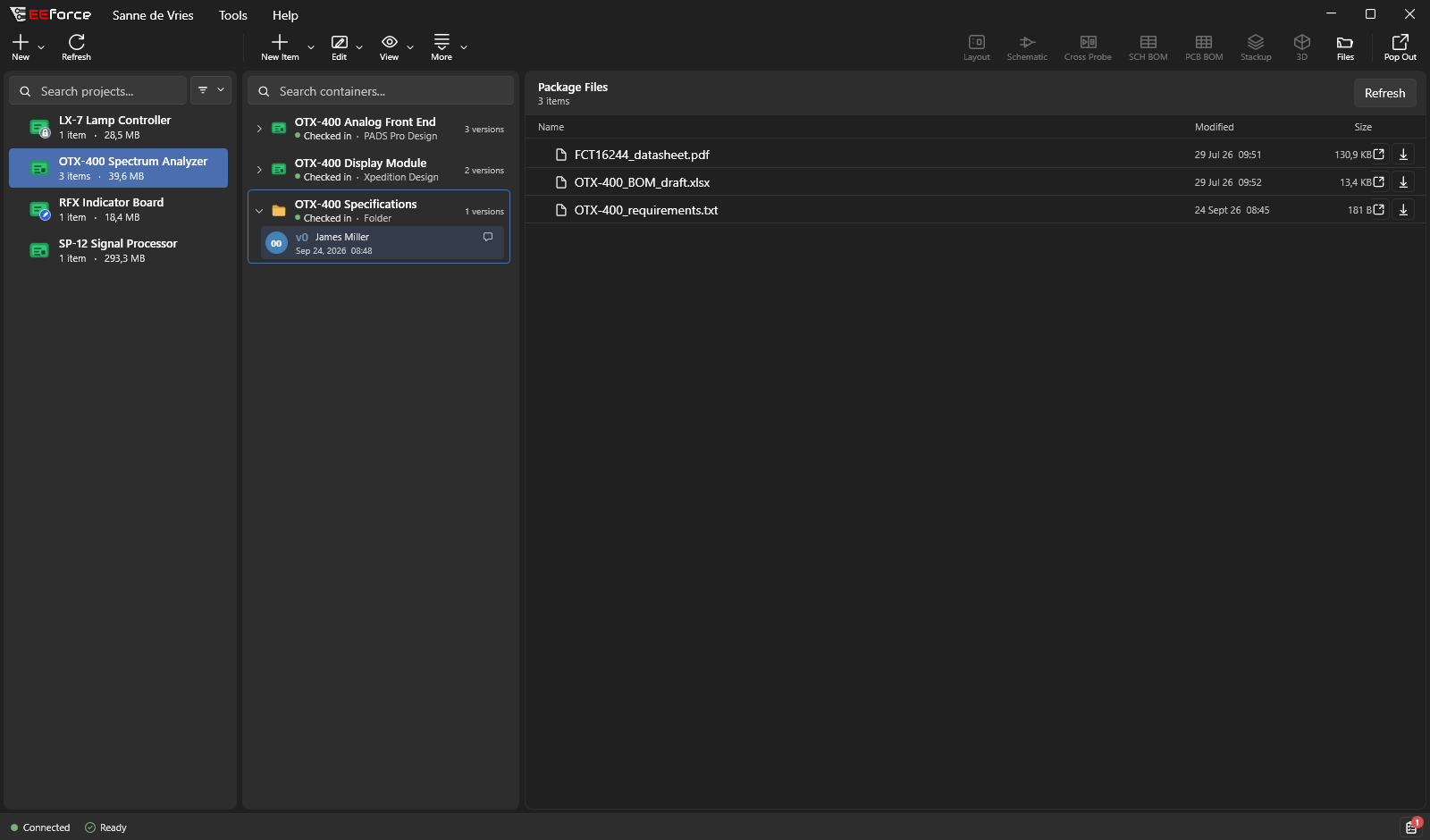
Opening the file browser
Select a design and click Files in the top-right corner. EEforce shows the complete contents of that design's package — every folder and file, laid out exactly as it was when checked in. For a checked-in version the view is titled Package Files.
If a design has no picture preview, EEforce opens this file browser for you automatically.
Opening or saving a file
In the stored package, each row has two buttons on the right:
| Button | What it does |
|---|---|
| Open | Downloads the file and opens it with the matching program on your PC (a PDF in your PDF reader, a spreadsheet in Excel, and so on). |
| Download | Saves a copy to a location you choose, without opening it. |
You can do the same with a whole folder — download an entire sub-folder in one go. Larger items show a progress bar while they transfer.
Working copies: the Work Files view
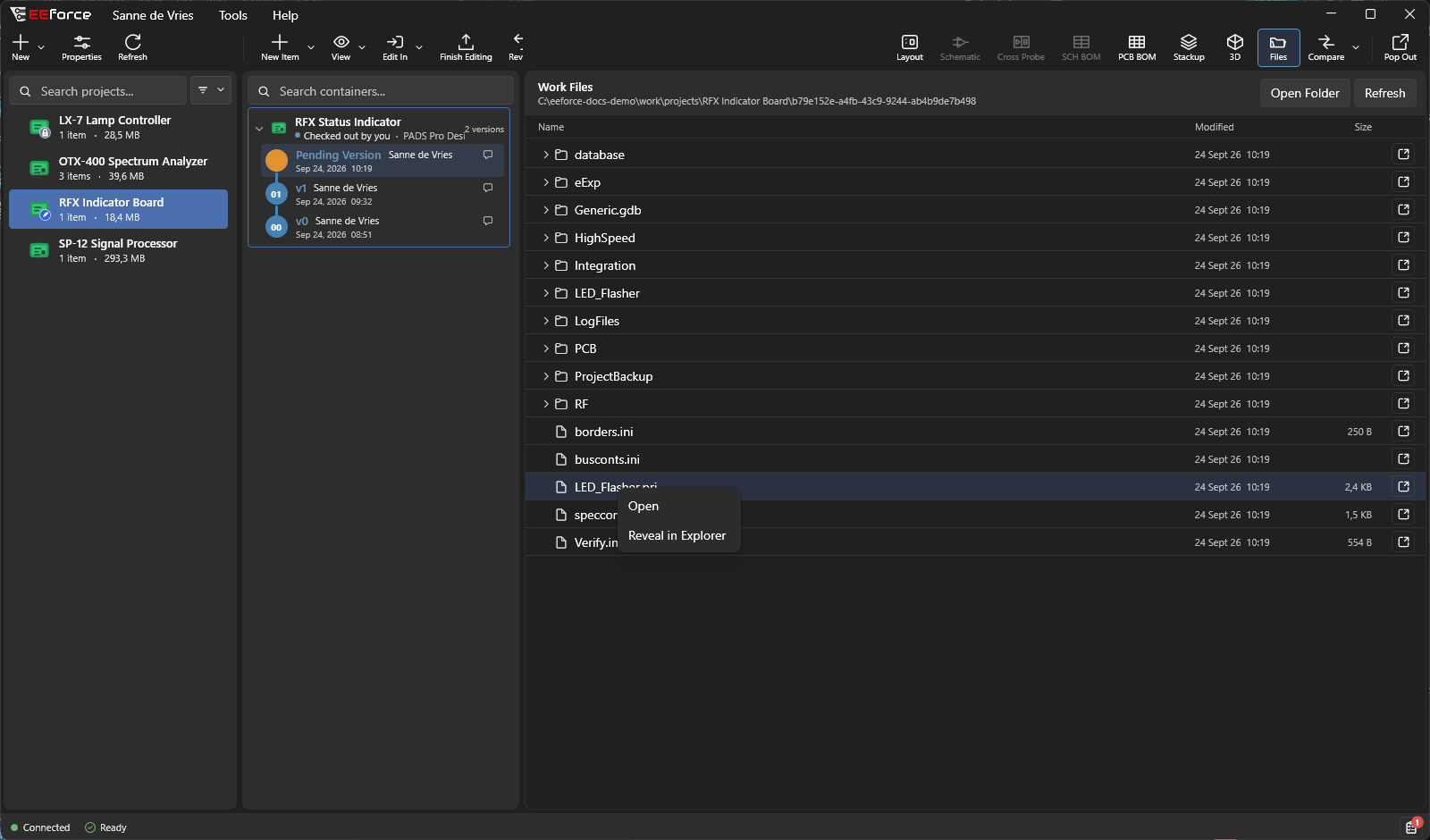
When a design is checked out to you, the Files view shows your local working copy instead of the stored package. The heading says Work Files and the path points into your working folder; the row menu here offers Open and Reveal in Explorer, and the header has Open Folder and Refresh. Handy for checking exactly what you have on disk before you finish editing.
If the working files are somewhere else, the Work Files view says where: on another computer, if you checked the design out there; on the machine of the colleague who has it checked out; or outside EEforce, for a design exported for remote working.
Getting a file from an older version
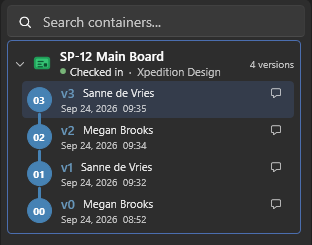
Because every version is kept, you can reach back and pull a file from any point in a design's history:
- Select the design and click it again to show its version history.
- Select the version you want.
- Open Files and download what you need.
The current version is never touched — you're simply taking a copy of how things looked then.
Where your downloads go
- Download saves wherever you choose in the moment.
- Open places the file in a temporary working area on your PC and opens it. You can find your working folder — and change where it lives — in Settings → Working Directory. See Settings.
If you're worried about losing files
- Nothing is deleted when a new version is saved — every version stays in the history.
- No server access or extra software needed — everything comes through the EEforce app.
- Deleted a design by mistake? Deleted designs go to the server's trash; an administrator can restore them from there. Pruned versions go there too. See Storage Assistant.
- Need the complete, editable set? Check the design out — see Checking Out & Checking In.
If you can't reach the server at all, see Staying Connected.