

Appearance
Comparing Designs
Compare puts two versions on top of each other so you can see exactly what changed. You can compare a board with one of its own earlier versions, or with a board from any project you have access to.
Choosing what to compare
Click Compare at the right end of the toolbar, next to the version button. The popup shows the version you're looking at as the Source, and the view the comparison uses: Layout, or Schematic for a design without a layout.
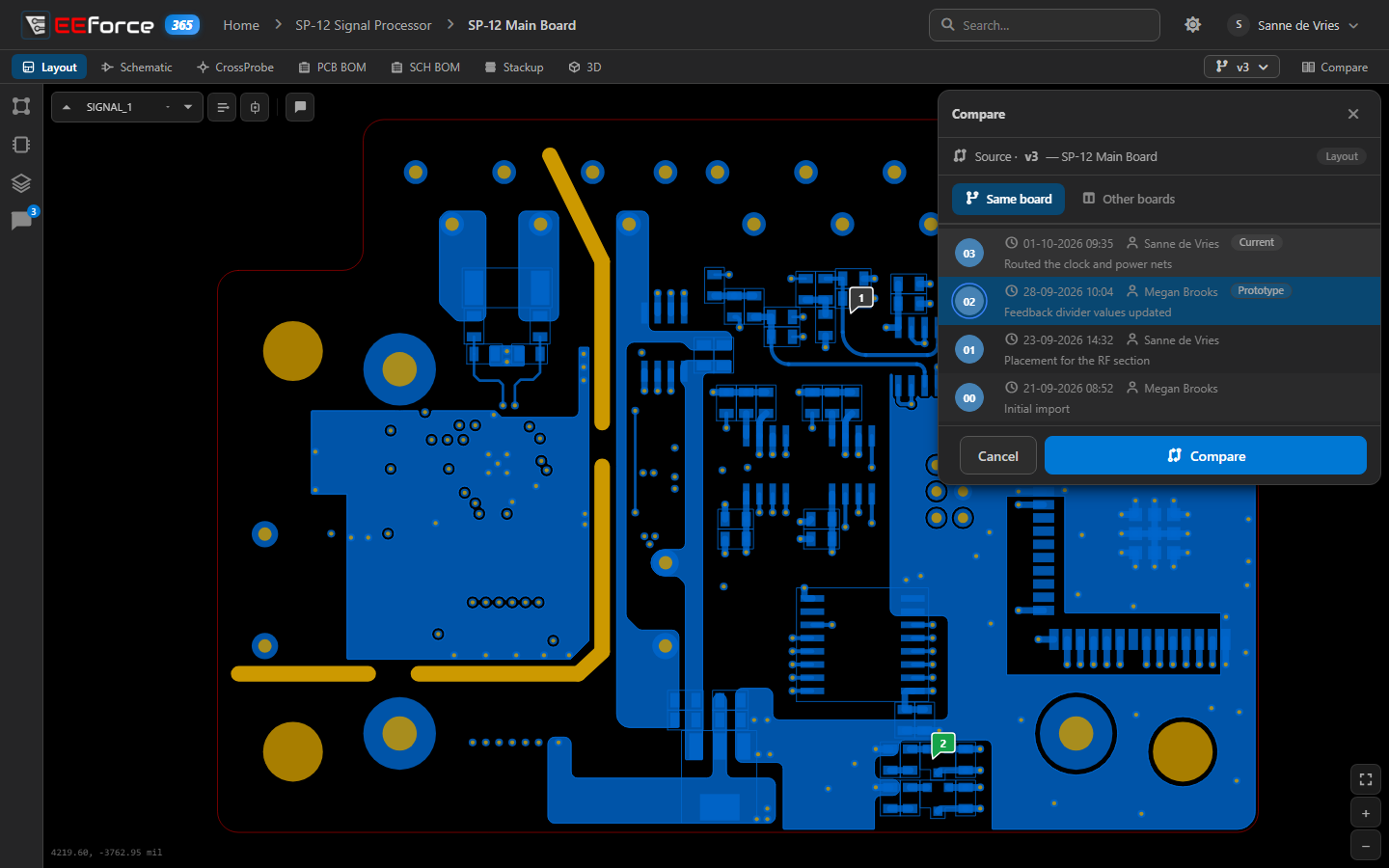
- Same board — pick one of the board's other versions from the list.
- Other boards — pick a Project and a Board (both lists can be searched as you type), then one of that board's versions. Boards without a preview are marked (no preview).
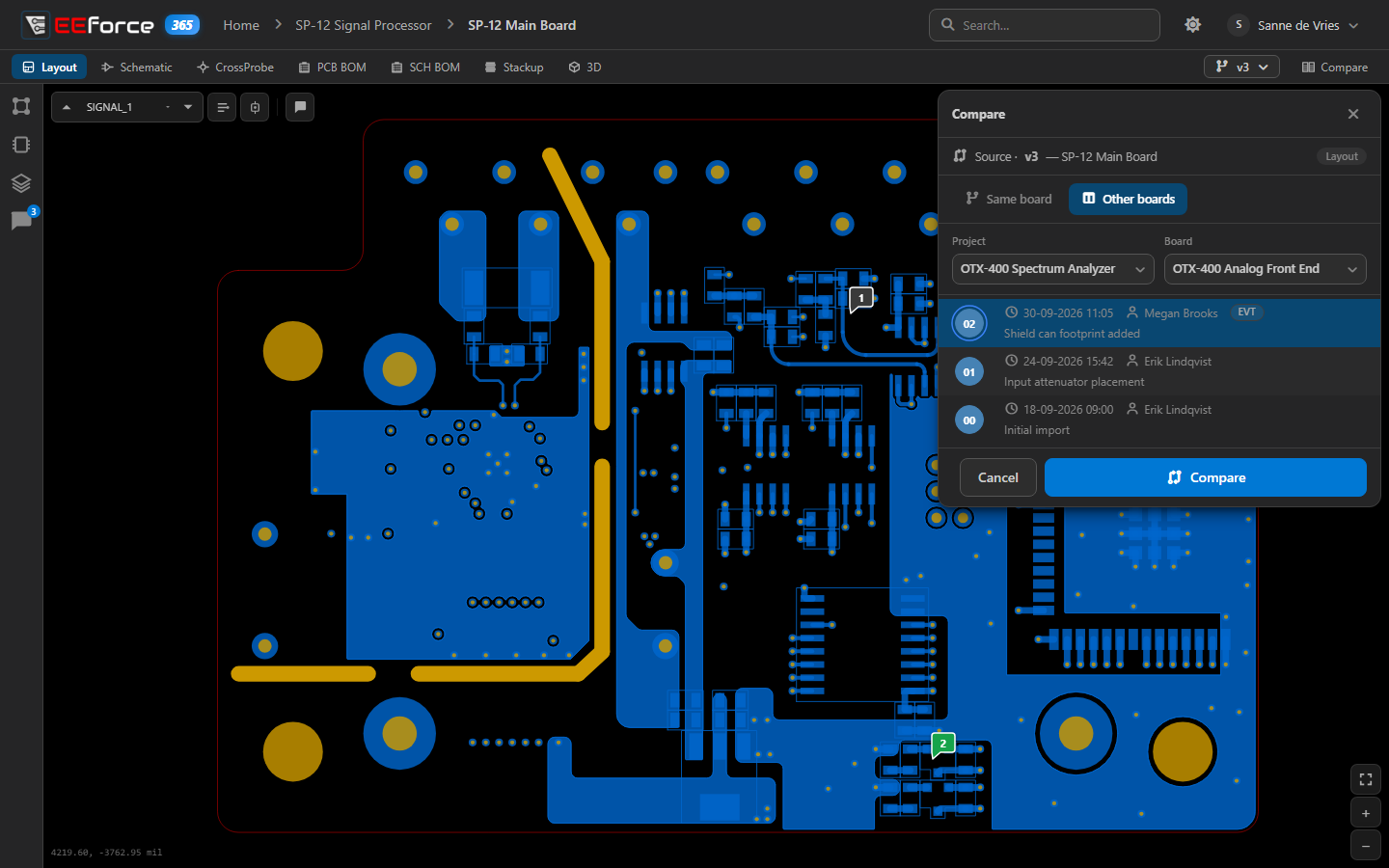
Click Compare to open the comparison.
Reading the comparison
The viewer shows both versions in one picture. The legend in the top-right corner names the two sides, A (the source) and B, with their colours: what only one side has, what only the other has, and yellow where both draw the same. Untick a side to see the other alone, or press O to switch between A, A + B and B.
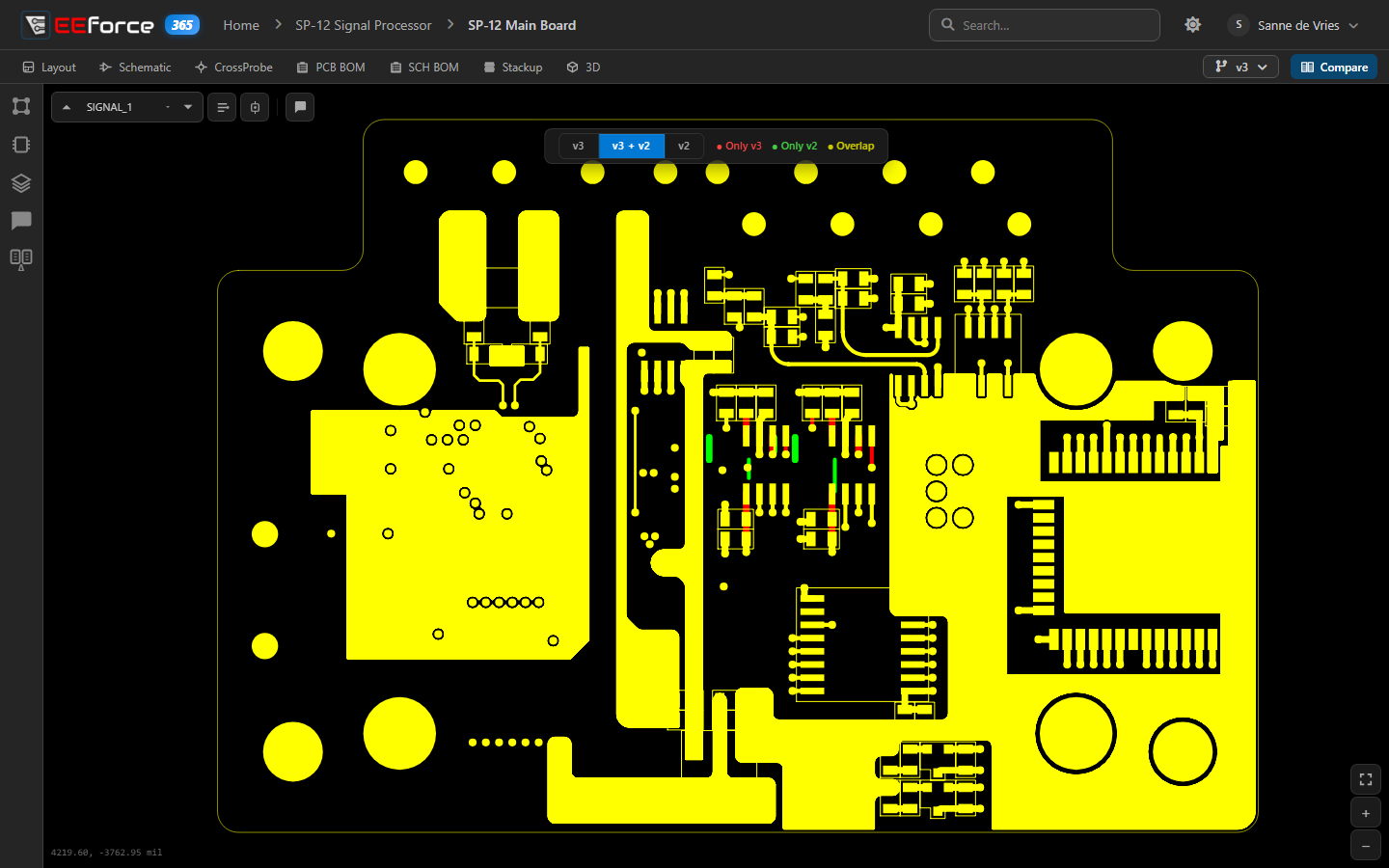
The Differences panel, opened from the icons on the left, lists every change. Click one to zoom straight to it. In a layout comparison, the Compare Assistant on the left lines the two up — see Lining up two boards.
If you switch to another version from the version button while comparing, the comparison stays: the new version is compared with the same target. Like every page in EEforce 365, a comparison has its own address you can share.
What's next
- Viewing a Design — the viewer and its views
- Comments — discuss what you find