

Appearance
Settings
Open Tools → Settings to adjust how EEforce behaves on your PC. Most people set these once and never touch them again.
General
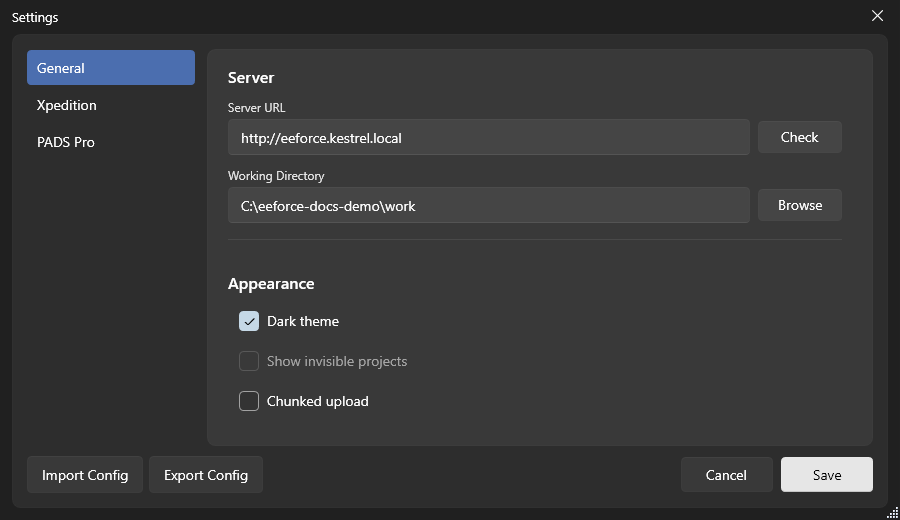
| Setting | What it does |
|---|---|
| Server URL | The address of your company's EEforce server. Usually set for you. Click Check to confirm EEforce can reach it. |
| Working Directory | The folder on your PC where EEforce keeps designs you've checked out or opened. Click Browse to move it. |
| Dark theme | Tick for the dark look, clear it for the light one. |
| Show invisible projects | Reveals hidden projects. Only the server's built-in administrator account can switch this on. |
| Chunked upload | Off by default. Switch it on if large check-ins fail or stall over a slow or flaky connection — it uploads them in pieces. |
Use Import Config and Export Config to copy your settings to another PC or share a standard setup with your team.
Connecting your design tool
If you'll be editing designs, EEforce needs to know where your Xpedition or PADS Professional installation lives. This lets it open designs in the right tool, pull out bills of materials, and put the EEforce Companion on the editors it opens. Nothing is installed into the design tool itself.
Open the Xpedition (or PADS Pro) tab.
Tick Enable Xpedition integration (or Enable PADS Pro integration).
Set SDD Home to your tool's installation folder (your administrator or IT team can tell you where this is).
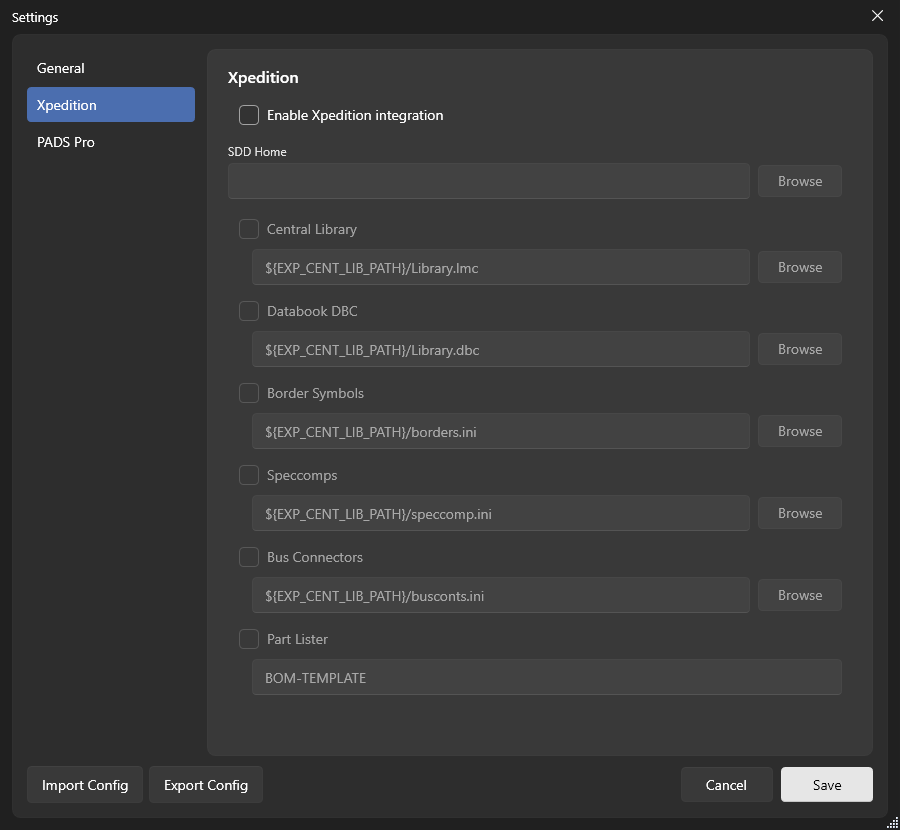
The remaining fields are optional and only needed for advanced setups. Each is a path (with a tick to switch it on) that points at one of your tool's configuration files:
| Field | Points to |
|---|---|
| Central Library | The central library file; the default uses your tool's environment variable, for example ${EXP_CENT_LIB_PATH}. |
| Databook DBC | Your databook database. |
| Border Symbols | The border and sheet symbols library. |
| Speccomps | The Speccomps.ini file. |
| Bus Connectors | The bus connector definitions. |
| Part Lister | The name of the part-lister configuration used for BOM exports. |
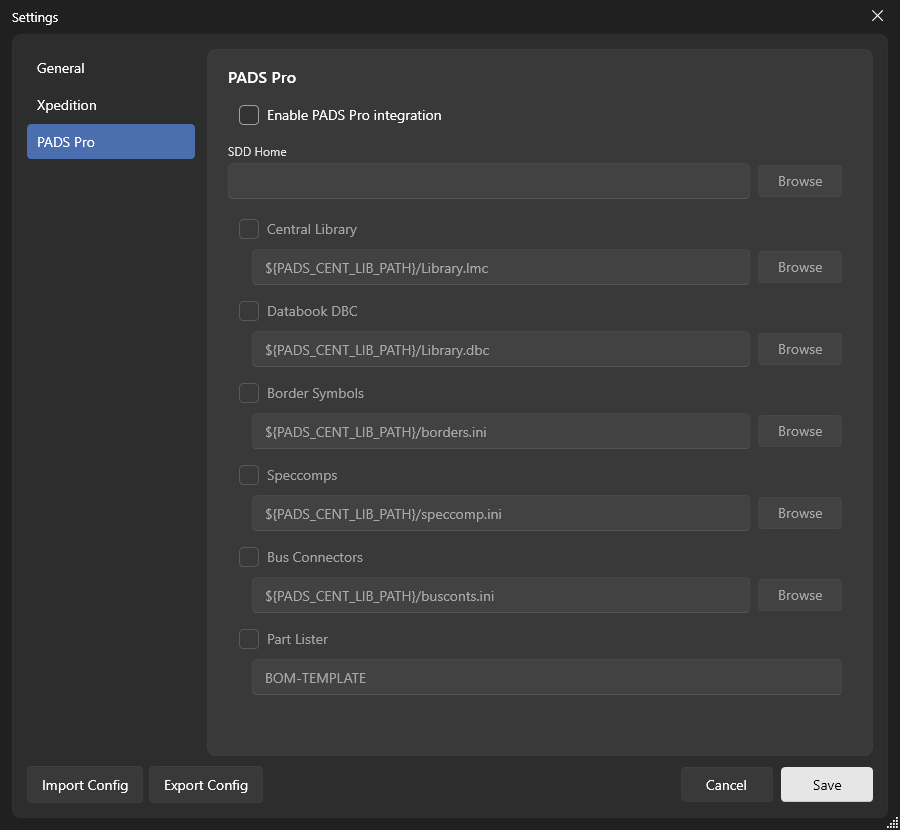
The PADS Pro tab works the same way for PADS Professional.
Only looking at designs?
Skip this section. Browsing projects, previewing, comparing, commenting and downloading files all work without Xpedition or PADS Professional. The tool settings only matter when you open a design in the tool itself.