

Appearance
Managing Access
A project's Managers can choose who sees the project and what they may do in it, straight from EEforce 365 — no desktop app and no licence seat needed. It is the same access list you can edit in the desktop app's project Properties and in the web admin, so a change made in one place shows everywhere.
Opening the access list
Open the project and click Access at the top of the page. The Project access panel opens beside the project's boards, so you can keep an eye on the project while you edit.
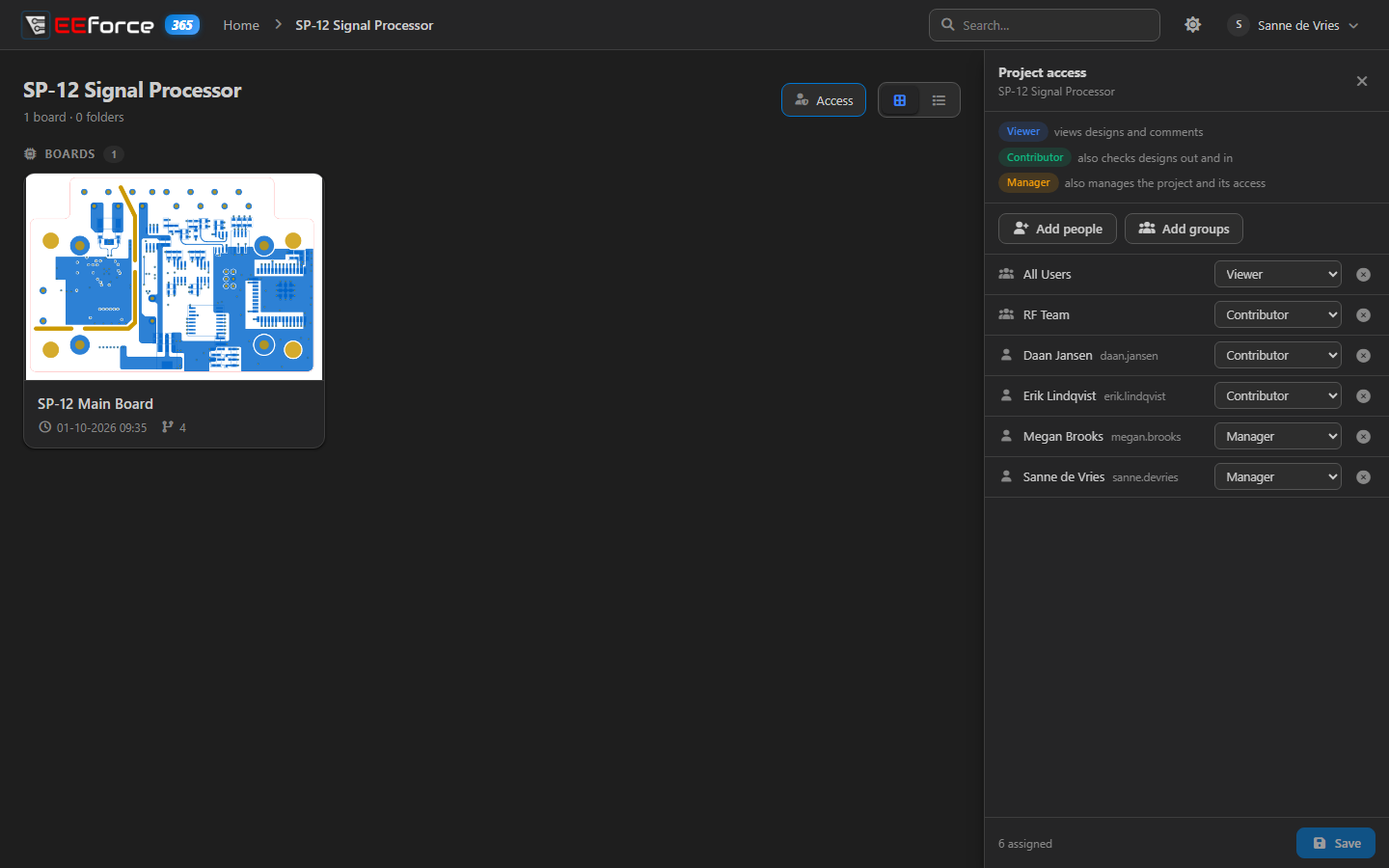
The button appears only for the project's Managers and for EEforce's super users — the built-in administrator and members of Project Administrators.
Each row is a person or a group with a role. The legend at the top sums the roles up:
| Role | Can |
|---|---|
| Viewer | view designs and comment |
| Contributor | also check designs out and in (in the desktop app) and resolve comments |
| Manager | also manage the project and its access |
Someone in several groups gets the highest role any of them grants. More about roles: Access & Roles.
Adding people or groups
- Click Add people or Add groups.
- Find them by name or id, and tick everyone you want to add.
- Click Add. New entries start as Contributor — change the role in the list if needed.
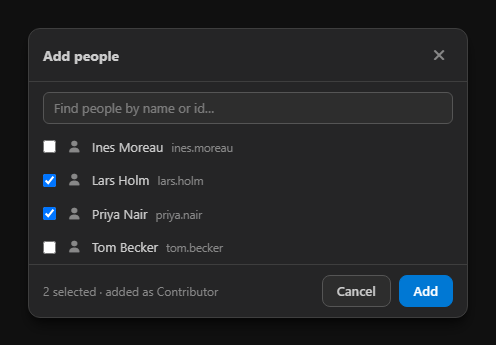
The lists only offer people and groups that aren't on the project yet. The built-in administrator and the Project Administrators and Project Creators groups are never added to a project: they have their rights everywhere already.
Changing and removing
- Pick a different role in a row's list to change it.
- Click ✕ at the end of a row to remove that person or group.
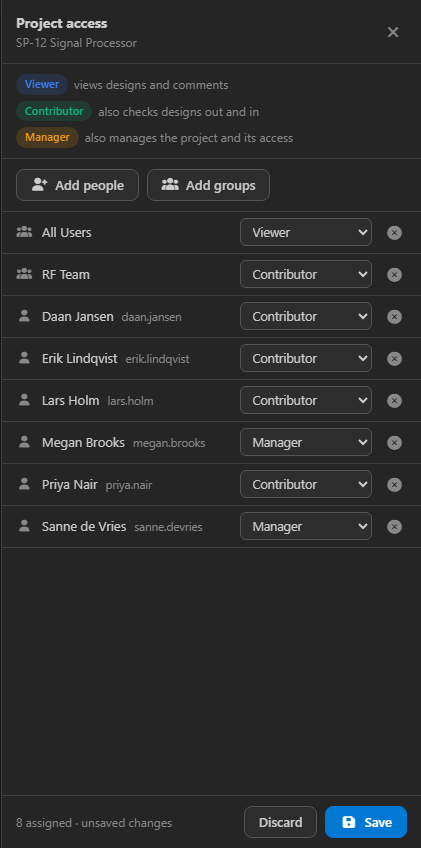
Nothing changes until you save. The bottom of the panel counts the entries and says when there are unsaved changes; Discard puts the list back as it was, and Save applies it. The panel can't be closed while there are unsaved changes. Otherwise ✕ or Esc closes it. The new access takes effect at once — in EEforce 365, the desktop app and the web admin.
Safety checks
- Your own access. If the list you're saving would make you less than a Manager, EEforce warns you first, because you couldn't change the access afterwards. Click Save anyway to go ahead.
- An empty list. With no one assigned, only super users can open the project.
- Someone else changed it. If another Manager changes the access while you have the panel open, your list updates by itself. If you have unsaved edits, a banner says Someone changed this project's access while you were editing — click Show the latest to see their version. Saving a list that was edited from an older version is refused with an explanation, so nobody's change is silently overwritten.
- Read-only mode. While the server licence has expired, access can't be changed.
If your own access to the project is removed while you have it open, EEforce 365 says You no longer have access to this project, with a button back to your projects.
What's next
- Access & Roles — how roles work across EEforce
- Finding a Design — the project pages