

Appearance
Working in Xpedition & PADS Professional
When EEforce opens a design in Xpedition or PADS Professional, it brings a small toolbar along: the EEforce Companion. It sits on the editor's title bar and lets you save a new version, read the team's comments and add your own, all without leaving the editor.

The Companion appears on every layout or schematic editor that EEforce starts for you, from Edit, Edit In or View. There is nothing to install or set up in the design tool itself. It works the same in Xpedition and PADS Professional, in Layout and in the schematic editor.
The picture above is a sketch
To keep the focus on EEforce, the screenshots on this page show the Companion on its own. In your design tool it sits in the title bar, just left of the minimise, maximise and close buttons, and follows the window wherever you move it.
The toolbar
| Button | What it does | |
|---|---|---|
| 1 | EEforce mark | Shows that this editor was opened by EEforce and is connected to it. |
| 2 | Save & Check In | Saves the design and checks it in as a new version. The editor stays open. See below. |
| 3 | Add comment | Pins a new comment on the board or the schematic sheet. |
| 4 | Comments | Shows or hides the comment markers on the design. The red badge counts the open (unresolved) comments. |
| 5 | Comment list | Opens the list of the design's comments. |
Hover over a button to see what it does. In a read-only copy opened with View, Save & Check In is greyed out, but you can still read and add comments.
Saving a version without closing the editor
Click Save & Check In when you want to record your progress as a new version and keep working.
- EEforce saves the design, exactly like the editor's own File → Save.
- For a layout, it also refreshes the files EEforce needs to show the board: the preview data, and the 3D model for the 3D view.
- The Check-In & Keep Editing window opens over the editor. Type a comment that says what changed, then click Check-In & Keep Editing.
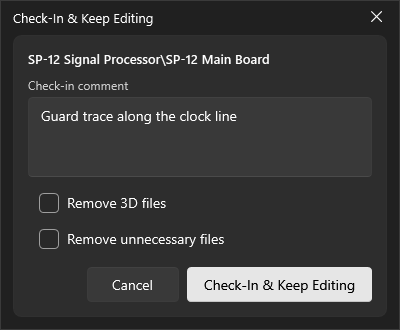
EEforce uploads the new version while you carry on. The design stays checked out to you, so you can save as many versions along the way as you like. In the schematic editor, Save & Check In saves every open sheet first.
The two checkboxes work as in a normal check-in: Remove 3D files and Remove unnecessary files keep the saved version lean. See Checking Out & Checking In.
Closing the editor
When you close Layout on a design you have checked out, the Companion first offers to export the board's 3D model. EEforce uses it for the 3D view, and the editor can only export it while the design is still open.
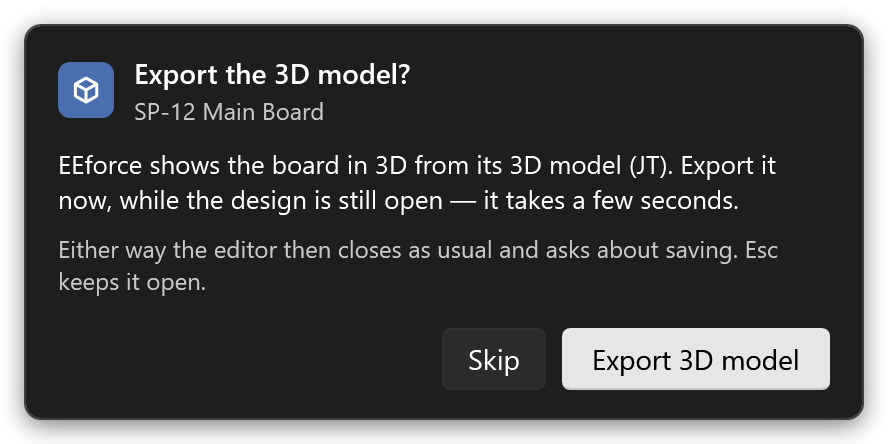
- Export 3D model exports it into the design's output folder. It takes a few seconds.
- Skip closes without exporting. The 3D view then shows the model from the last export, if there is one.
- Esc keeps the editor open.
After that the editor closes as it always does, including its own question about saving your changes. As soon as it has closed, EEforce opens Finish Editing for the design, ready to check it in. Click Cancel there if you aren't done yet: the design stays checked out to you.
Previews stay in step with your saves
Every time you save a layout, the Companion also refreshes the data EEforce uses for its layout preview. Whatever you check in, the preview and Compare show the design exactly as you last saved it.
Comments in the editor
The comments your team leaves in the EEforce app or in EEforce 365 also show up in the editor, on the same spots. In Layout you see the layout comments; in the schematic editor, those on the schematic.
Showing the comments
Click Comments to show every comment as a numbered marker. Grey markers are open, green ones are resolved. Click Comments again to hide them. The editor then returns to exactly the view you had before.
Click the arrow next to Comments to open the comment list. Each card shows who wrote the comment, when, which version it was made on, and how many replies it has. A version tag in amber, such as v2 · older, means the comment was made on a different version from the one you have open.
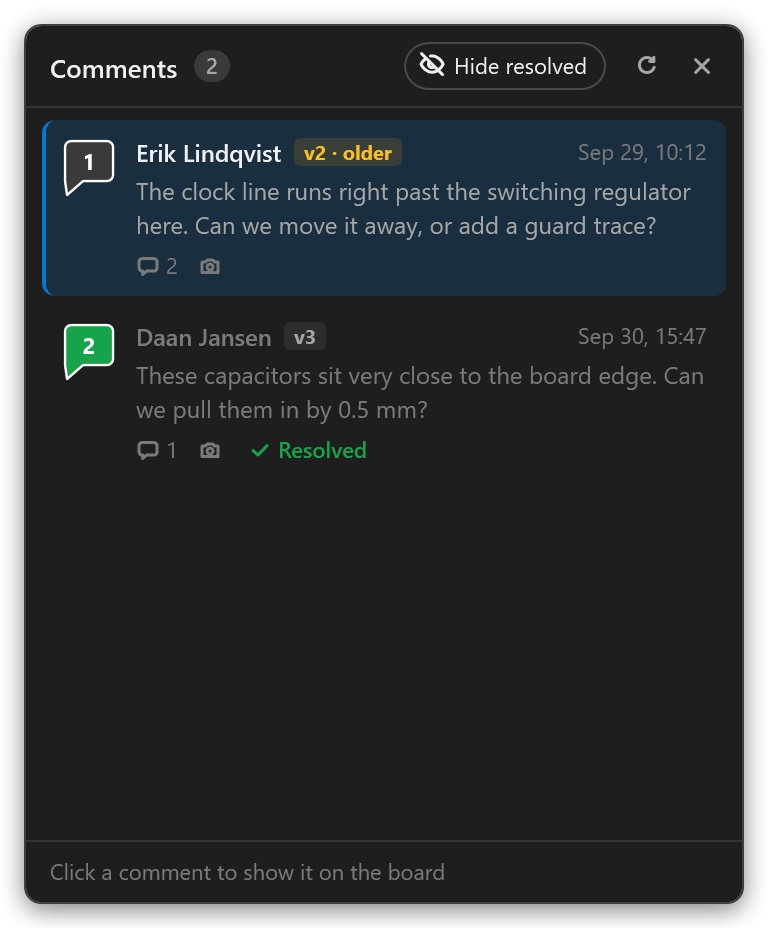
Click a comment in the list, or its marker on the design, to go to it. The Companion takes the editor to the comment's spot:
- In Layout, it shows the layers the comment's author was looking at, at the same zoom.
- In the schematic editor, it opens the sheet the comment is on.
Any area the author marked is outlined on the design, their drawings are drawn on top, and the conversation opens next to the marker.
Mirror View
Comments are placed on the board as seen from the top. While comments are shown, the Companion switches Layout's Mirror View off and tells you so.
Hide resolved, at the top of the list, hides resolved comments from the markers and the list. The choice is remembered and applies to every editor at once.
Reading and answering a comment
The conversation box shows the comment and its replies, with the snapshot that was taken when it was written. Click a snapshot to see it full size. An amber note at the top tells you when a comment was made on another version than yours.
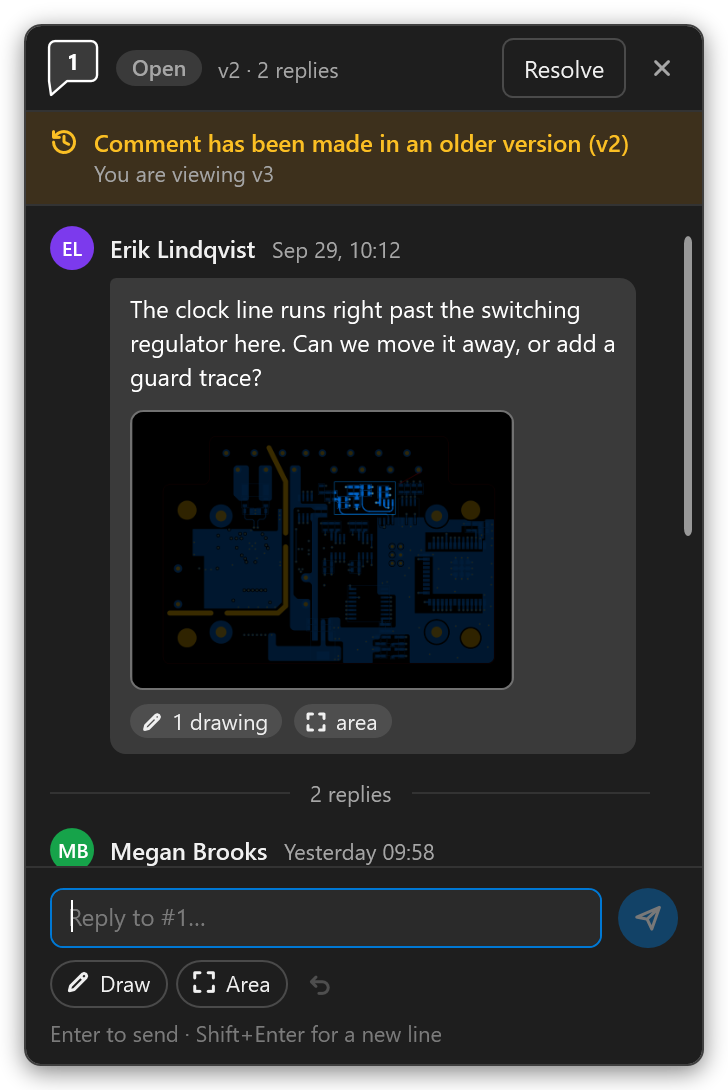
- Type a reply and press Enter to send it. Shift+Enter starts a new line.
- Draw lets you sketch on the design to make your point. Drag on the design to draw. The undo arrow takes the last stroke back.
- Area lets you drag out an area on the design that your reply is about. It is outlined for everyone who reads the reply.
- Resolve marks the comment as dealt with; Reopen opens it again. This needs the Contributor or Manager role on the project.
Adding a comment
- Click Add comment on the toolbar.
- Click the spot on the design you want to talk about, or drag to mark an area. Esc or a right-click cancels.
- Type your comment in the box that opens.
- Drag on the design to draw on it, if a sketch helps. Click Draw to switch drawing off when you need the editor again; the arrow takes the last stroke back. You can still zoom with the mouse wheel and pan with the middle button while the box is open.
- Click Post.
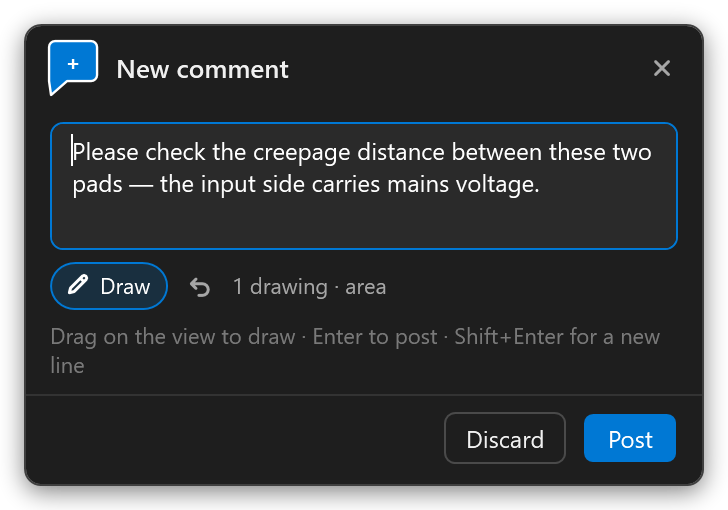
The Companion takes a snapshot of the view with your drawings, so readers see exactly what you saw. The comment appears for everyone right away, in the app, in EEforce 365 and in other people's editors.
Good to know
- The Companion only rides on editors EEforce opened. A design you open in Xpedition or PADS Professional yourself, outside EEforce, doesn't get it.
- It disappears with the editor. When the editor closes, so does its Companion.
- One design per editor. Open each design from EEforce rather than opening another design inside an editor EEforce started. The Companion and the check-in follow the design EEforce opened.
- Your display settings are safe. Showing a comment changes the visible layers or sheet only while comments are shown. Hiding the comments, or closing EEforce, puts your view back.
- Nothing else changes in your tool. Earlier EEforce versions added menu entries and scripts to the design tools. The Companion replaces them, so there is nothing to install in Xpedition or PADS Professional.
What's next
- Checking Out & Checking In — the full editing workflow
- Reviewing Designs Together — comments in the EEforce app
- Settings — connect EEforce to your design tool