

Appearance
LDAP / Active Directory
EEforce can use your company's Active Directory (or any LDAP-compatible directory) for sign-in and, if you want, keep group memberships in step with it. People then use their normal corporate credentials instead of a separate EEforce password.
LDAP integration gives you:
- Authentication — users sign in with their AD username and password
- Auto-registration — an EEforce account is created automatically the first time an AD user signs in
- Group synchronisation — link EEforce groups to AD groups and let EEforce keep the memberships up to date on a schedule
- SSL support — secure LDAP (LDAPS) connections
Licensed feature
LDAP sign-in is a licensed feature. If your licence doesn't include it, the settings page shows a licence notice — contact your reseller to add it.
How sign-in works
User enters AD credentials in EEforce (desktop app or EEforce 365)
    -> EEforce Server binds to AD using the service account
    -> Server validates the user's credentials against AD
    -> If auto-register is enabled and the user is new, an account is created
    -> User is signed in
Passwords are never stored in EEforce — authentication always goes through the directory. Group membership sync happens separately, on a schedule (see below).
Setting it up
1. Create a service account in AD
Create a service account with read permissions:
- No special administrative rights needed.
- Set the password to never expire (or manage its rotation).
- Example:
[email protected]
Service account requirements
The service account needs read access to user and group objects in Active Directory — no write permissions. Use a dedicated service account with the least privileges that work.
2. Configure LDAP in EEforce
Open the web admin (your server address followed by /admin) and go to Settings → LDAP Settings:
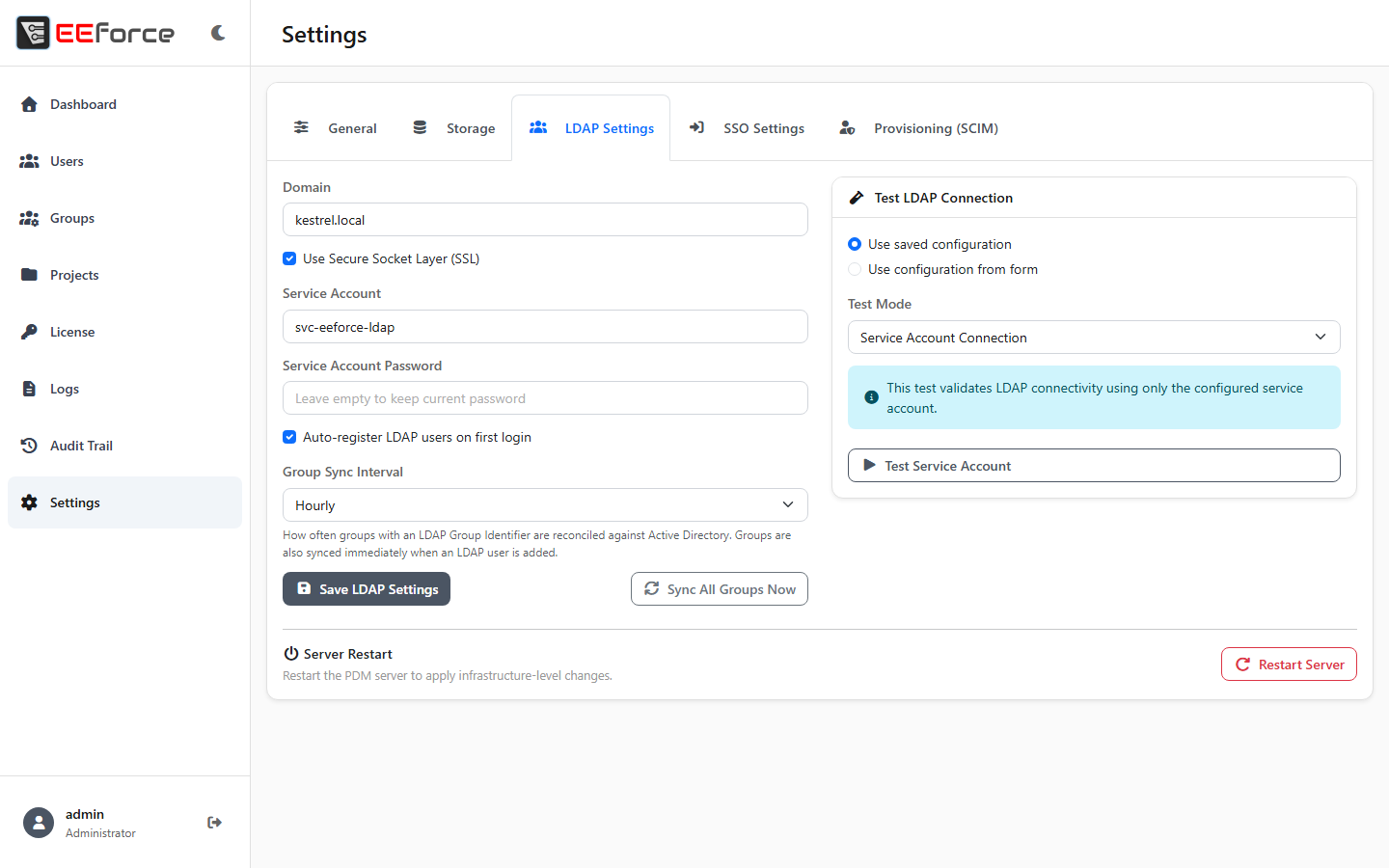
| Setting | Description | Example |
|---|---|---|
| Domain | The LDAP/AD domain to authenticate against | kestrel.local |
| Use SSL | Connect via LDAPS (port 636) instead of plain LDAP (port 389) | On/Off |
| Service Account | The account EEforce uses to query the directory | svc-eeforce-ldap |
| Service Account Password | Its password — stored encrypted, and never shown back | |
| Auto-register LDAP users on first login | Create an EEforce account automatically when an unknown LDAP user signs in successfully | On/Off |
| Group Sync Interval | How often linked groups are synchronised: Every 30 Minutes, Hourly, Every 4 Hours or Daily | Hourly |
Click Save LDAP Settings when you're done. A group with an LDAP identifier is also synced straight away when an LDAP user is added to it, and you can force a full sync any time with Sync All Groups Now, right below the settings.
3. Test the connection
The test panel at the bottom of the page verifies the configuration before your users do:
| Test Mode | What it checks |
|---|---|
| Service Account Connection | That the service account can bind to the directory at all |
| User Lookup | That a specific user can be found, and shows their details |
| User Login | A full authentication test with a user's own credentials |
TIP
Always run Service Account Connection first. If that fails, check the domain name, the service account credentials and network connectivity to a domain controller before going further.
4. Auto-registration
With auto-registration on, anyone who authenticates against AD gets an EEforce account on the spot. With it off, an administrator must create the account (as a Local or LDAP account) before the person can sign in.
Group synchronisation
An EEforce group can be linked to an AD group. From then on, EEforce keeps that group's LDAP-managed membership matching AD — people who are in the AD group are added, and people who left it are removed.
Linking a group
- Open Groups in the web admin and select (or create) the group.
- Set its LDAP Group Identifier to one of:
- the distinguished name:
CN=Hardware Team,OU=Groups,DC=kestrel,DC=local - the sAMAccountName:
Hardware Team - the common name:
Hardware Team
- the distinguished name:
- Click Save. The Test LDAP Link and Sync LDAP Members buttons appear next to the identifier — use them to check the link and run a one-off sync of just this group.
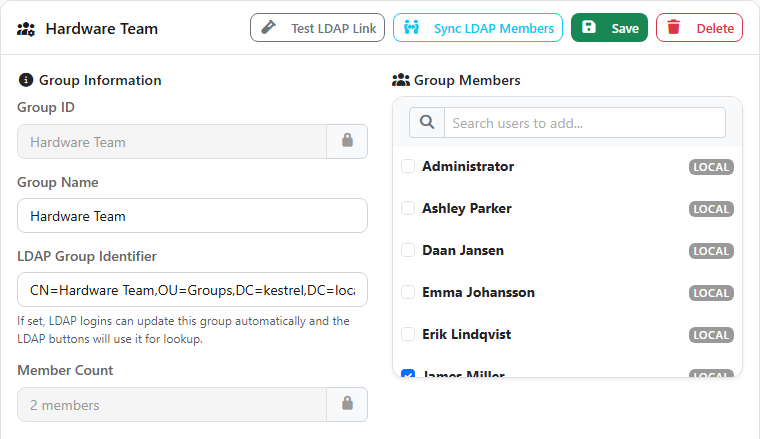
The identifier is matched flexibly: EEforce tries the full DN, the sAMAccountName and the CN.
When synchronisation runs
- Every Group Sync Interval (every 30 minutes, hourly, every 4 hours or daily — hourly by default), all linked groups are synchronised.
- Sync All Groups Now on the LDAP settings page runs the same sync immediately.
- A group is also synced immediately when a new LDAP user is added to it.
- Sync LDAP Members on a group's page refreshes that one group.
Example configuration
| EEforce group | LDAP Group Identifier | Effect |
|---|---|---|
| Hardware Team | CN=HW-Engineers,OU=Teams,DC=kestrel,DC=local | AD members of HW-Engineers are members of Hardware Team |
| Project Administrators | EEforce-Admins | AD members of EEforce-Admins get Manager access to every project |
| Project Creators | EEforce-Creators | AD members can create new projects |
TIP
Treat the membership of a linked group as managed by Active Directory — anything you change by hand is corrected at the next sync.
User lifecycle
A new LDAP user (auto-registration on)
- The user signs in to EEforce with their AD credentials.
- The server authenticates against AD.
- An EEforce account is created: User ID = AD username, display name = AD display name, marked as LDAP-authenticated.
- If the user was added to a linked group, that group syncs immediately.
- The user is signed in.
An existing LDAP user
- The user signs in with their AD credentials.
- The server authenticates against AD.
- The user is signed in; group memberships follow the sync schedule.
When someone leaves
- A disabled or deleted AD account can no longer sign in — authentication fails.
- Their EEforce account remains (their name stays on the work they did) until you deactivate or delete it on the Users page.
SSL / LDAPS
For secure connections:
- Make sure your domain controllers have a valid certificate for LDAPS (port 636).
- Turn Use SSL on in EEforce's LDAP settings.
- If your organisation uses a private certificate authority, install its root certificate on the EEforce server.
WARNING
Plain LDAP (port 389) sends credentials across the network in clear text. Use LDAPS in production.
Troubleshooting
| Issue | Possible cause | Resolution |
|---|---|---|
| Service account test fails | Wrong domain or credentials | Check the domain name and the account; try the DOMAIN\user form |
| User lookup finds nothing | User not in the expected place | The search covers the whole domain tree — check the spelling of the username |
| Group members don't update | Identifier not set, or the schedule hasn't run yet | Set the LDAP Group Identifier, click Sync LDAP Members, and check the Group Sync Interval |
| SSL connection fails | Certificate not trusted | Install the AD certificate authority's root certificate on the server |
| Auto-registration doesn't work | Setting is off | Turn on Auto-register LDAP users on first login |
| Sign-in is slow | DNS resolution | Make sure the server can resolve the domain name quickly |