

Appearance
Viewing a Design
Clicking a board opens it in the built-in viewer at its latest version — the same viewer as in the desktop app. The buttons along the top switch views: Layout, Schematic, CrossProbe (both at once), PCB BOM, SCH BOM, PCB Spec (the board's specification), 3D and Assembly (the 3D board with the Assembly Assistant open). A button is greyed out when the version doesn't contain that data; point at it to see why. Zoom and fit controls sit in the bottom-right corner.
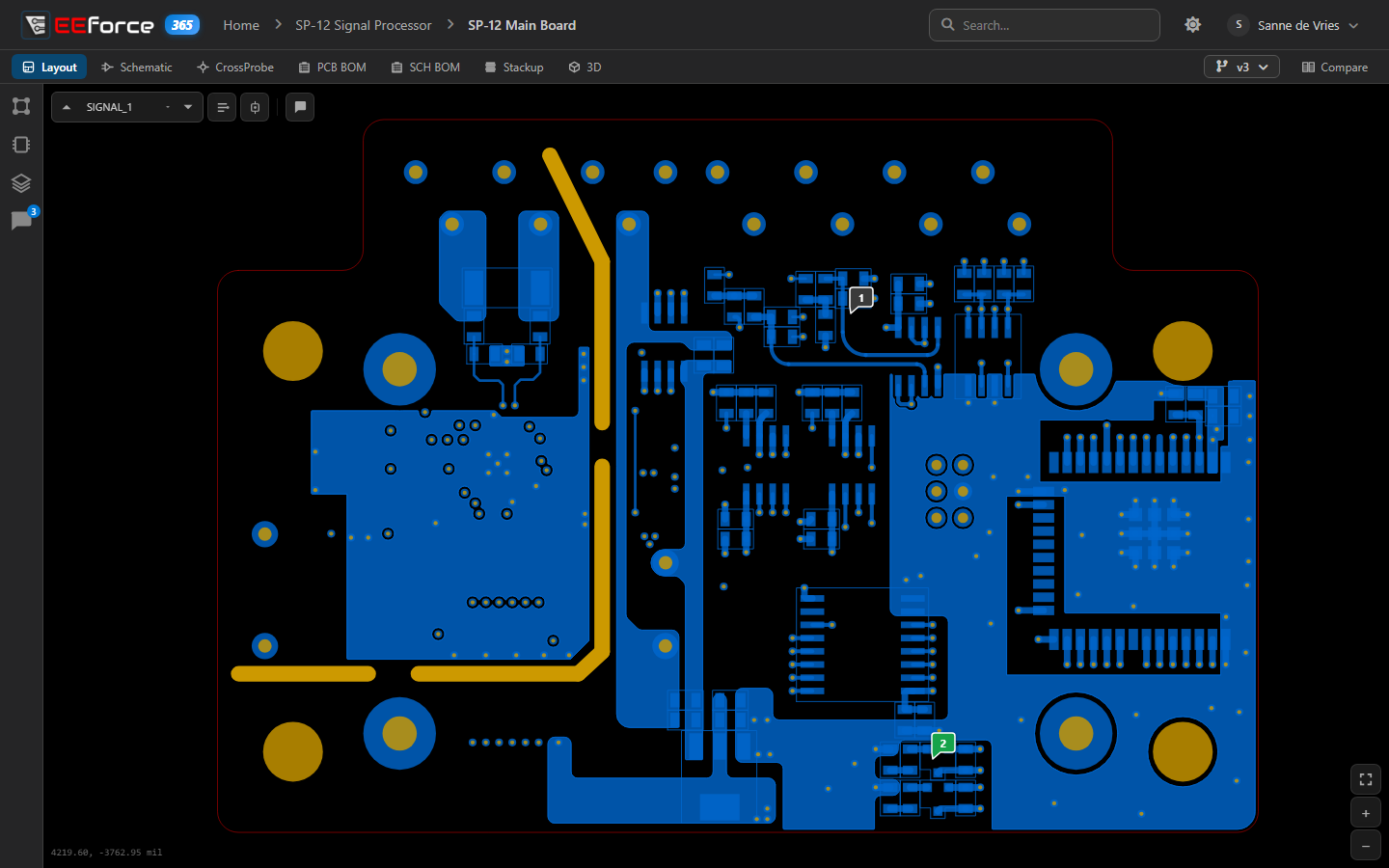
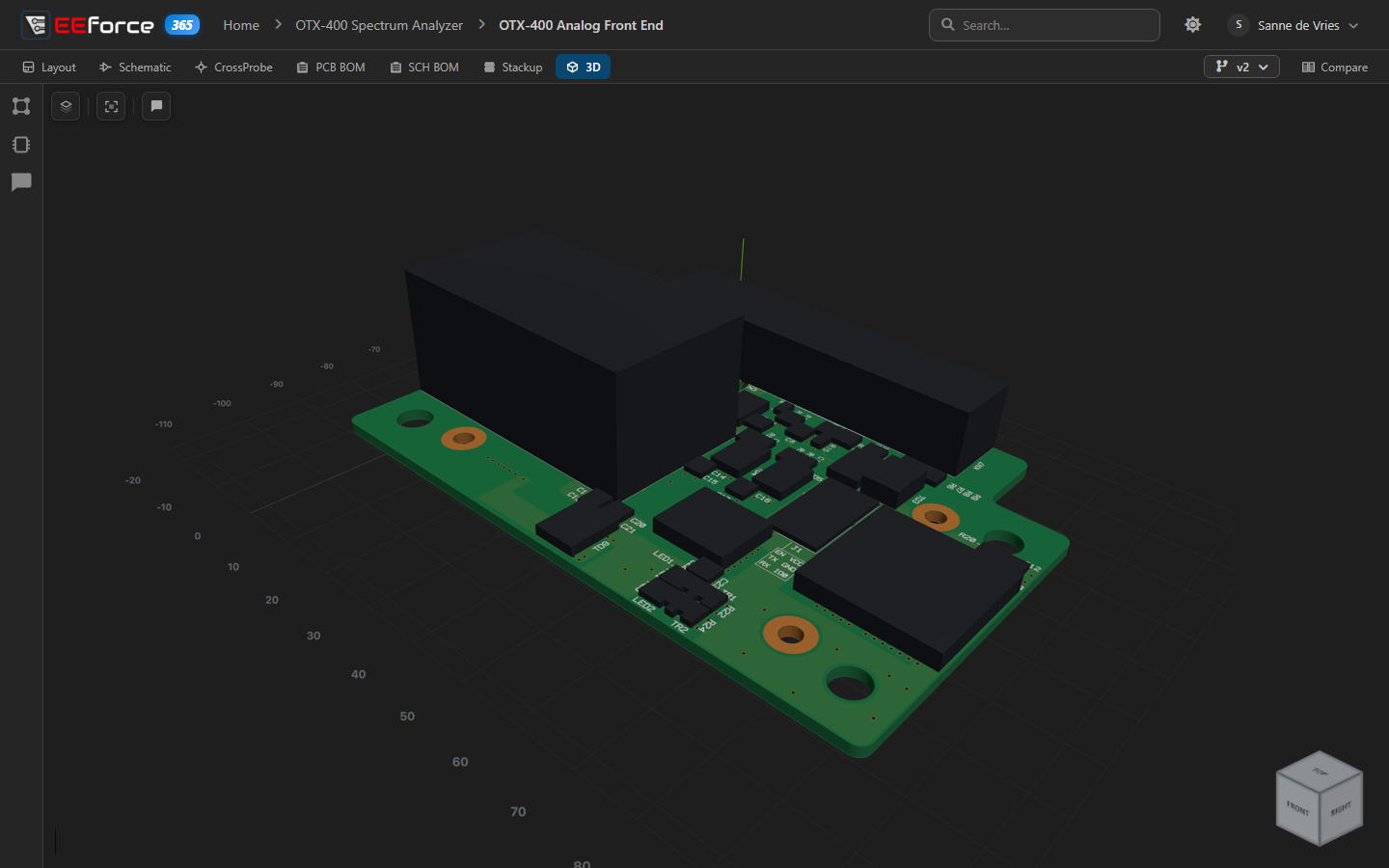
How each view works — layers, selecting and measuring, assembly variants, BOM filters and export, the PCB specification, the 3D controls and the Assembly Assistant — is described in Previewing Designs. On the CrossProbe page, either view can open in a browser tab of its own and stays cross-probed with the page — handy on a second screen.
The side panel
The icons on the left of the viewer open the same panels as in the desktop app: layers, components, nets and the comment list. Everything you see comes straight from the server, so nothing is checked out and nothing can be changed by accident.
Switching versions
Click the version button in the top bar (for example v3) to open the version list. Each version shows when it was checked in, by whom, its check-in comment and its tag. The newest is marked Current, and the lines on the left show which version each one was based on, so branches are easy to follow. Click a version to open it.
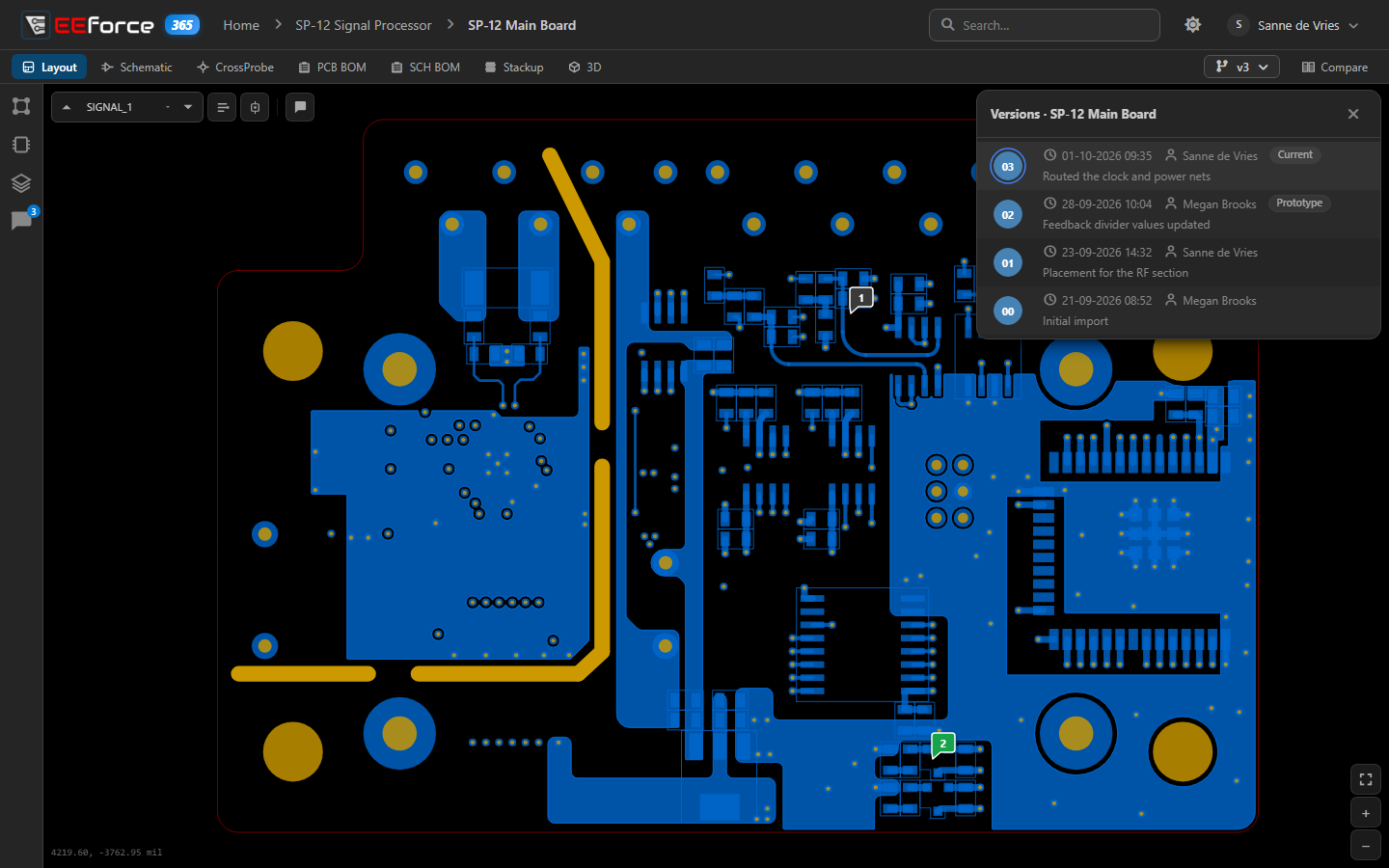
A version marked Pruned or Preview is not available can't be opened in the viewer.
When the design changes while you look
The version list follows the board while you have it open: a version checked in by a colleague appears by itself. The viewer also shows a notice:
- Version 4 is available — a newer version was checked in while you were looking. Click Go to latest to open it.
- Checked out by a colleague — someone is editing the design, so you may not be seeing its latest state yet.
See When the design changes while you look for pictures of both.
What's next
- Comparing Designs — put two versions side by side
- Comments — read and reply on the board