

Appearance
Comparing Designs
Compare shows two versions of a design — or two different boards — on top of each other, so you can see exactly what changed: what only the first side has, what only the second side has, and where they overlap.
You can compare in the desktop app, and in a browser with EEforce 365.
Comparing two versions of a design
Open the design and select the newer version.
Click Compare. The menu lists the design's other versions, with who checked each one in and its tag. Point at a version and choose Layout or Schematic: that is the view the comparison opens in. A choice is greyed out when one of the two versions has no preview for that view.
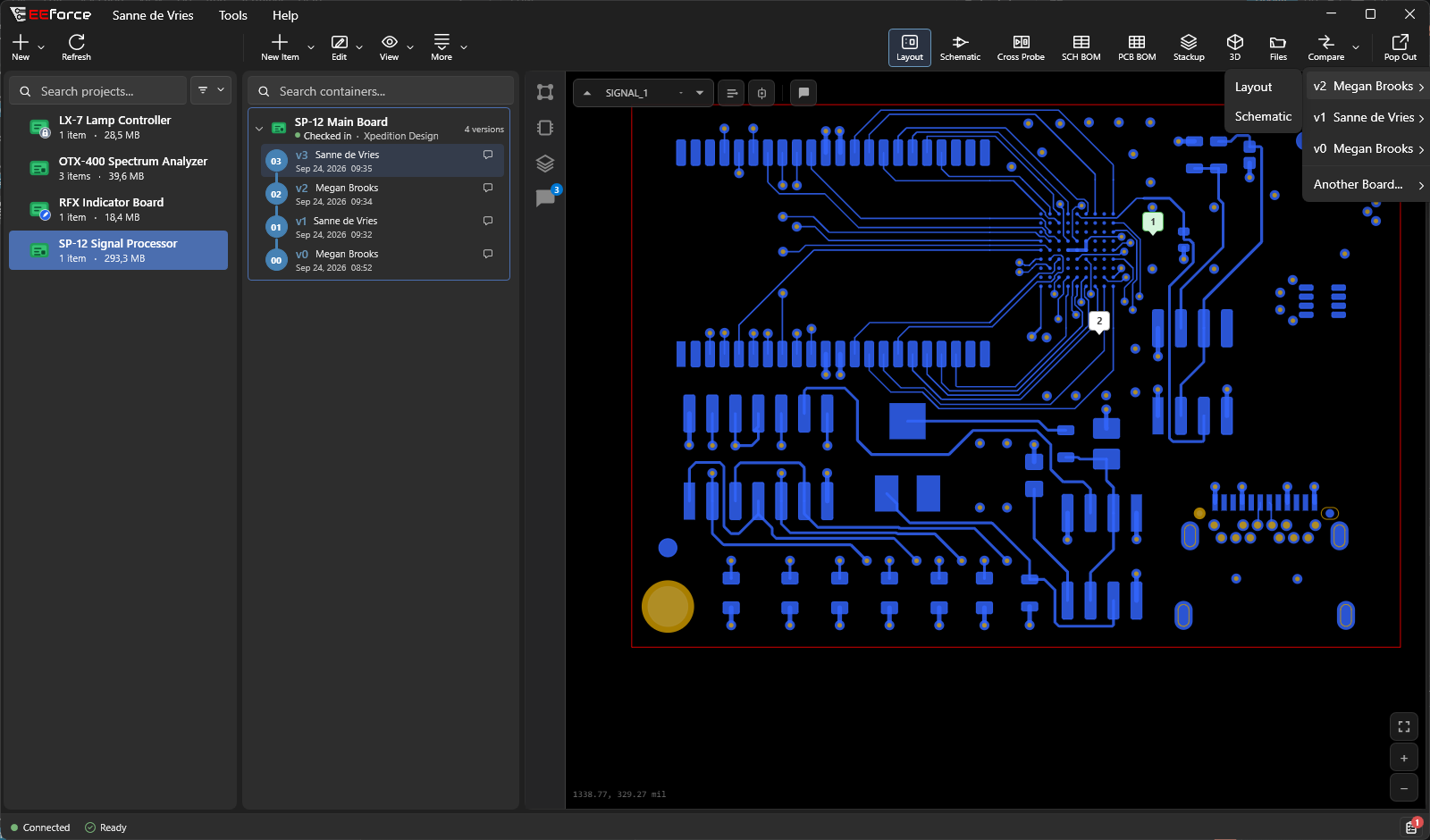
The viewer shows both versions in one picture.
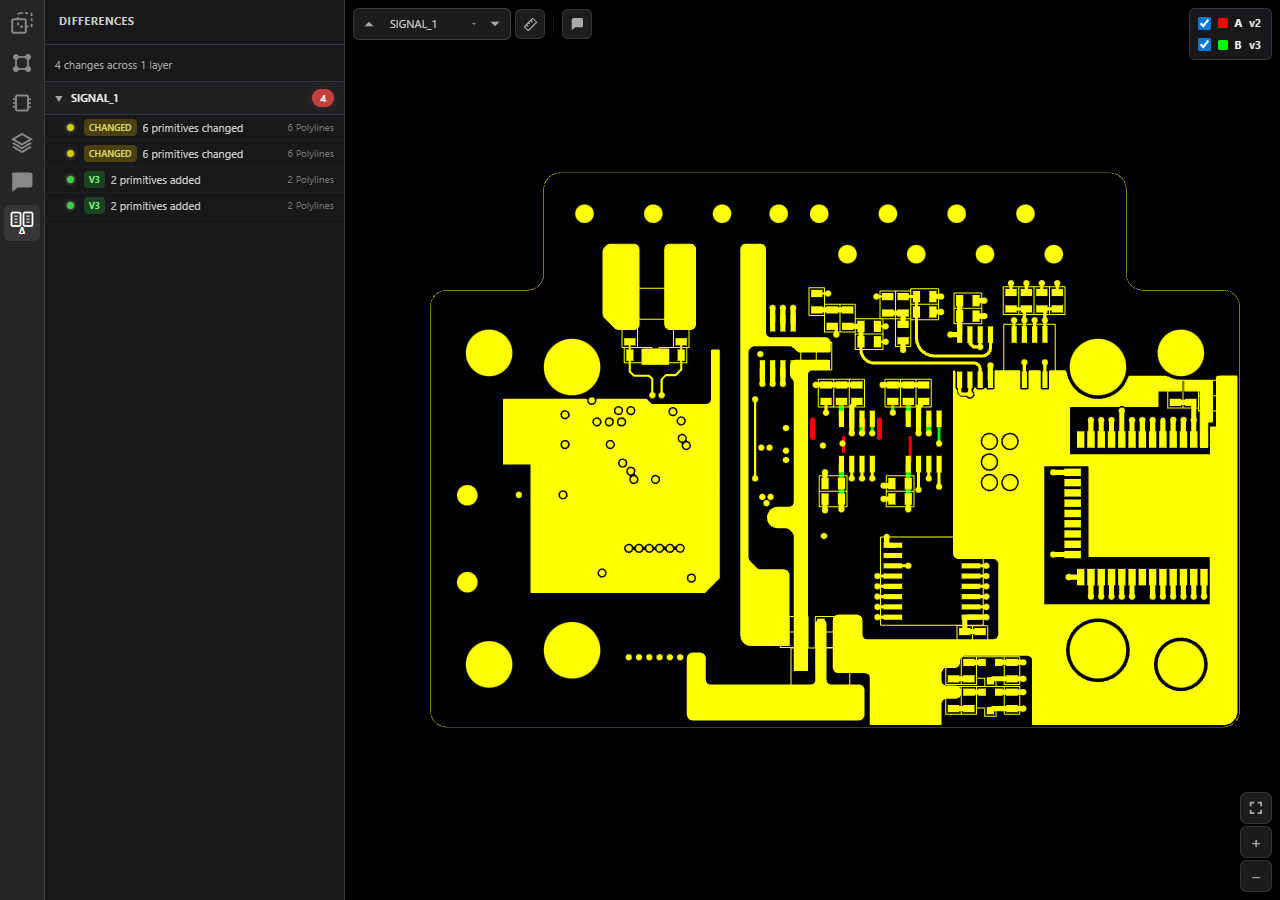
The legend in the top-right corner names the two sides — A, the older version, and B, the newer one — with their colours: red for what only A has, green for what only B has, and yellow where both draw the same. Untick a side to see the other one alone, or press O to switch between A, A + B and B. In the picture, a few clock-line traces were re-routed between v2 and v3.
The Differences panel on the left lists the changes layer by layer: what changed and what was added. Click one to zoom straight to it.
Comparing with another board
Compare → Another Board… compares the design with any other board you have access to, also in a different project.
- Click Compare → Another Board…, then Layout or Schematic.
- Find the board: type in the search box — it matches projects, boards, versions, tags and comments — or pick the board in the tree.
- Click Compare.
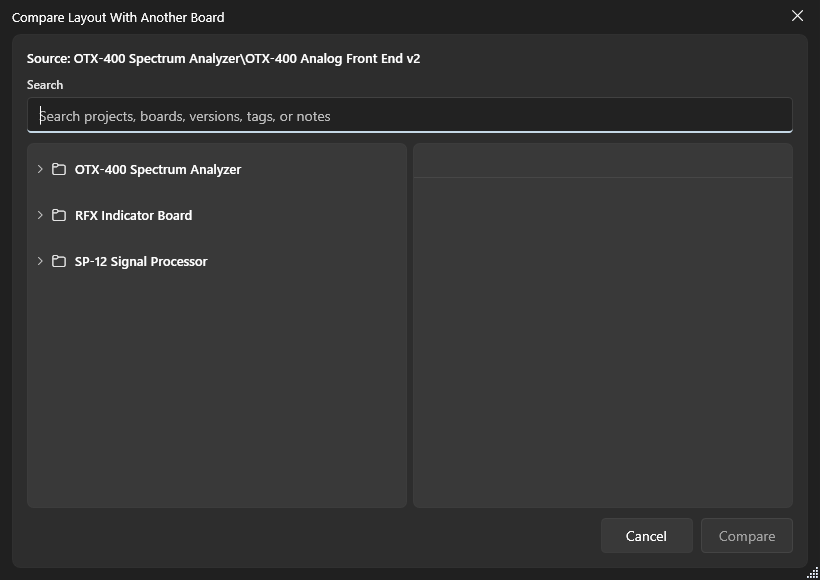
Lining up two boards
Every layout comparison opens the Compare Assistant on the left. Two versions of the same board usually line up by themselves, but two different boards rarely sit at the same place in their files, and their layer stacks may differ. The Compare Assistant lines them up: B — the newer version, or the board you compared with — is moved over A.
Alignment moves and turns B:
- Click Pick points, click a pad, via or track end of B, then click the point of A it belongs on. Clicks snap to pad and via centres and track ends; hold Ctrl to place a point freely. Esc steps back.
- While you pick, both boards stay on screen. The loupe (L) shows the boards around the pointer, nearer.
- Fine-tune by typing the offset and angle, or turn B a quarter turn either way about the point picked last.
A moved tag shows that B is no longer where its file puts it; the reset button puts it back.
Layer matching shows which copper layer of B is compared with each layer of A. EEforce matches them automatically; change a match if you need to, and go back to the automatic matching at any time.
What's next
- Previewing Designs — the views explained
- Designs & Versions — where versions come from