

Appearance
Installing EEforce
Getting the EEforce app onto your Windows PC takes a couple of minutes, and you only do it once. What happens on later versions is described in Updating EEforce.
Only want to look at designs?
You don't need to install anything to view a design, compare versions or comment. Use EEforce 365 in your web browser instead — see Reviewing in the Browser.
Before you start
| You need | Details |
|---|---|
| Windows 10 or 11 (64-bit) | EEforce runs on Windows. |
| Permission to install software | You (or your IT team) need administrator rights for the install itself. |
| Free disk space | For the app, plus working copies of the designs you check out. The installer checks the space before it starts. |
| Your server address and sign-in | Ask whoever manages EEforce at your company. The server address looks like http://eeforce.kestrel.local, or starts with https:// when your server uses a certificate. |
Who sets up the server?
The central EEforce server is installed once by your IT team — you don't need to. If that's not done yet, see Setting Up the Server. As a user, you only install the app below.
Step 1 — Get the installer
Download it straight from your server when you can: that way the installer already knows the server's address.
Open your server address in a web browser, for example
http://eeforce.kestrel.local.Click Download Client Software.
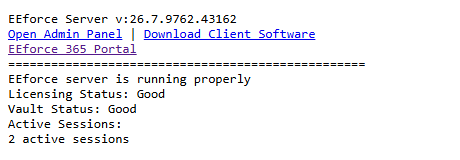
Unzip the downloaded file into a folder of its own.
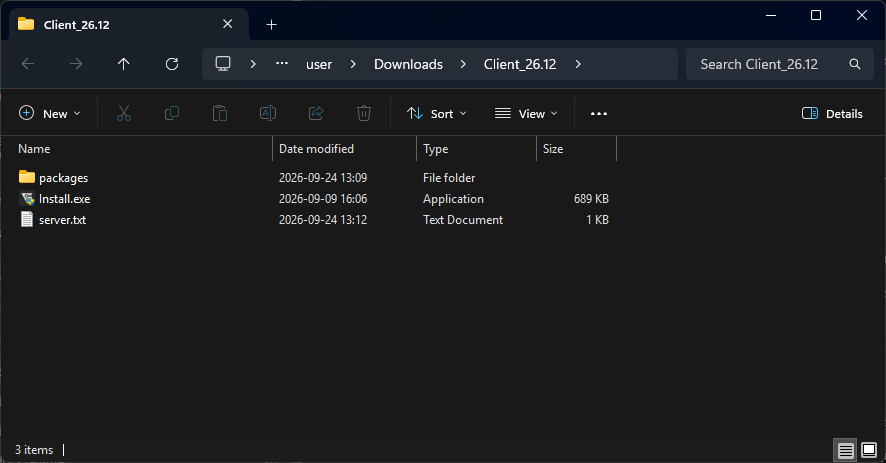
The folder holds Install.exe, a packages folder with everything the installer needs, and server.txt, which holds your server's address. Your IT team may also hand you the same folder.
Step 2 — Install the app
Run
Install.exeand allow it when Windows asks. If your PC is missing something EEforce needs (the .NET Desktop Runtime or Microsoft Edge WebView2), the installer adds it first. It brings its own copies, so this works without internet access.On the Welcome page, click Start Installation. This only starts the wizard — nothing is installed yet.
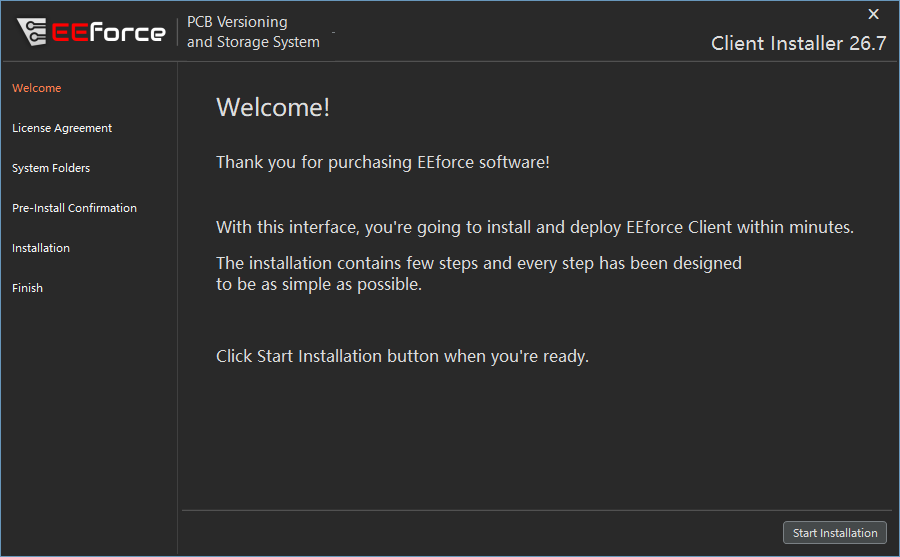
Accept the licence agreement.
On System Folders, keep the suggested Software Installation Folder and check the EEforce Server Address. If you downloaded the installer from your server, the address is already filled in. If not, type the address your administrator gave you.
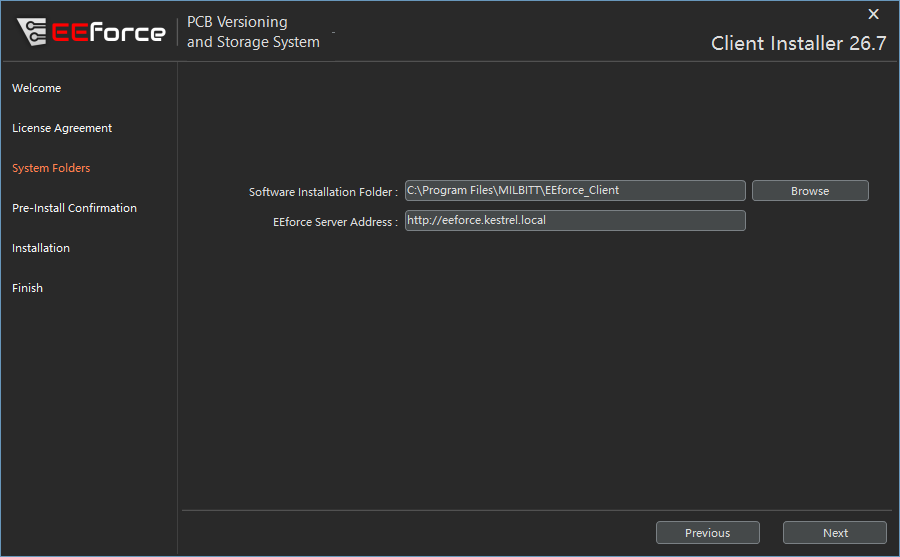
On Pre-Install Confirmation, check the install folder and click Start Installation.
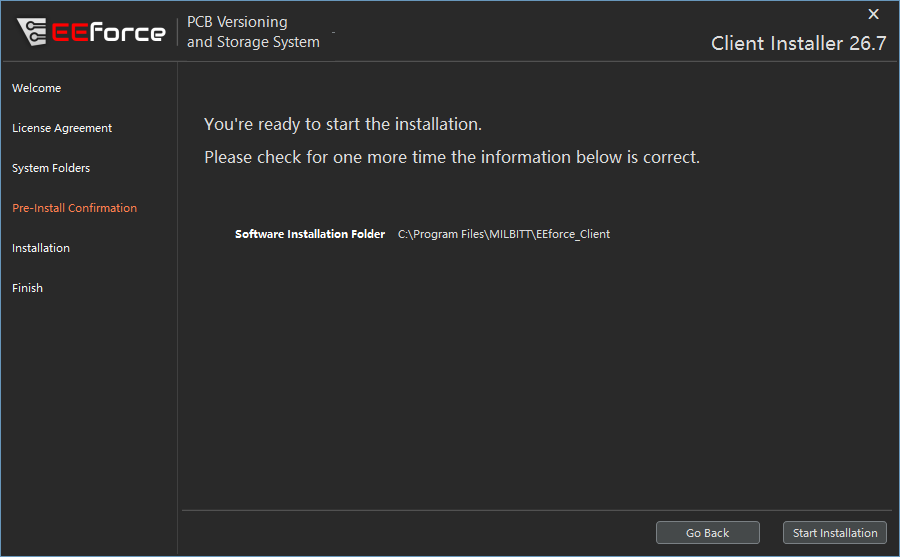
Let it install. When the Finish page says All Done!, click Finish Installation. If something went wrong, Open Log File shows what happened — send the log to your IT team.
An EEforce shortcut appears on your desktop and in the Start menu.
Not enough disk space?
The installer checks the free space on the install drive before it copies anything. If there isn't enough, it stops and tells you how much it needs. Free up some space and run it again.
Step 3 — Start EEforce
Double-click the EEforce icon. The app connects to your server, checks for a newer version, and shows the sign-in screen:
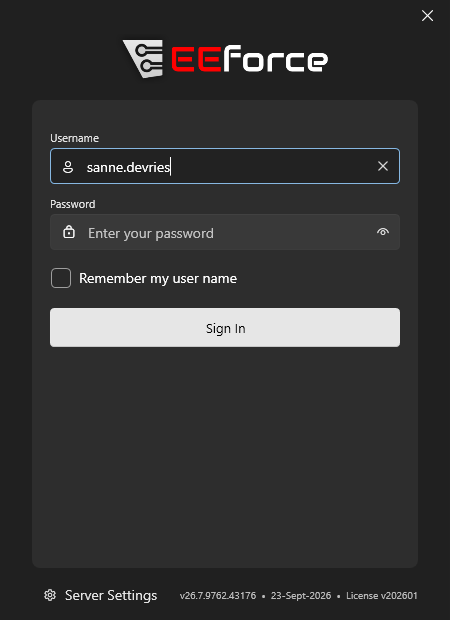
Sign in with your username and password, then choose a licence — see Signing In for the details.
If EEforce can't reach the server, the address is probably wrong. Click Server Settings at the bottom of the sign-in screen and correct it — see Using a different server.
Installing on many PCs?
IT teams can run the same installer without any windows, for example from a deployment tool: Install.exe /silent /serverurl <address>. See Unattended installation.
What's next
- Signing In — connect and choose a licence
- Updating EEforce — what happens when a new version arrives
- A Tour of the Window — find your way around
- Settings — connect your design tool, if you'll be editing