

Appearance
Design Operations
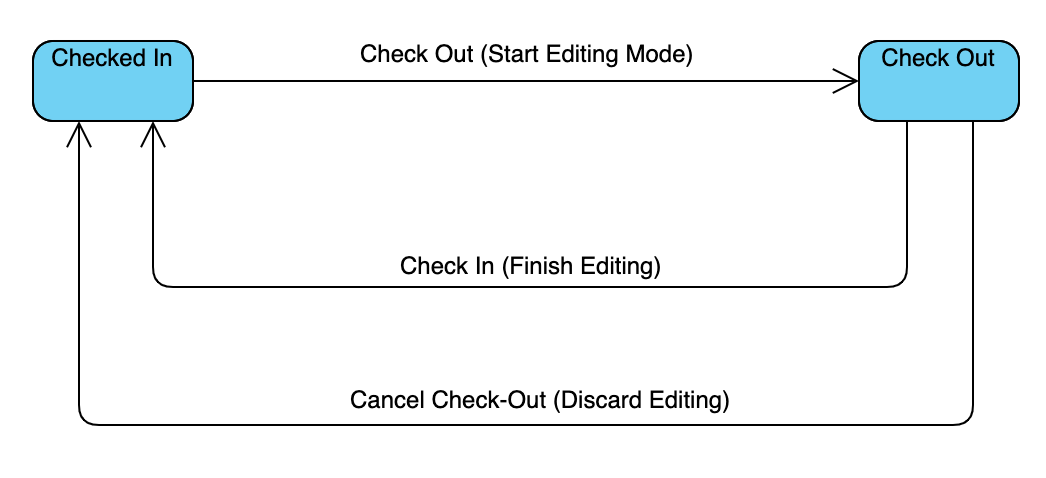
Design operations manage the lifecycle of design files within containers. EEforce uses a lock-based version control model where a design can only be edited by one user at a time.
Design States
| State | Description |
|---|---|
| Checked In | Design is stored in the vault. No one is editing it. Available for check-out. |
| Checked Out | A copy has been downloaded for editing. The container is locked to the user who checked it out. |
Available Operations
| Operation | When Available | What It Does |
|---|---|---|
| Check Out | Checked-in state | Downloads the design to your local machine; locks the container |
| Check In | You have it checked out | Uploads your changes as a new version; unlocks the container |
| Cancel Check-Out | You have it checked out | Discards local changes; unlocks without creating a new version |
| View (Read-Only) | Any state | Downloads a read-only copy without locking |
Opening a Design in Read-Only Mode
Requires: Viewer, Contributor, or Manager role.
Read-only mode downloads a copy of the design without locking it. You can view and inspect but not save changes back.
- Right-click the container or a specific version.
- Under View (Open Read-Only Mode), select the desired action (e.g., Open in Xpedition, Open PCB, Open Schematic).
INFO
Read-only mode does not affect other users. Multiple users can view simultaneously.
Checking Out a Design (Start Editing)
Requires: Contributor or Manager role. Container must be checked in.
- Right-click the container (or a specific version to check out an older version).
- Under Check Out (Start Editing Mode), select the desired action.
- The design files are downloaded to your local working directory.
- The container status changes to Checked Out and is locked to you.
WARNING
While you have a design checked out, no other user can edit it. Check in or cancel promptly when done.
Checking In a Design (Finish Editing)
Requires: You must have the container checked out.
Right-click the checked-out container.
Click Check In (Finish Editing).
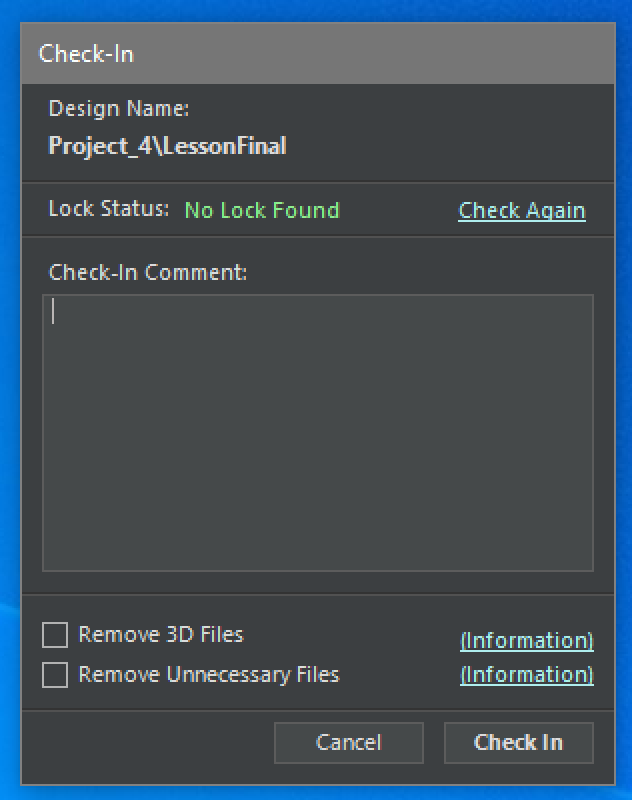
The Check-In dialog appears:
Review the following:
Field Purpose Lock Status Shows if any program still has design files open. Must show "Unlocked" to proceed. Check-In Comment Optional description of what changed. Displayed in version history. Remove 3D Files Strips 3D data to save vault space (use if you made no 3D changes). Remove Unnecessary Files Removes log files and old CCZ files that don't need versioning. Click Check-In.
Monitor upload progress in the Operation Logs panel.
TIP
If the Lock Status shows "LOCKED", close all editor windows (Xpedition, PADS) and click Check Again.
Cancelling a Check-Out (Discard Changes)
Requires: You must have the container checked out.
WARNING
This permanently discards all local changes made since check-out. The design reverts to its last checked-in version.
Right-click the checked-out container.
Click Cancel Check-Out (Discard Editing).
The confirmation dialog appears:
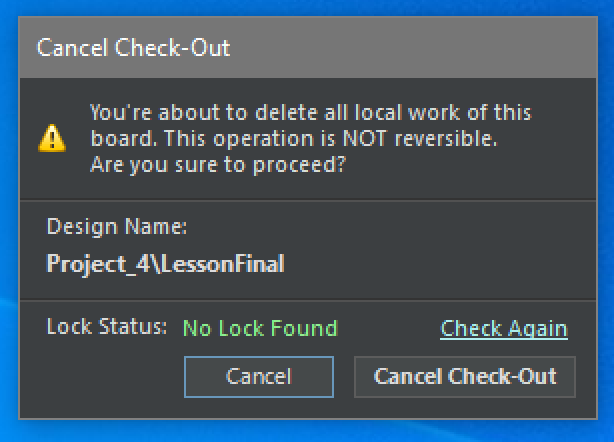
If Lock Status shows "LOCKED", close editor windows and click Check Again.
Click Cancel Check-Out to confirm.
Version History
Each check-in creates a new version. You can:
- View any previous version in read-only mode by right-clicking the version number.
- Check out a specific version to create a new version based on an older one (effectively reverting).
- See check-in comments for each version in the version list.
Troubleshooting
| Issue | Resolution |
|---|---|
| "Design is locked" but you need to edit | Contact the user who has it checked out, or ask an admin to force-cancel |
| Lock Status stuck on "LOCKED" | Close all Xpedition/PADS windows. Check Task Manager for lingering processes. |
| Check-in fails midway | Check network connection. Enable chunked uploads in Settings for large designs. |
| Local files missing after cancel | Expected behavior - cancel removes all local copies of the design. |