

Appearance
LDAP Integration
EEforce integrates with Active Directory (AD) and other LDAP-compatible directories for user authentication and group synchronization. This allows your team to log in with their existing corporate credentials.
Overview
LDAP integration provides:
- Authentication - Users log in with their AD username and password
- Auto-provisioning - New user accounts are created automatically on first login
- Group synchronization - EEforce groups can be linked to AD groups for automatic membership updates
- SSL support - Secure LDAP (LDAPS) connections
How It Works
User enters AD credentials in EEforce Client
    -> EEforce Server binds to AD using the service account
    -> Server validates user credentials against AD
    -> If auto-register is enabled and user is new, account is created
    -> Group memberships are synchronized
    -> User is logged in
INFO
LDAP users are marked with a flag in the system. Their passwords are never stored locally - authentication always goes through the directory.
Configuration
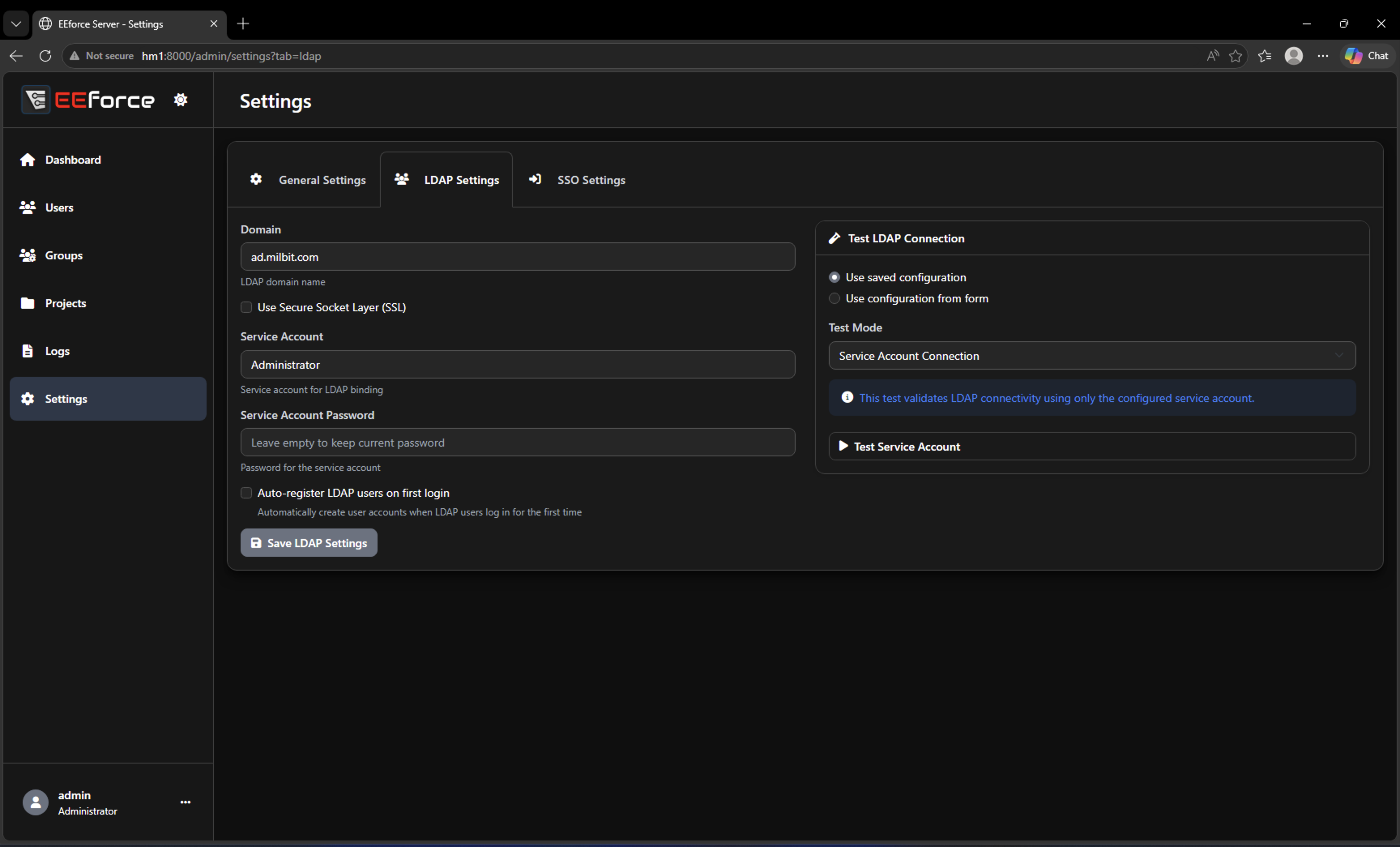
From the Web Admin Interface
Navigate to Admin -> Settings -> LDAP Settings tab.
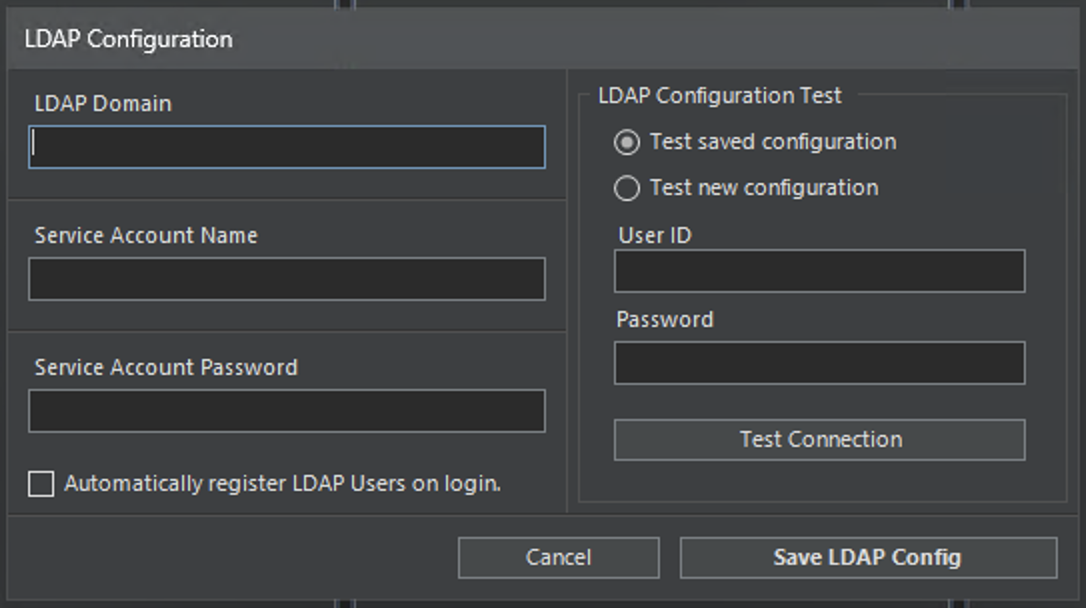
From the Desktop Client
Open Admin -> LDAP Configuration from the menu bar.
Settings Reference
| Setting | Description | Example |
|---|---|---|
| Domain | The LDAP/AD domain to authenticate against | corp.example.com |
| Service Account | Username of the account used to query the directory | svc_eeforce |
| Service Account Password | Password for the service account | (stored encrypted) |
| Use Secure Socket Layer (SSL) | Connect via LDAPS (port 636) instead of plain LDAP (port 389) | Enabled/Disabled |
| Auto-register LDAP users on first login | Automatically create an EEforce account when an unknown LDAP user logs in successfully | Enabled/Disabled |
Service Account Requirements
The service account needs read access to user and group objects in Active Directory. It does not need write permissions. Use a dedicated service account with minimal privileges.
Setup Steps
1. Create a Service Account in AD
Create a service account in Active Directory with read permissions:
- No special admin rights needed
- Set password to never expire (or manage rotation)
- Example:
[email protected]
2. Configure LDAP in EEforce
- Open the web admin:
http://<server>/Admin - Go to Settings -> LDAP Settings
- Fill in:
- Domain: Your AD domain (e.g.,
corp.example.com) - Service Account: The service account username
- Service Account Password: The service account password
- Domain: Your AD domain (e.g.,
- Enable Use Secure Socket Layer if your domain controller supports LDAPS
- Enable Auto-register LDAP users on first login (recommended)
- Click Save LDAP Settings
3. Test the Connection
Use the built-in test panel (available in web admin) to verify the configuration:
| Test Mode | What It Checks |
|---|---|
| Service Account Connection | Validates that the service account can bind to the directory |
| User Lookup | Finds a specific user in AD and retrieves their display name |
| Group Lookup | Resolves a group identifier (DN, sAMAccountName, or CN) |
| List User Groups | Shows all AD groups a specific user belongs to |
| User Login | Performs a full authentication test with a user's credentials |
TIP
Always test with Service Account Connection first. If that fails, check the domain name, service account credentials, and network connectivity to the domain controller.
4. Enable Auto-Registration (Optional)
When enabled, any user who successfully authenticates against AD will automatically get an EEforce account created. This eliminates the need to manually create accounts for each team member.
If disabled, an administrator must manually create accounts and mark them as LDAP-authenticated before users can log in.
Group Synchronization
EEforce groups can be linked to AD groups. When linked, group membership is automatically synchronized based on AD membership.
How Group Sync Works
- An administrator links an EEforce group to an AD group by setting the LDAP Group Identifier.
- When an LDAP user logs in, the system checks their AD group memberships.
- For each linked EEforce group:
- If the user is in the corresponding AD group -> they are added to the EEforce group
- If the user is NOT in the AD group -> they are removed from the EEforce group
- Changes are applied immediately on login.
Linking a Group
From the Web Admin:
- Go to Groups management page
- Select or create a group
- Set the LDAP Group Identifier field to one of:
- Distinguished Name:
CN=Engineering,OU=Groups,DC=corp,DC=local - sAMAccountName:
Engineering - Common Name:
Engineering
- Distinguished Name:
From the Desktop Client:
- Open Admin -> Group Management
- Select a group
- Set the LDAP Group Identifier field
INFO
The LDAP Group Identifier is matched flexibly - you can use the full Distinguished Name (DN), the sAMAccountName, or the CN. The system will try to resolve it.
Sync-on-Login vs. Manual Sync
| Method | When It Runs | Scope |
|---|---|---|
| On Login | Every time an LDAP user logs in | That user's memberships across all linked groups |
| Manual Group Sync | Administrator triggers from web admin | All LDAP users in a specific group |
Example Configuration
| EEforce Group | LDAP Group Identifier | Effect |
|---|---|---|
| Hardware Team | CN=HW-Engineers,OU=Teams,DC=corp,DC=local | All AD members of HW-Engineers are added to Hardware Team |
| Project Administrators | EEforce-Admins | AD members of EEforce-Admins get Manager access to all projects |
| Project Creators | EEforce-Creators | AD members can create new projects |
User Lifecycle
New LDAP User (Auto-Register Enabled)
- User opens EEforce Client and enters AD credentials
- Server authenticates against AD -> success
- Server creates an EEforce account with:
- User ID = AD username (sAMAccountName)
- Display Name = AD display name
- Marked as LDAP-authenticated
- Group sync runs -> user is added to appropriate linked groups
- User is logged in
Existing LDAP User
- User enters credentials
- Server authenticates against AD
- Group sync runs (memberships updated if changed)
- User is logged in
User Leaves the Organization
When an AD account is disabled or deleted:
- The user cannot authenticate anymore (login fails)
- Their EEforce account remains but is inaccessible
- An administrator can manually delete or deactivate the account
TIP
Consider periodically reviewing user accounts in the web admin to clean up accounts for departed employees.
SSL/LDAPS
For secure connections:
- Ensure your domain controller has a valid SSL certificate (port 636)
- Enable Use Secure Socket Layer in EEforce LDAP settings
- If using a self-signed CA, install the CA certificate on the EEforce server machine
WARNING
Plain LDAP (port 389) transmits credentials in clear text on the network. Always use LDAPS in production environments.
Troubleshooting
| Issue | Possible Cause | Resolution |
|---|---|---|
| Service account test fails | Wrong credentials or domain | Verify domain, username, and password. Try domain\username format. |
| User lookup returns nothing | User not in expected OU | The search covers the entire domain tree; check the username spelling |
| Group sync not updating | LDAP Group Identifier not set | Verify the group has a valid identifier in group management |
| SSL connection fails | Certificate not trusted | Install the AD CA certificate on the server machine |
| Auto-register not working | Setting is disabled | Enable Auto-register LDAP users on first login in settings |
| Login slow | DNS resolution issues | Ensure the server can resolve the AD domain name quickly |