

Appearance
Administration from the Desktop Client
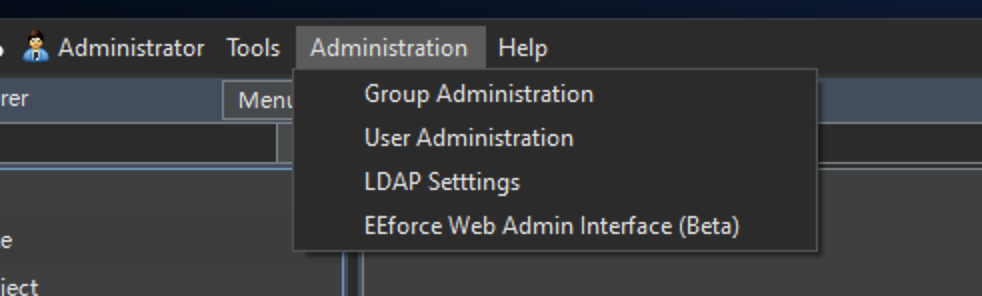
The EEforce desktop client provides administration features for users with administrator privileges. These are accessible from the Admin menu in the top menu bar.
Web Interface Recommended
The same administration tasks are available in the Web Admin Interface, which offers a more modern experience. The client-based admin panels are maintained for convenience but may be retired in future versions.
Group Management
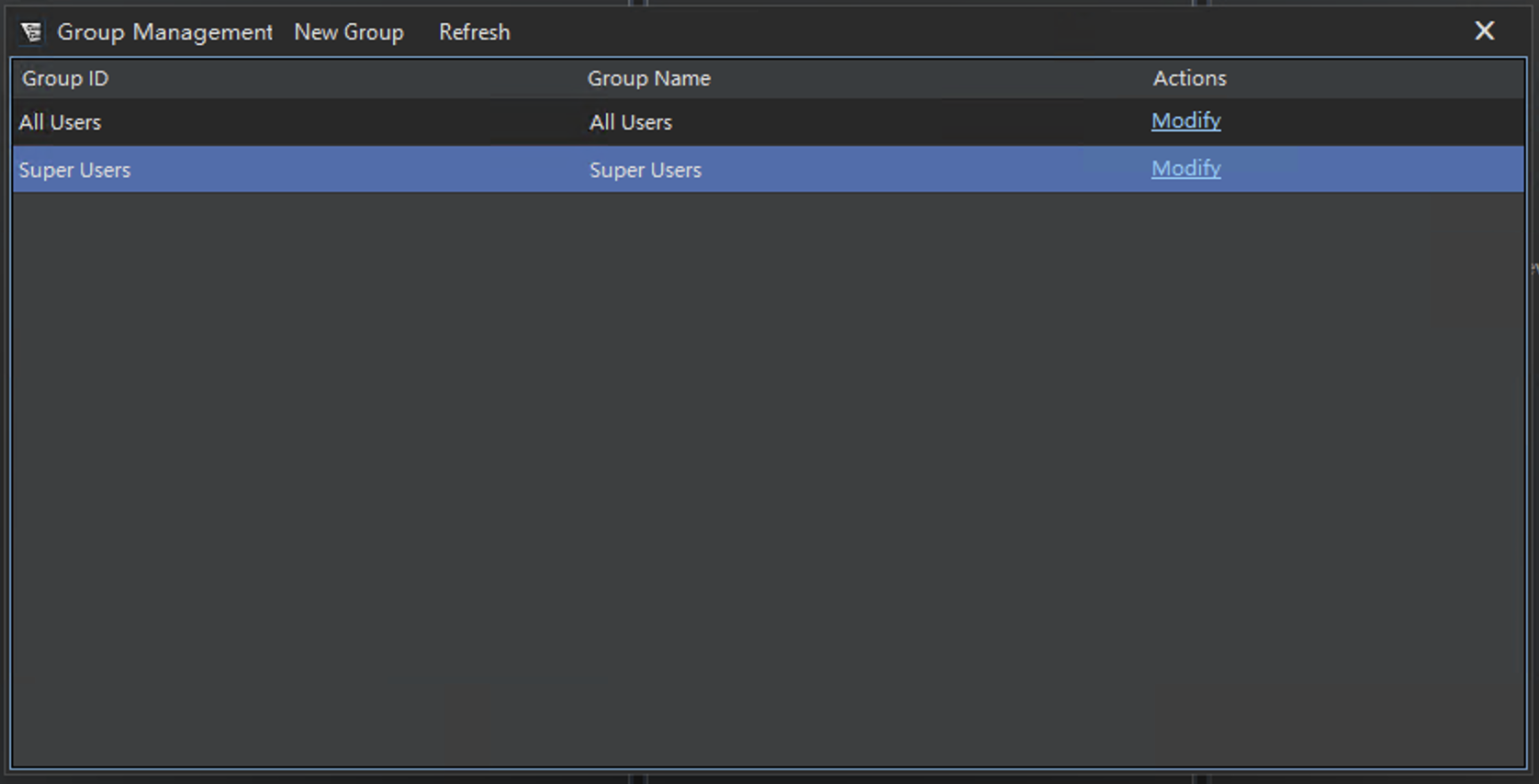
Manage user groups from the desktop client:
- Create groups - define organizational or functional groups
- Delete groups - remove groups that are no longer needed
- Add/remove members - assign users to groups or remove them
- View membership - see which users belong to a group
System Groups
| Group | Cannot Be Deleted | Purpose |
|---|---|---|
| Project Administrators | Yes | Members have Manager access to all projects |
| Project Creators | Yes | Members can create new projects |
User Management
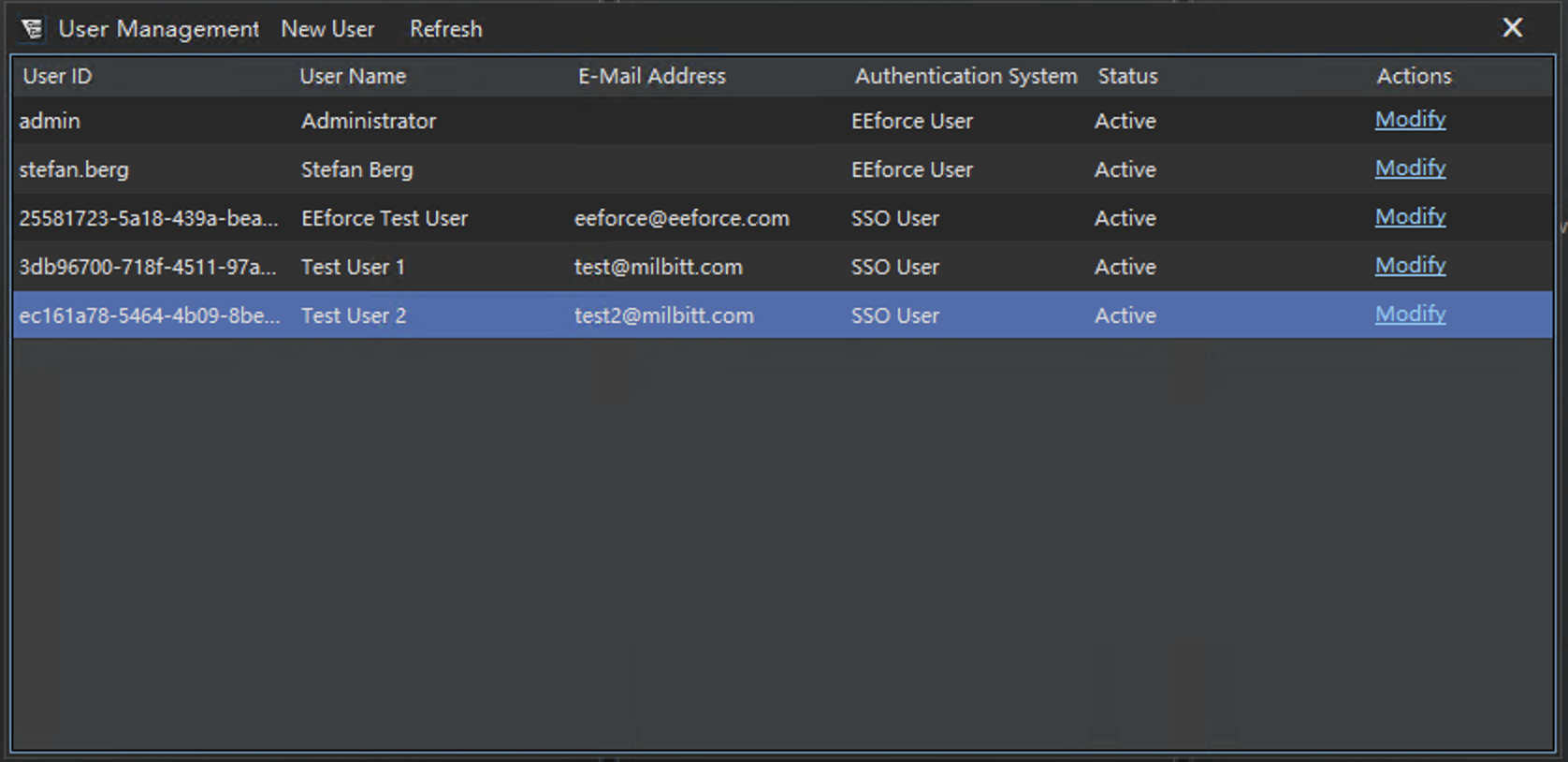
Manage user accounts:
- Create users - add new user accounts with a username, display name, and password
- Modify users - update display name, reset password, change group memberships
- Disable/delete users - remove access for users who have left
SSO/LDAP Users
Users authenticated through SSO or LDAP have their identity managed externally. You can modify their group memberships in EEforce but cannot change their credentials.
LDAP Configuration
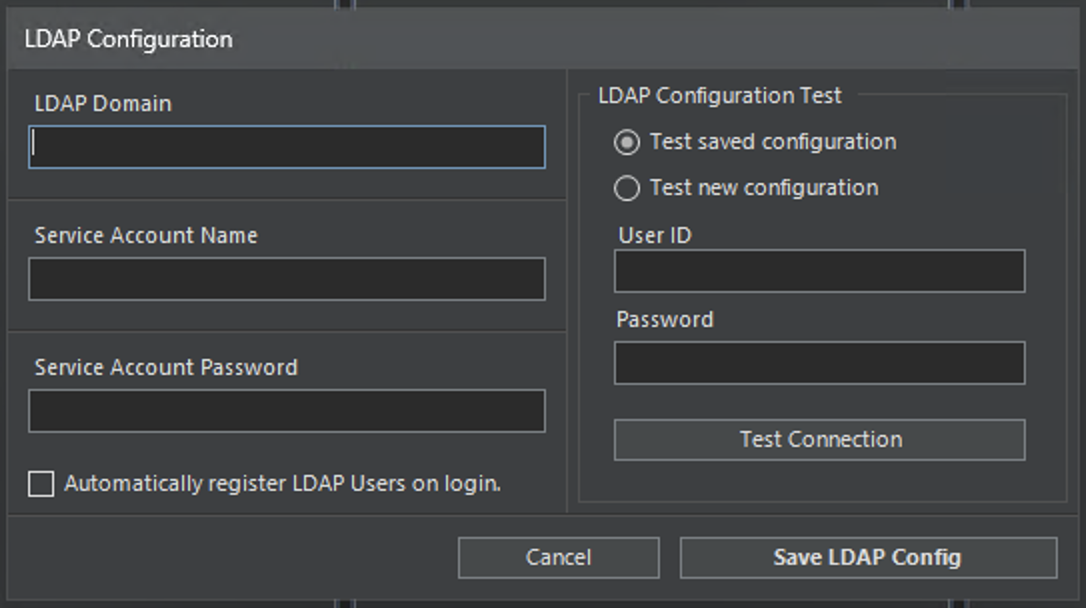
Configure Active Directory / LDAP integration:
| Setting | Description |
|---|---|
| LDAP Domain | The Active Directory domain to connect to |
| Service Account | Credentials used to query the directory |
| Auto-Register on Login | Automatically create EEforce accounts for LDAP users when they first log in |
| Group Linking | Link EEforce groups to AD groups for automatic membership sync |
Use the Test Connection button to verify your LDAP configuration before saving.
TIP
When auto-registration is enabled, new users can log in with their AD credentials without any manual account creation. Their EEforce account is created automatically on first successful authentication.
SSO Configuration
Single Sign-On configuration is only available from the Web Admin Interface. The desktop client does not support SSO setup.
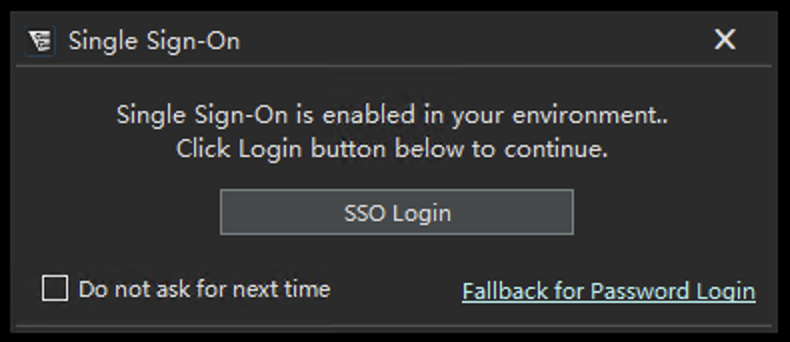
Once SSO is configured on the server, the client login screen will show an SSO option alongside traditional username/password authentication.