

Appearance
Web Administration Interface
The EEforce Web Admin provides a browser-based interface for system administration. It is designed for IT administrators and does not require any software installation beyond a modern web browser.
Access URL
Navigate to http://<SERVER-ADDRESS>/Admin in your browser.
Login
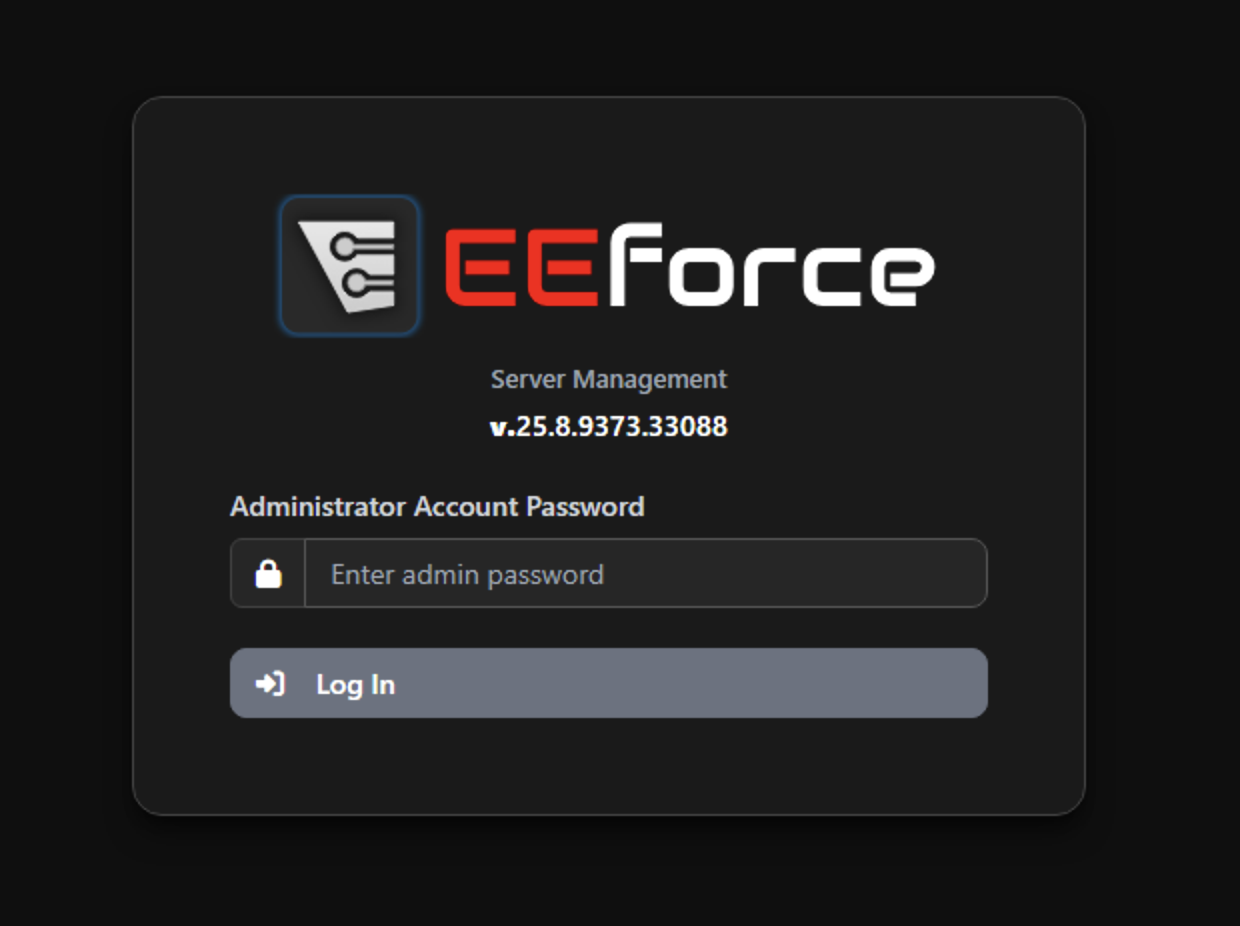
Enter the administrator password to access the interface. The web admin is restricted to users with administrator privileges.
Dashboard
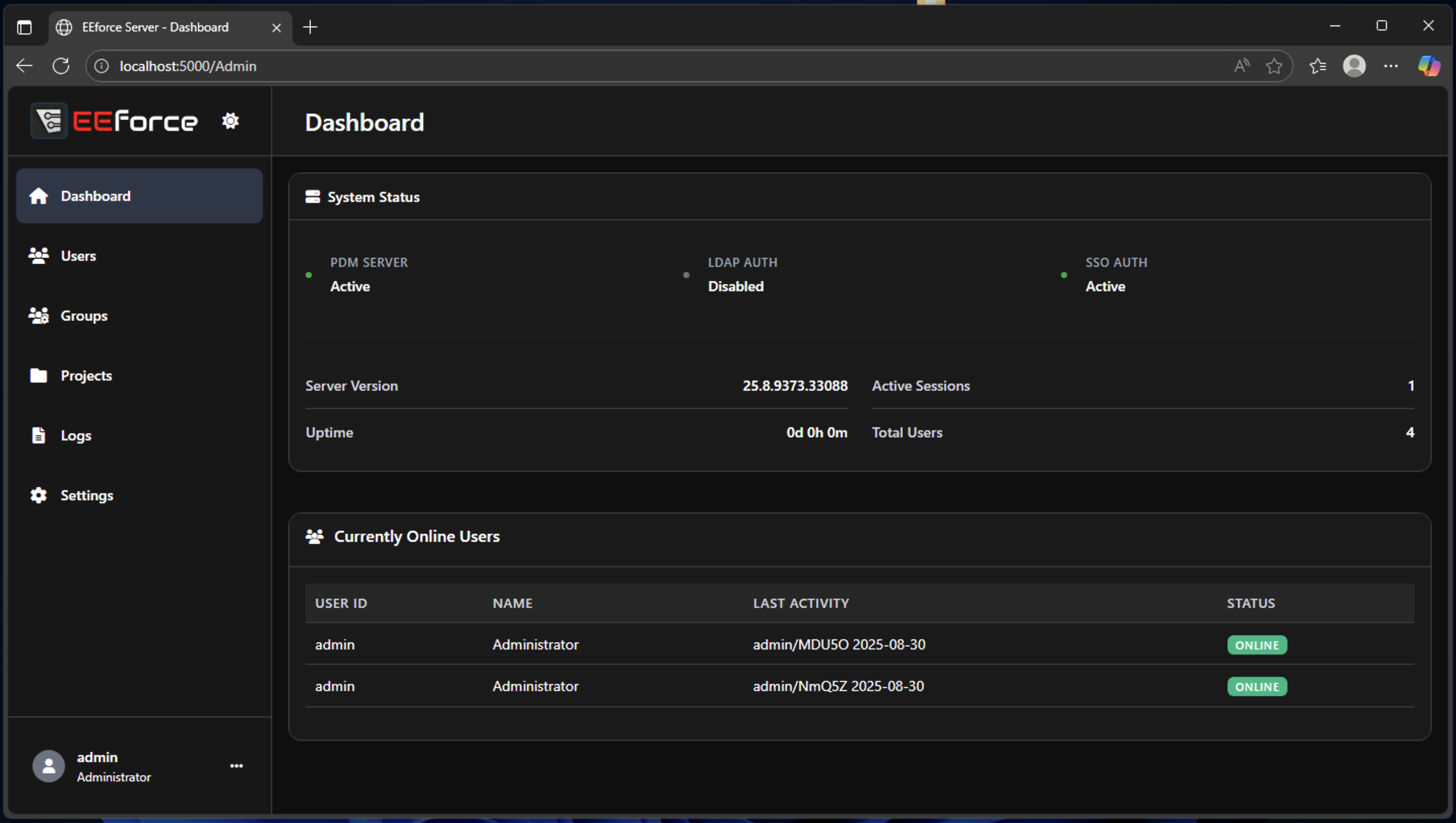
The Dashboard provides a real-time overview of server status:
- System Status - server version, uptime, and service indicators (PDM Server, LDAP Auth, SSO Auth)
- Active Sessions - number of currently active user sessions
- Currently Online Users - table showing logged-in users with their last activity
User Management
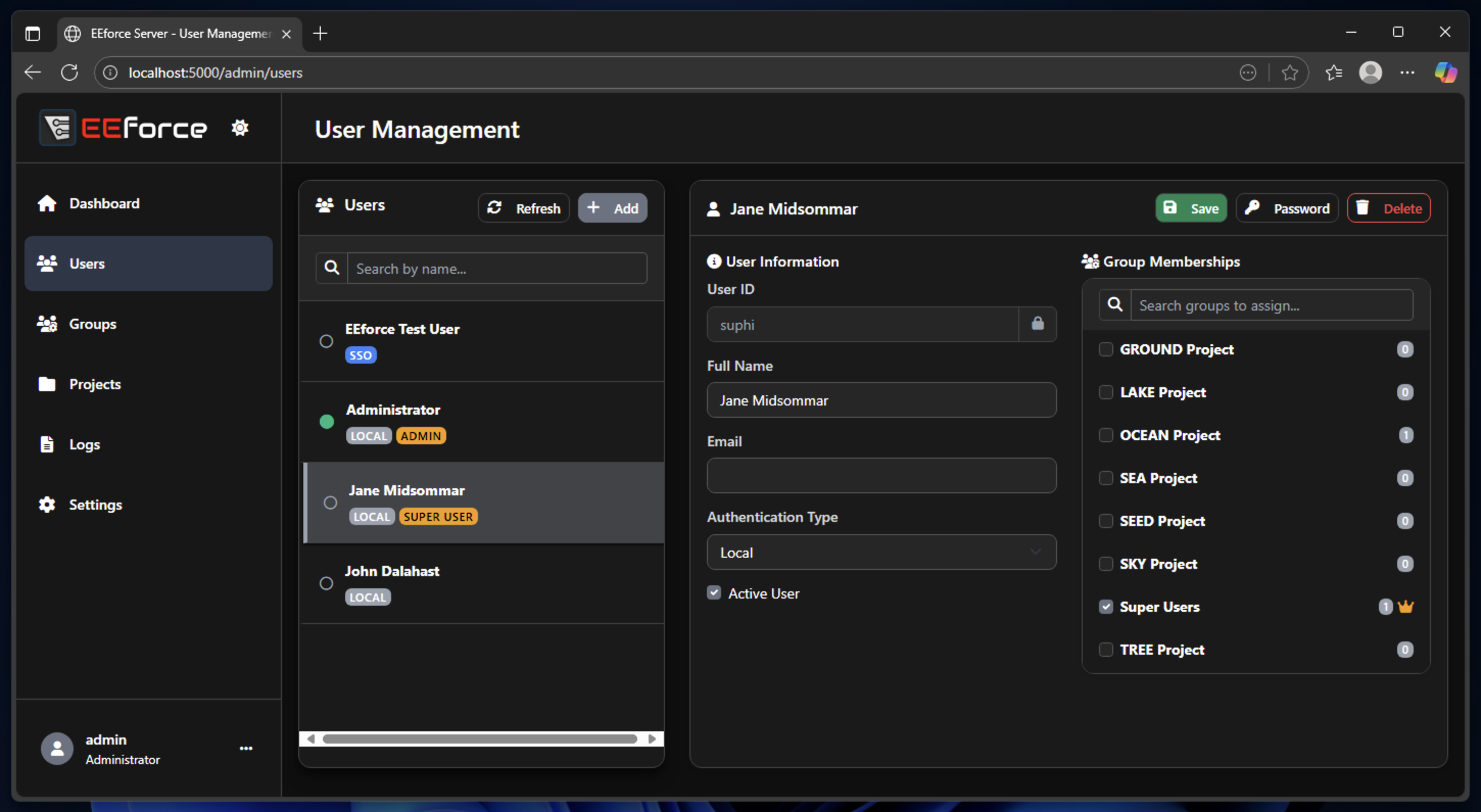
Manage user accounts from this page:
| Action | How |
|---|---|
| Create a user | Click the "Add" button, fill in user ID, name, and password |
| Edit a user | Select from the list, modify name or group memberships |
| Delete a user | Select from the list, click delete |
| Reset password | Select the user, enter a new password |
SSO Users
Users provisioned through SSO or LDAP cannot have their credentials modified here - they are managed by the external identity provider.
Group Management
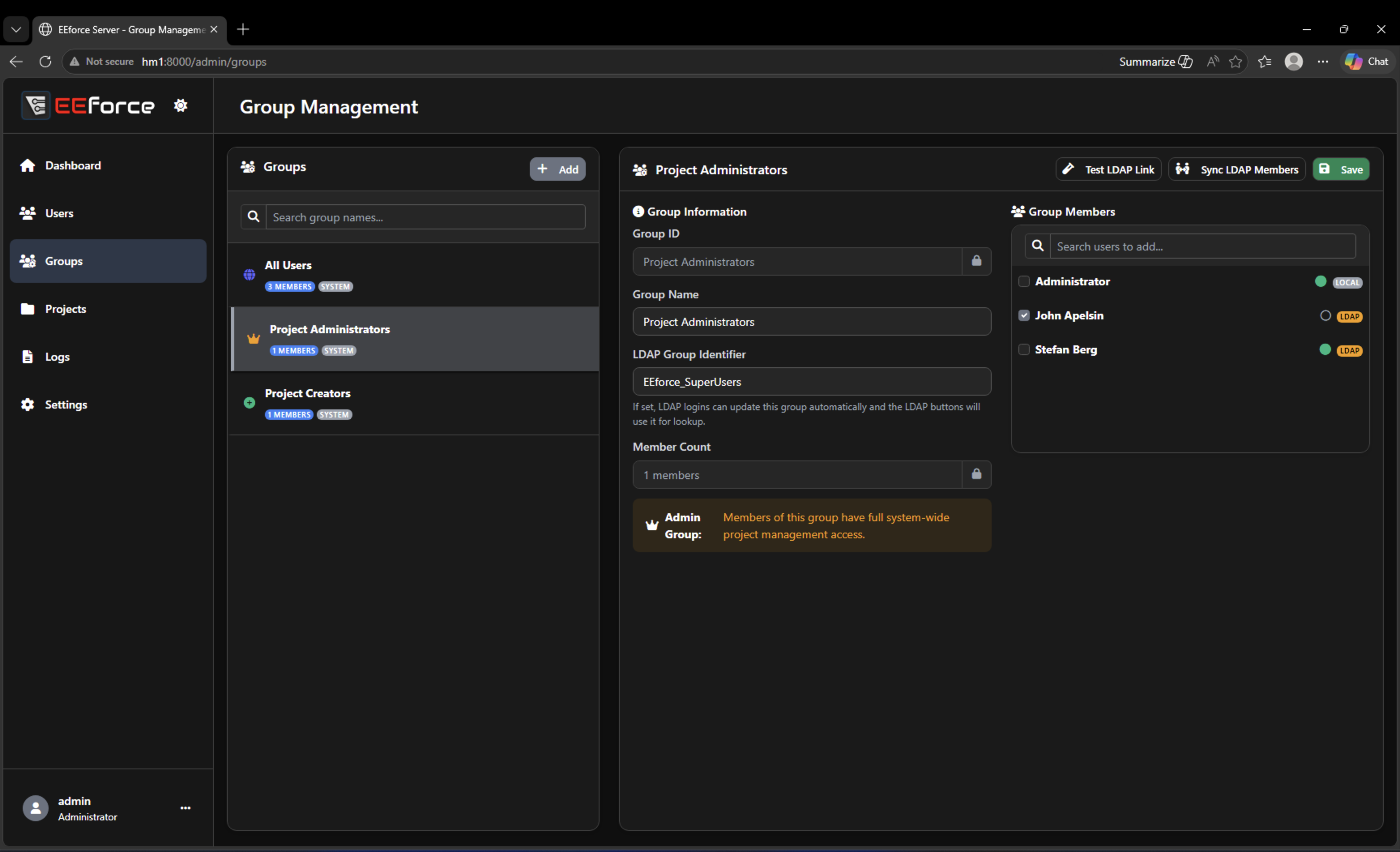
Manage groups and their memberships:
| Action | How |
|---|---|
| Create a group | Click "Add", enter group name |
| Add members | Select a group, add users from the member panel |
| Remove members | Select a group, remove users from the member list |
| Delete a group | Select from the list, click delete |
System Groups
These groups have special meaning and cannot be deleted:
| Group | Purpose |
|---|---|
| Project Administrators | Members have Manager access to all projects |
| Project Creators | Members can create new projects |
Project Management
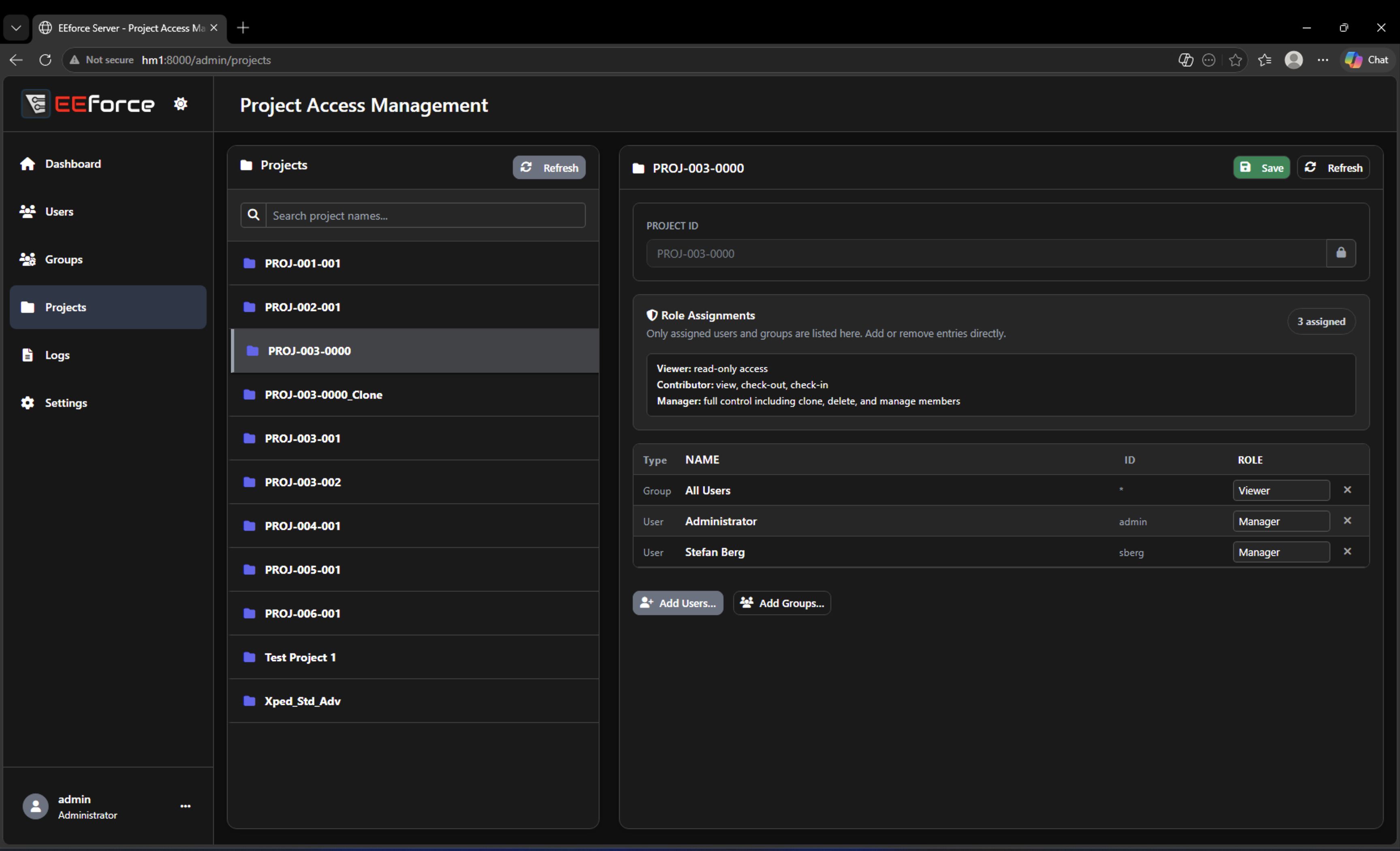
View and manage role assignments for existing projects:
| Action | How |
|---|---|
| View assignments | Select a project to see its current role assignments |
| Add user/group | Add entries with a specific role (Viewer, Contributor, Manager) |
| Change role | Modify the role dropdown for existing assignments |
| Remove assignment | Set role to No Access or remove the entry |
| Save changes | Click Save to persist modifications |
Limitations
Creating, deleting, and renaming projects is only available from the desktop client. These operations involve vault filesystem changes that require the controlled environment of the client application.
Logs
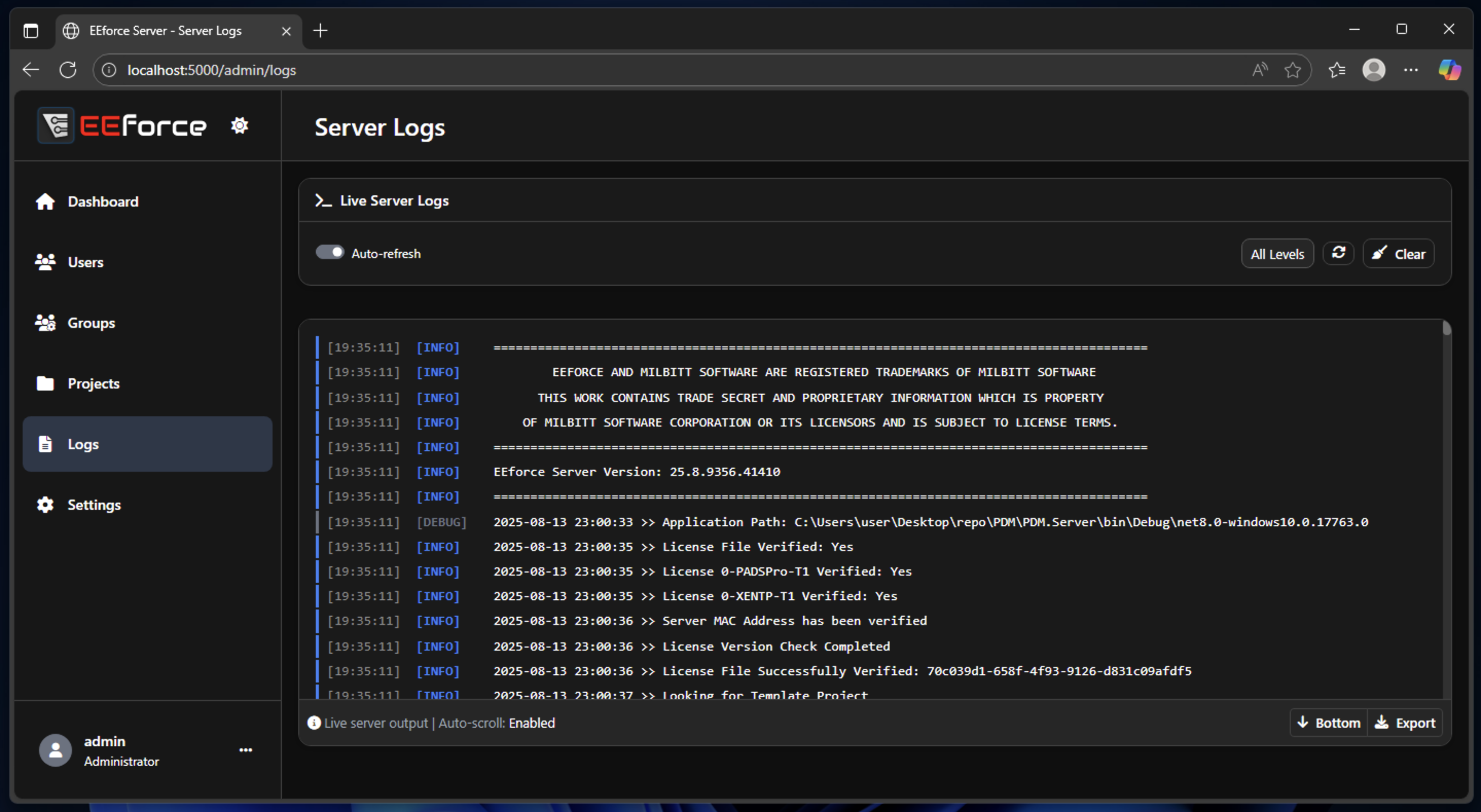
The Logs page displays server-side activity in real time:
- User login/logout events
- Check-in/check-out operations
- Administrative actions
- Error messages and warnings
Use the log view for:
- Troubleshooting connection or permission issues
- Auditing who accessed or modified what
- Debugging unexpected behavior
Settings
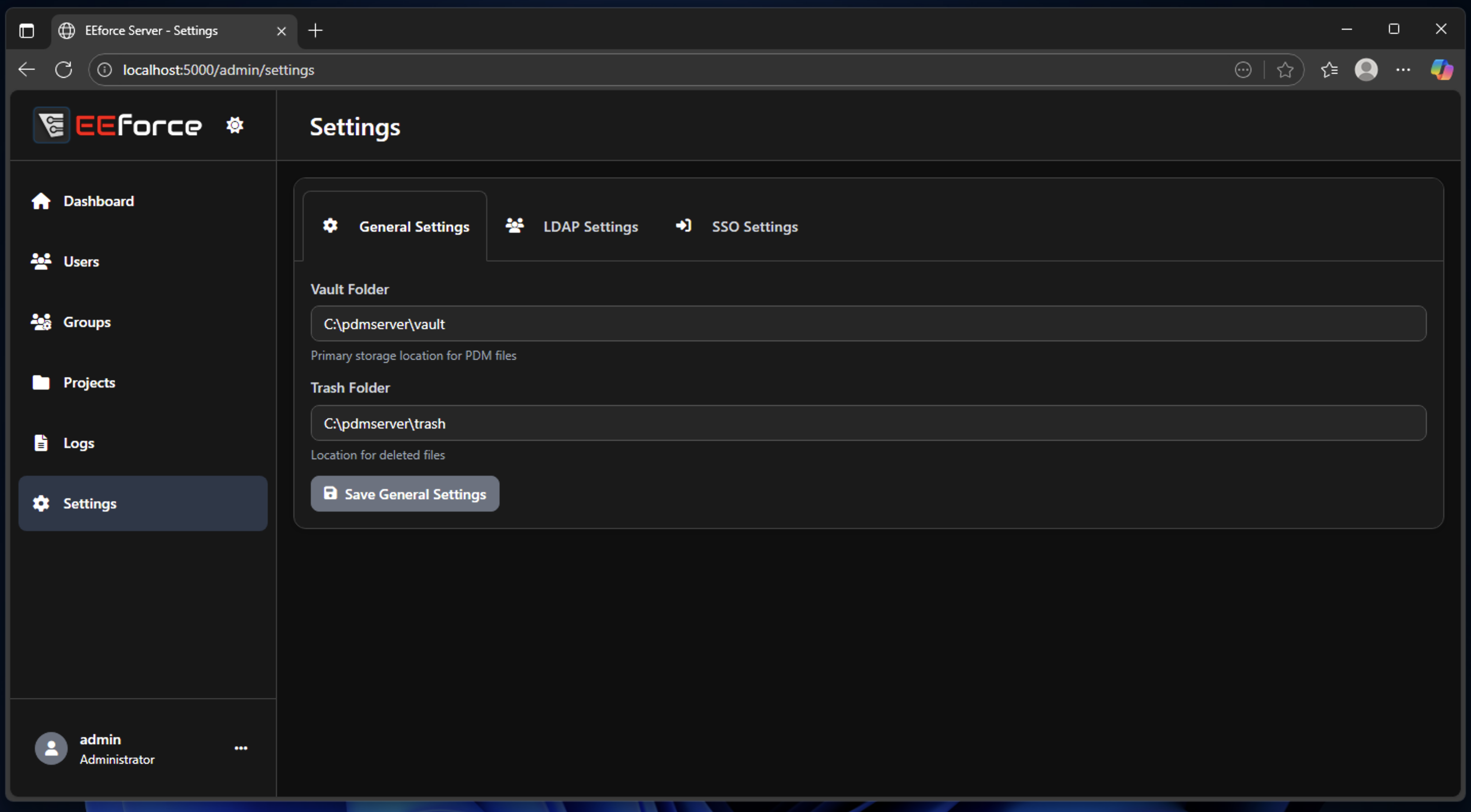
Configure server-wide settings:
| Setting | Notes |
|---|---|
| Vault / Trash folders | Storage paths for design files and deleted items |
| LDAP configuration | Domain, service account, auto-provisioning |
| SSO configuration | Identity provider settings, callback URLs |
LDAP Configuration
Configure Active Directory integration:
- Domain - the AD domain to authenticate against (e.g.,
corp.example.com) - Use Secure Socket Layer (SSL) - connect via LDAPS (port 636) instead of plain LDAP
- Service Account UID / Password - credentials used to query the directory
- Auto-register LDAP users on first login - automatically create EEforce accounts on first successful authentication
- Test LDAP Connection - built-in test panel to verify configuration
SSO Configuration
Configure OpenID Connect (OIDC) identity provider integration. See SSO Integration for detailed setup instructions.
Server Restart
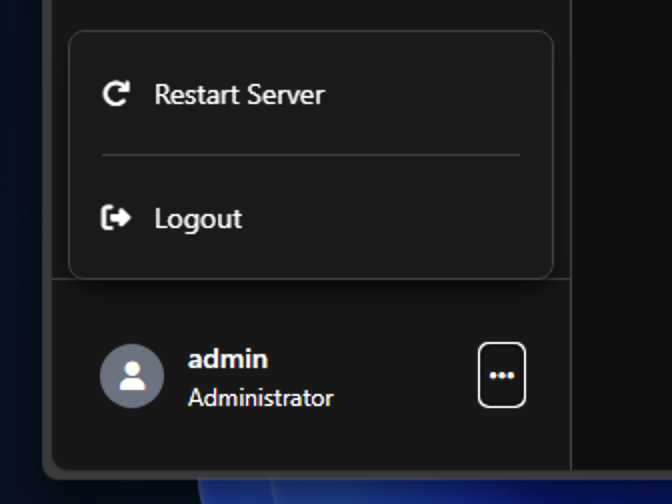
Click the three-dot menu in the bottom-left corner -> Restart Server.
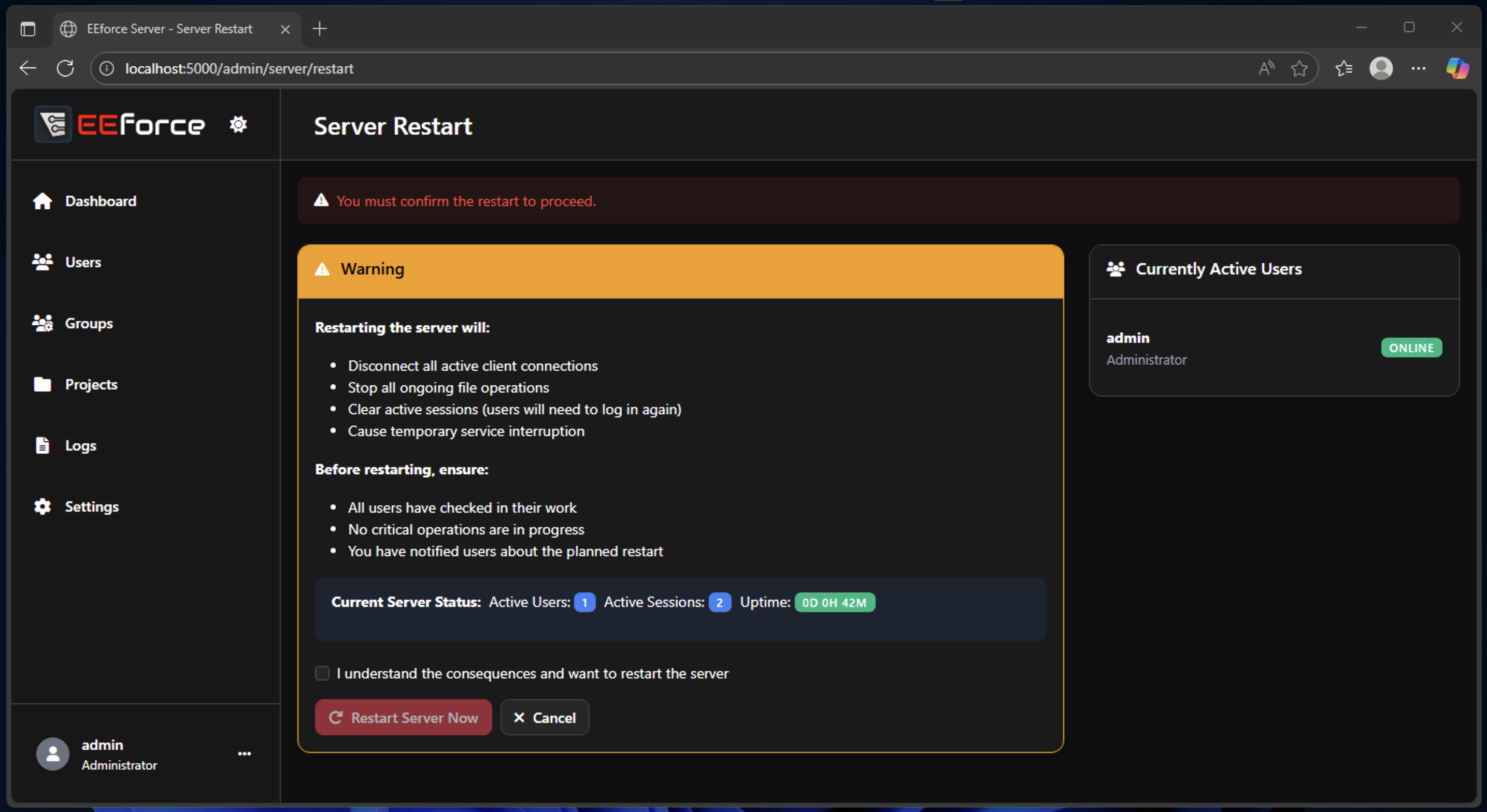
WARNING
Restarting the server disconnects all active users. Ensure all users have completed their work (no active check-ins in progress) before restarting.
Logging Out
Click the three-dot menu in the bottom-left corner -> Logout.